> ## Documentation Index
> Fetch the complete documentation index at: https://docs.runchat.com/llms.txt
> Use this file to discover all available pages before exploring further.
# Artifacts
> Browse, edit, and publish blog posts, websites, and slides generated by Runchat workflows
The Artifacts page in the [Runchat Dashboard](https://runchat.com/dashboard/artifacts) lets you browse, search and manage all published content generated with Runchat. This includes blog posts, websites, and slide presentations. Artifacts are typically produced by an [Artifact node](/node-reference/nodes/artifact) inside a workflow, then refined and published from the dashboard.
## A live example
Here's a working artifact published from a workflow. Click into it to see how it renders to a public visitor:
## Choosing a handle
The first time you open the Artifacts dashboard you'll be prompted to choose a handle. Your handle determines the URL where your artifacts are visible. All published artifacts live on the public web at `https://runchat.com/p//`.
## Editing an artifact
Click the **Edit** button next to an artifact to open the markdown or code editor. From here you can refine the text, layout, or styling. Useful when the artifact was produced by a workflow as a draft and needs human polish.
If the artifact has multiple files (e.g. a website with HTML, CSS, and JS), select files from the files menu in the editor toolbar.
### Metadata
Open the **Metadata** panel from the editor menu to set:
* Page name
* Thumbnail
* Description
* Author
These fields are used by search engines and link unfurlers when your artifact is shared.
## Previews
For websites, click the preview button to toggle between the code editor and the rendered HTML. Useful for quickly reviewing code changes before publishing.
## Publishing
Click the **Publish** button in the editor toolbar to save your changes and push them to the public web. The artifact URL is `https://runchat.com/p//`.
## Next steps
* [Artifact node](/node-reference/nodes/artifact): generate artifacts automatically from a workflow
* [Build and publish an artifact](/examples/build-and-publish-an-app): worked example of building an artifact end-to-end
* [App view](/concepts/publishing/app-view): the alternative when you want a workflow-backed UI rather than static published content
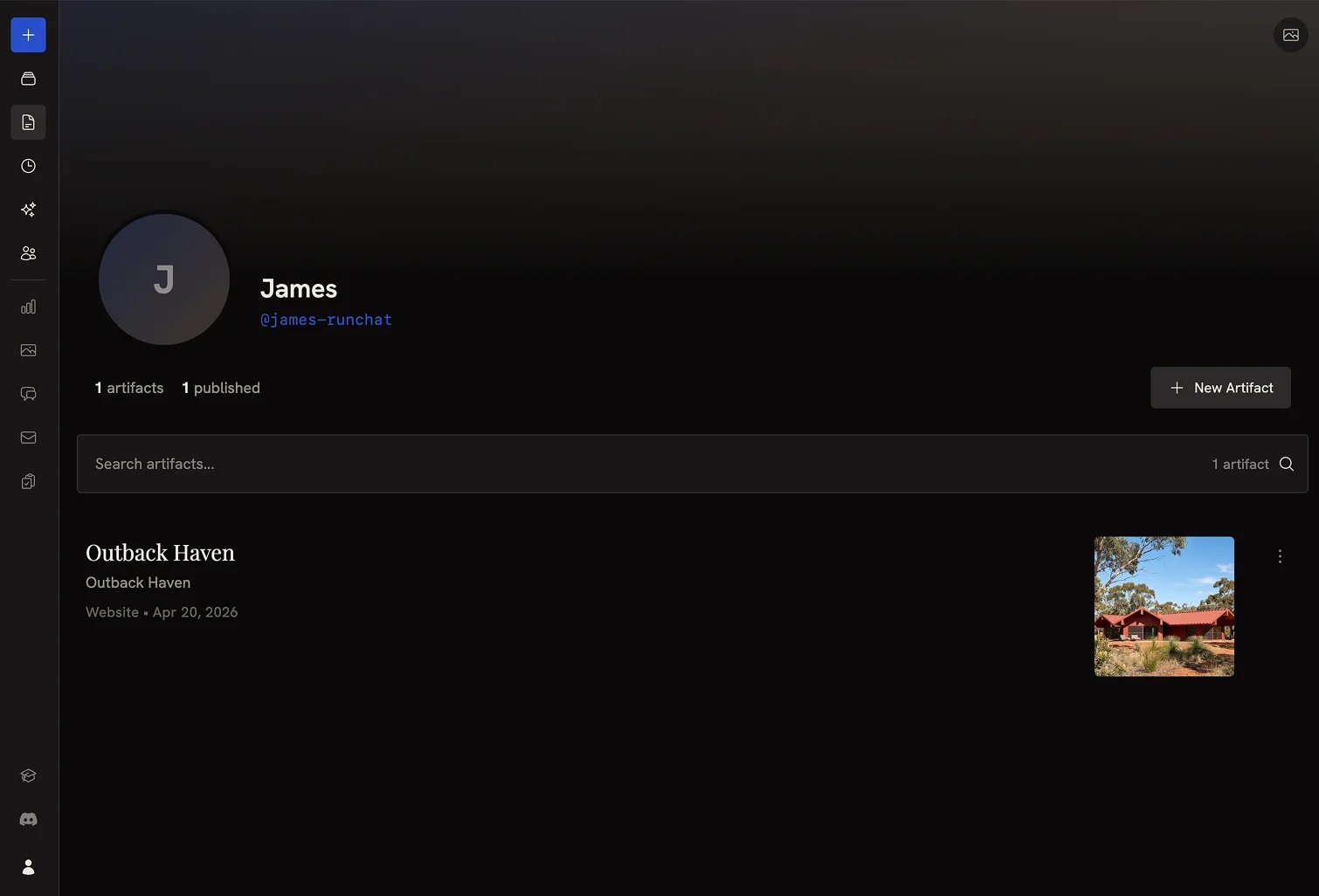 ## A live example
Here's a working artifact published from a workflow. Click into it to see how it renders to a public visitor:
## Choosing a handle
The first time you open the Artifacts dashboard you'll be prompted to choose a handle. Your handle determines the URL where your artifacts are visible. All published artifacts live on the public web at `https://runchat.com/p/
## A live example
Here's a working artifact published from a workflow. Click into it to see how it renders to a public visitor:
## Choosing a handle
The first time you open the Artifacts dashboard you'll be prompted to choose a handle. Your handle determines the URL where your artifacts are visible. All published artifacts live on the public web at `https://runchat.com/p/