> ## Documentation Index
> Fetch the complete documentation index at: https://docs.runchat.com/llms.txt
> Use this file to discover all available pages before exploring further.
# Running and Debugging
> Run nodes individually or as a selection, read node states, lock results, estimate credit costs before running, and recover from errors with the chat agent.
You can tell a lot about what's happening on the canvas just by looking at the nodes. This page covers how to run them, what their states mean, how to lock results, and how to read errors when they happen.
## Running nodes
There are two ways to run what's on your canvas:
| How | What it does |
| ------------------------------------ | ---------------------------------------------------- |
| Play button on a node | Runs just that one node |
| Play button on the selection toolbar | Runs every node you've selected, in dependency order |
When you run a selection, Runchat figures out the right order automatically: upstream nodes run before downstream ones.
## Reading node states
You can tell what's happening just by looking at a node's border. When a node finishes successfully, the card flips to show its output preview.
| State | What it looks like | What it means |
| ------- | ----------------------- | ----------------------------- |
| Idle | Light gray border | Ready to run |
| Running | Glowing blue border | Working on it right now |
| Error | Red border + alert icon | Something went wrong |
| Locked | Slightly transparent | Won't re-run, can't be edited |
### Locking results
When you've got a result you're happy with, lock the node using the lock button in its toolbar. It goes slightly transparent, and from then on it won't re-run and its settings can't be changed. This is great for protecting work while you experiment with the rest of the workflow.
## Credit estimates
Before you run anything, hover the play button to see an estimated cost: a lightning bolt icon with a number. On a single node it's the cost for that node; on the selection toolbar it's the total across everything selected.
It's an estimate, not a promise, but it'll get you in the right ballpark.
When a run is going to cost more than 1,000 credits, the bolt turns orange. It's a heads-up, not a block. See [Cost warnings](/concepts/credits#cost-warnings) for details.
## Reading errors
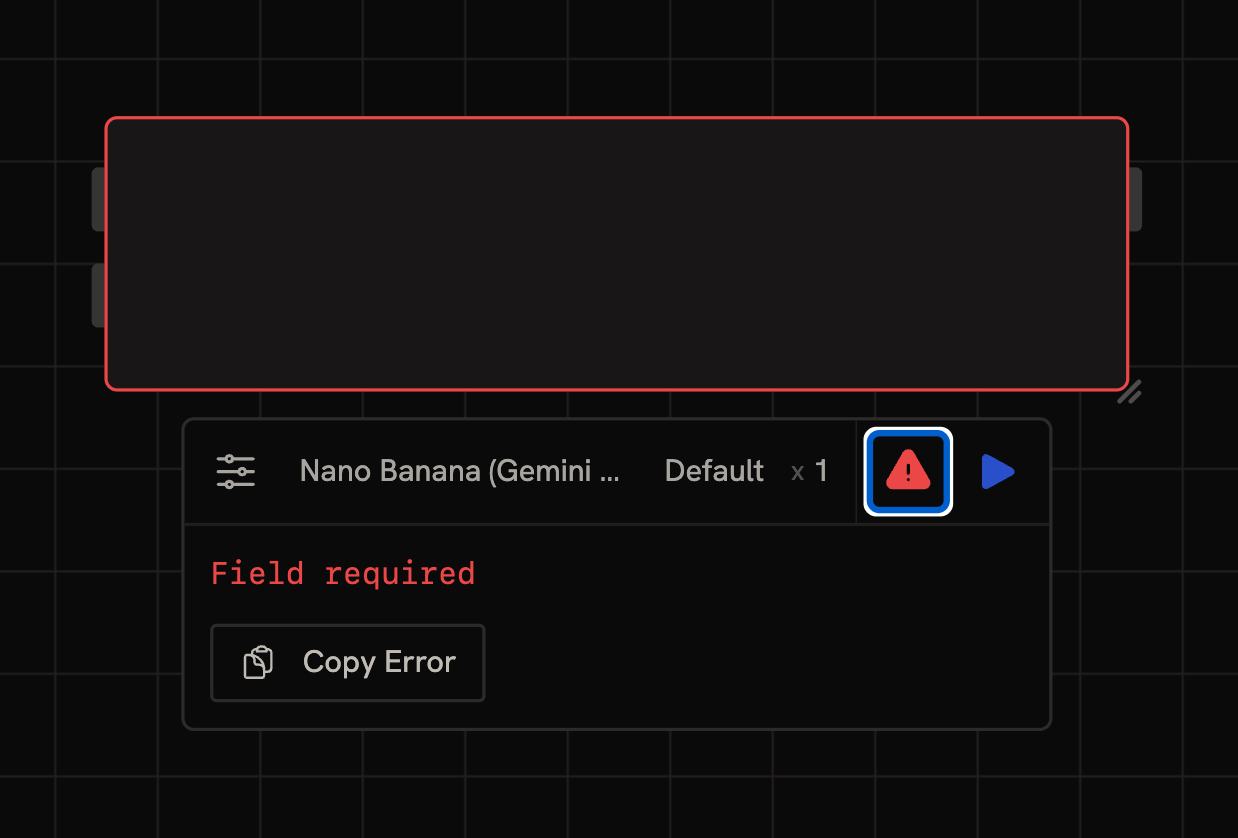
If a node errors out, its border turns red and an alert icon appears on the info button.
Click the info button to open the panel. It shows:
* The error message in plain English
* Suggested next steps, like "buy more credits" or "check your API key"
* A copy button to grab the full error
The info panel is your first stop whenever something isn't behaving the way you expect. Most fixes are obvious from the message: a missing input, an empty prompt, or an expired credential.
If you're stuck, copy the error and ask in [Discord](https://discord.gg/2KXUBZNZ4e).
## Ask the Chat Agent
The [Chat Agent](/concepts/agents/chat) can read your canvas, including the error state of any node. Select the failing node and ask the agent to take a look. It can read the error message, inspect upstream inputs, suggest a fix, and in many cases apply the fix directly by editing parameters or rewiring the workflow.
This is often faster than debugging manually for issues like missing references, type mismatches, or empty inputs. See the [agent capabilities](/concepts/agents/capabilities) reference for what it can read and edit.
## Quick checklist
Before running something expensive:
* Have I checked the credit estimate on the play button?
* If the bolt is orange, do I really want to run it?
* Are the nodes I care about locked so they don't re-run accidentally?
* Have I tested with a cheap model first?
When something goes wrong:
* Click the info button on the red node
* Read the error message, most fixes are obvious from it
* Select the failing node and ask the [Chat Agent](/concepts/agents/chat) to take a look
* Copy the error and post in [Discord](https://discord.gg/2KXUBZNZ4e) if you're still stuck
## Next steps
* [Connecting Nodes](/concepts/editor/connecting-nodes): wire data between nodes with edges, references, and published parameters
* [Credits](/concepts/credits): how cost is calculated and how to control it
 Click the info button to open the panel. It shows:
* The error message in plain English
* Suggested next steps, like "buy more credits" or "check your API key"
* A copy button to grab the full error
The info panel is your first stop whenever something isn't behaving the way you expect. Most fixes are obvious from the message: a missing input, an empty prompt, or an expired credential.
If you're stuck, copy the error and ask in [Discord](https://discord.gg/2KXUBZNZ4e).
## Ask the Chat Agent
The [Chat Agent](/concepts/agents/chat) can read your canvas, including the error state of any node. Select the failing node and ask the agent to take a look. It can read the error message, inspect upstream inputs, suggest a fix, and in many cases apply the fix directly by editing parameters or rewiring the workflow.
This is often faster than debugging manually for issues like missing references, type mismatches, or empty inputs. See the [agent capabilities](/concepts/agents/capabilities) reference for what it can read and edit.
## Quick checklist
Before running something expensive:
* Have I checked the credit estimate on the play button?
* If the bolt is orange, do I really want to run it?
* Are the nodes I care about locked so they don't re-run accidentally?
* Have I tested with a cheap model first?
When something goes wrong:
* Click the info button on the red node
* Read the error message, most fixes are obvious from it
* Select the failing node and ask the [Chat Agent](/concepts/agents/chat) to take a look
* Copy the error and post in [Discord](https://discord.gg/2KXUBZNZ4e) if you're still stuck
## Next steps
* [Connecting Nodes](/concepts/editor/connecting-nodes): wire data between nodes with edges, references, and published parameters
* [Credits](/concepts/credits): how cost is calculated and how to control it
Click the info button to open the panel. It shows:
* The error message in plain English
* Suggested next steps, like "buy more credits" or "check your API key"
* A copy button to grab the full error
The info panel is your first stop whenever something isn't behaving the way you expect. Most fixes are obvious from the message: a missing input, an empty prompt, or an expired credential.
If you're stuck, copy the error and ask in [Discord](https://discord.gg/2KXUBZNZ4e).
## Ask the Chat Agent
The [Chat Agent](/concepts/agents/chat) can read your canvas, including the error state of any node. Select the failing node and ask the agent to take a look. It can read the error message, inspect upstream inputs, suggest a fix, and in many cases apply the fix directly by editing parameters or rewiring the workflow.
This is often faster than debugging manually for issues like missing references, type mismatches, or empty inputs. See the [agent capabilities](/concepts/agents/capabilities) reference for what it can read and edit.
## Quick checklist
Before running something expensive:
* Have I checked the credit estimate on the play button?
* If the bolt is orange, do I really want to run it?
* Are the nodes I care about locked so they don't re-run accidentally?
* Have I tested with a cheap model first?
When something goes wrong:
* Click the info button on the red node
* Read the error message, most fixes are obvious from it
* Select the failing node and ask the [Chat Agent](/concepts/agents/chat) to take a look
* Copy the error and post in [Discord](https://discord.gg/2KXUBZNZ4e) if you're still stuck
## Next steps
* [Connecting Nodes](/concepts/editor/connecting-nodes): wire data between nodes with edges, references, and published parameters
* [Credits](/concepts/credits): how cost is calculated and how to control it