> ## Documentation Index
> Fetch the complete documentation index at: https://docs.runchat.com/llms.txt
> Use this file to discover all available pages before exploring further.
# Subflows
> Expand Runchat and Agent nodes with tool calls to view and edit their internal state
## Expanding and collapsing Runchat nodes
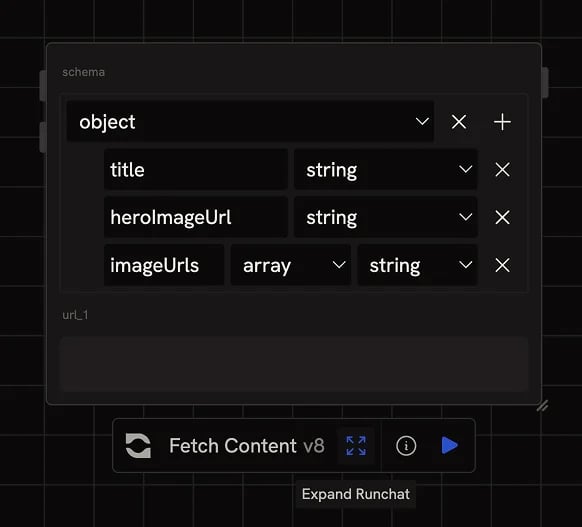 You can publish any Runchat workflow to a library and then use it as a node within another workflow. We call these nodes Tools. After you run a Tool in a workflow, the internal state of the tool (all input and output parameters) is saved on that node. You can view this internal state (called a subflow) to see exactly how data flowed through the logic of the tool by clicking the expand icon in the node settings bar. Click the button again to collapse the workflow back into a single node.
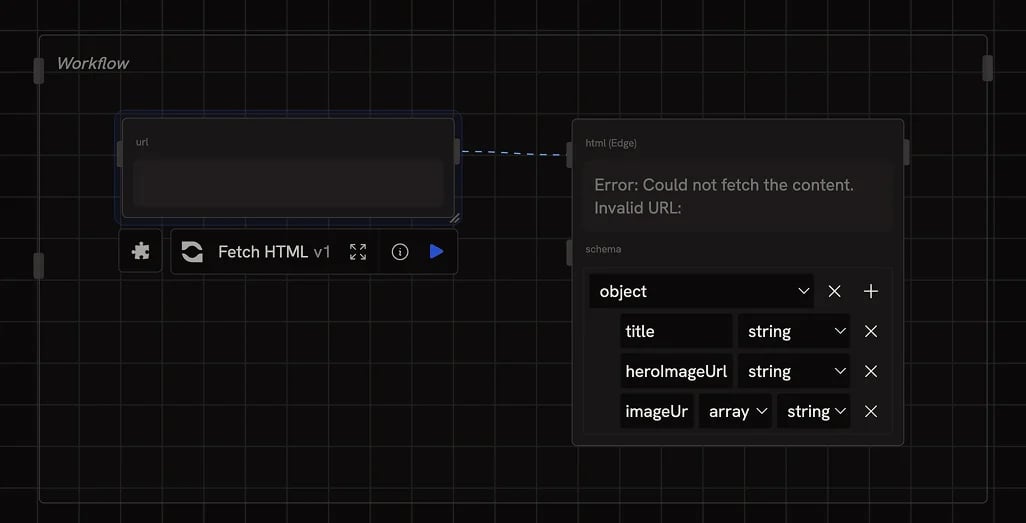 The expand and collapse toggle is disabled until you run the Runchat and create some internal state to view.
## Expanding and collapsing Agent nodes
You can also expand the `Agent` node to view the internal state of any Tools used by that node to return a response to your prompt. First, add tools to the `Agent` node in the node settings bar, then run the node. If a tool was used you will then be able to expand the `Agent` node using the expand button in the settings bar.
## Internal state
The expanded view shows the internal state of the tool when it was last run.
If you run the parent node (`Agent` or Runchat) again, the inputs and outputs of the child nodes will update to reflect this new state. This is a useful diagnostic tool for detecting bugs in workflow logic or flaws in prompts.
## Editing subflows
You can make changes to nodes in a subflow (e.g. to `Code` or `Agent` nodes) and these will be saved as a custom override to the Tool. This is useful for quickly exploring variations on prompts or fixing bugs.
The expand and collapse toggle is disabled until you run the Runchat and create some internal state to view.
## Expanding and collapsing Agent nodes
You can also expand the `Agent` node to view the internal state of any Tools used by that node to return a response to your prompt. First, add tools to the `Agent` node in the node settings bar, then run the node. If a tool was used you will then be able to expand the `Agent` node using the expand button in the settings bar.
## Internal state
The expanded view shows the internal state of the tool when it was last run.
If you run the parent node (`Agent` or Runchat) again, the inputs and outputs of the child nodes will update to reflect this new state. This is a useful diagnostic tool for detecting bugs in workflow logic or flaws in prompts.
## Editing subflows
You can make changes to nodes in a subflow (e.g. to `Code` or `Agent` nodes) and these will be saved as a custom override to the Tool. This is useful for quickly exploring variations on prompts or fixing bugs.