

- Shared workflows: all team members can view and edit workflows created by anyone on the team
- Real-time collaboration: see each other’s cursors, chat on the canvas, and edit simultaneously
- Shared credits: pool credits from a subscription so the whole team can use them
- Centralized management: invite members, assign roles, set credit limits, and control model access from one place
Each user can only belong to one team at a time, and credits will be managed
by the team owner. See Subscriptions for
details.
Creating a team
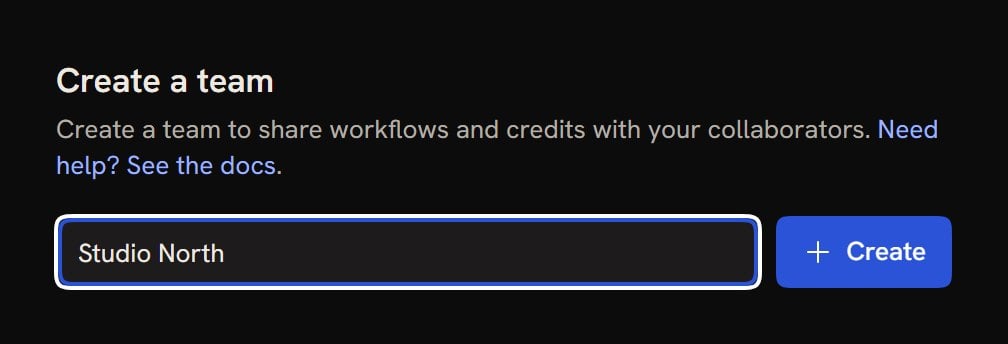
Open the account menu and click Create team. Under Create a team, enter a Team name and click Create. You’ll be assigned theowner role and your subscription will be shared with the team automatically.
The team page
Once you’re in a team, the account menu item reads Manage team and opens the team page. It shows:- A summary: Plan, Members, Seats, Credits remaining and when credits Resets
- Members, with each person’s Role, Access and credit Usage. Use Search members to find someone.
- Pending invitations and join requests
- The model whitelist, for owners on plans that include it
Inviting members
There are two ways to invite members to join the team: with an email invite or a public invite request link.Email Invites
On the team page, click Invite to open the Invite to team dialog. Enter one or more addresses under Emails (separate several with commas, spaces or new lines). Then choose a Role (Member or Admin), Access (Seat, Credits or Personal, see Subscriptions) and an optional Credit limit, and click Send invite.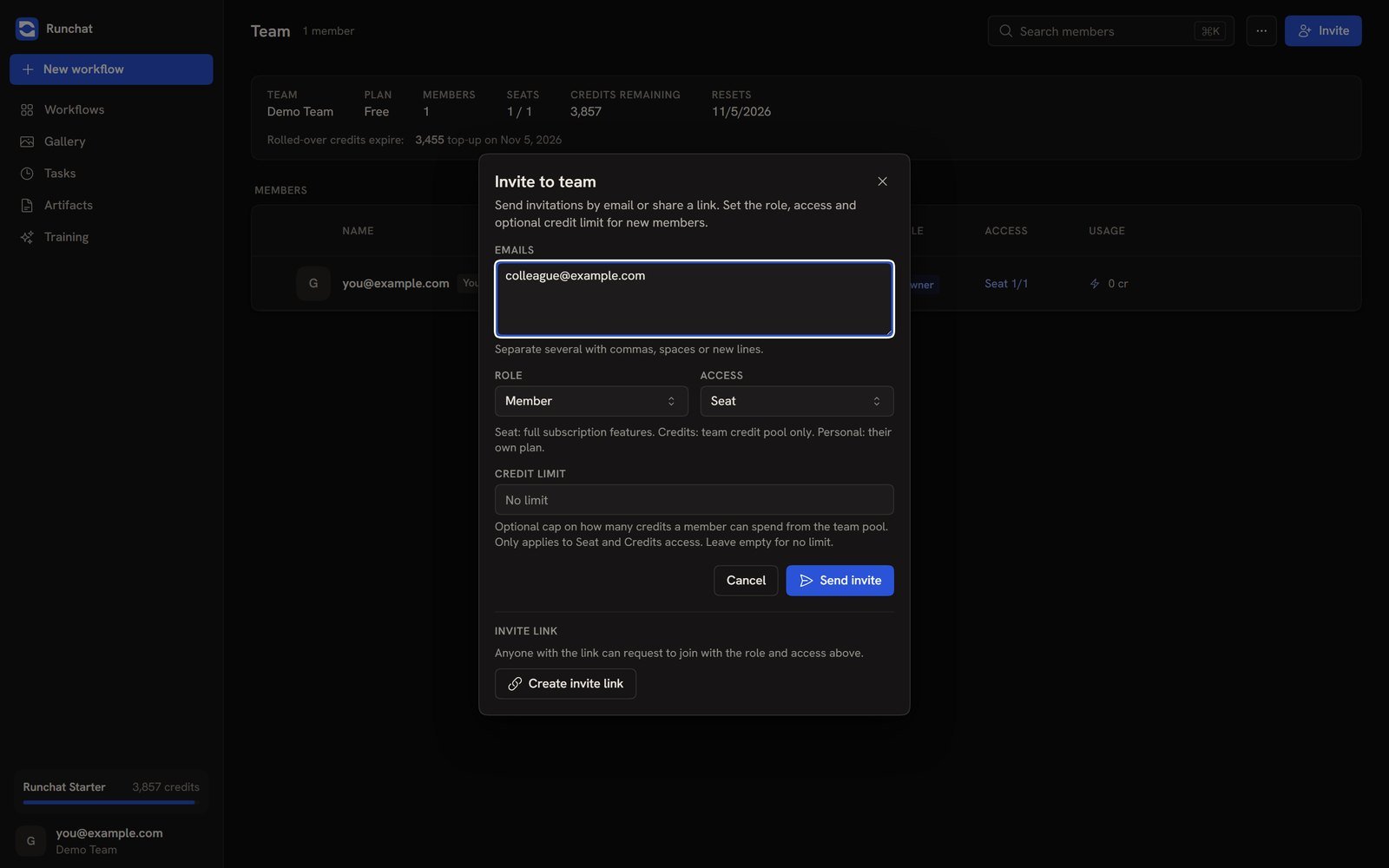
Invited users will also see the invitation under Team invites in their
account menu, where they can Accept or Decline it.
Invite Links
Invite links make it easy to invite many people to join the team, even if you don’t know their email address. Because invite links are public, anyone who joins your team with an invite link will first need to be approved by a team admin before they can access team resources and credits. To activate invite links, open the Invite to team dialog and click Create invite link under Invite link. People who join with the link get the role and access chosen above it. Click Copy link to copy it. You can use this link in an email, newsletter, social media post, website etc. To disable invite links, click Disable Link. Users who click the invite link will be taken to a page prompting them to sign up or log in to Runchat. They can then join the team. Pending invitations and join requests are listed on the team page under the members. Admins can open a request’s … menu and choose Approve request… or Decline request…, or select several requests and approve or decline them together from the selection bar.Roles
To transfer ownership, open a member’s … menu, choose Change role > Owner…, and confirm with Transfer ownership. You become an admin. If your subscription is shared with the team, it is removed from the team.
Collaboration
When multiple team members open the same workflow, Runchat activates real-time collaboration:- Presence: see other users’ display names and cursor positions on the canvas
- Cursor chat: type
/followed by a message and press enter to leave a temporary comment on the canvas - Live sync: changes are automatically saved and pushed to all connected users
Cursors are only visible for users who are signed in to Runchat.