> ## Documentation Index
> Fetch the complete documentation index at: https://docs.runchat.com/llms.txt
> Use this file to discover all available pages before exploring further.
# Custom LoRA models
> Train custom LoRA models on images from your workflows to capture specific styles or subjects
Training custom models requires a Hobby or Pro subscription
## When to reach for a LoRA
Reference images work well for photographic qualities and broad aesthetics. They average out when you try to capture a really specific subject or a distinctive visual language: an artist's work, your own illustration style, a unique architectural vocabulary.
A LoRA is a small adapter trained on 10-30 images. Once trained, every generation is biased toward that look without having to prompt for it. It is the difference between describing a style and showing the model enough examples that it learns the style itself.
For comparison: **ControlNets** enforce structure (depth maps, edges); **IP-Adapters** condition on a reference image without training. Different problems, often stacked. For capturing an aesthetic, a LoRA is the right tool.
## Training a LoRA
1. Open a workflow on the [Runchat Dashboard](https://runchat.com/dashboard) that has the images you want to train on. (Generate or upload them first if you don't have them yet.)
2. Hover over each image you want to include and click the checkbox in the corner to select it. Pick **10 to 20 images** that share either a consistent **style** or a consistent **subject**.
3. With images selected, click **Train LoRA** in the gallery selection toolbar at the top of the page.
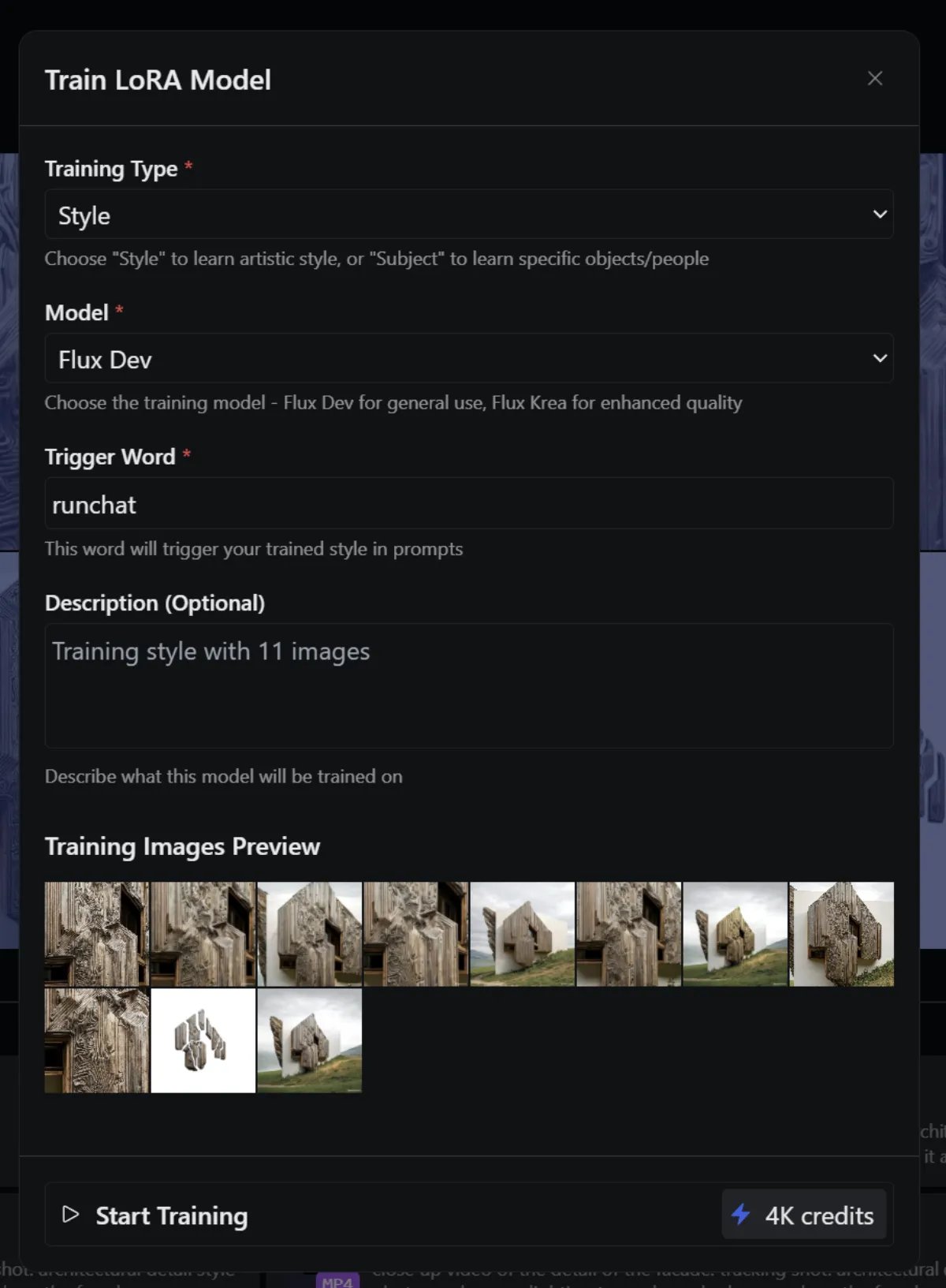
4. Configure the training options in the dialog and click **Start Training**.
Training is GPU intensive. Costs vary by base model: **Flux** is around 5,000 credits, **Flux Kontext** is 6,000, **Qwen Edit** is 10,000. The exact cost is shown in the training dialog before you confirm.
## Training configuration
* **Style / Subject**: train a style LoRA (look and feel) or a subject LoRA (a specific person or object)
* **Model**: which base model to train on. Options include Flux, Flux Kontext, and Qwen Edit. More appear as Fal adds them.
* **Trigger word**: a unique word that activates the LoRA in your prompts. Defaults to `runchat`. Pick something distinctive so it doesn't collide with regular vocabulary.
* **Description**: a label so you can find this LoRA later in your library
## Checking on a training run
Click **Start Training** to zip the images and submit the job. Track its status on the [Training](https://runchat.com/dashboard/training) page. Most runs finish in a few minutes.
## Using a trained LoRA
Once training completes:
1. Refresh your browser to reload your profile so the new LoRA appears in your library
2. In a workflow, add a Create node and switch its model to **Flux LoRA**
3. In the node's settings bar, click the LoRA dropdown (defaults to **No LoRA**) and pick your trained model
4. Include your trigger word somewhere in the prompt
5. Run the node to verify the LoRA produces the look you trained for
## Next steps
* [Train a custom LoRA](/examples/training-a-lora): a worked example with reference images and tuning tips
* [Models](/concepts/nodes/models): how to install and use generative models
* [Credits](/concepts/credits): full cost breakdown across model types
 ## Training configuration
* **Style / Subject**: train a style LoRA (look and feel) or a subject LoRA (a specific person or object)
* **Model**: which base model to train on. Options include Flux, Flux Kontext, and Qwen Edit. More appear as Fal adds them.
* **Trigger word**: a unique word that activates the LoRA in your prompts. Defaults to `runchat`. Pick something distinctive so it doesn't collide with regular vocabulary.
* **Description**: a label so you can find this LoRA later in your library
## Checking on a training run
Click **Start Training** to zip the images and submit the job. Track its status on the [Training](https://runchat.com/dashboard/training) page. Most runs finish in a few minutes.
## Using a trained LoRA
Once training completes:
1. Refresh your browser to reload your profile so the new LoRA appears in your library
2. In a workflow, add a Create node and switch its model to **Flux LoRA**
3. In the node's settings bar, click the LoRA dropdown (defaults to **No LoRA**) and pick your trained model
4. Include your trigger word somewhere in the prompt
5. Run the node to verify the LoRA produces the look you trained for
## Next steps
* [Train a custom LoRA](/examples/training-a-lora): a worked example with reference images and tuning tips
* [Models](/concepts/nodes/models): how to install and use generative models
* [Credits](/concepts/credits): full cost breakdown across model types
## Training configuration
* **Style / Subject**: train a style LoRA (look and feel) or a subject LoRA (a specific person or object)
* **Model**: which base model to train on. Options include Flux, Flux Kontext, and Qwen Edit. More appear as Fal adds them.
* **Trigger word**: a unique word that activates the LoRA in your prompts. Defaults to `runchat`. Pick something distinctive so it doesn't collide with regular vocabulary.
* **Description**: a label so you can find this LoRA later in your library
## Checking on a training run
Click **Start Training** to zip the images and submit the job. Track its status on the [Training](https://runchat.com/dashboard/training) page. Most runs finish in a few minutes.
## Using a trained LoRA
Once training completes:
1. Refresh your browser to reload your profile so the new LoRA appears in your library
2. In a workflow, add a Create node and switch its model to **Flux LoRA**
3. In the node's settings bar, click the LoRA dropdown (defaults to **No LoRA**) and pick your trained model
4. Include your trigger word somewhere in the prompt
5. Run the node to verify the LoRA produces the look you trained for
## Next steps
* [Train a custom LoRA](/examples/training-a-lora): a worked example with reference images and tuning tips
* [Models](/concepts/nodes/models): how to install and use generative models
* [Credits](/concepts/credits): full cost breakdown across model types