> ## Documentation Index
> Fetch the complete documentation index at: https://docs.runchat.com/llms.txt
> Use this file to discover all available pages before exploring further.
# Build and publish an artifact
> Bundle generated images, video, and 3D into a shareable artifact: a portfolio website, lookbook, or interactive app at a public URL.
Take a small set of generated assets, images, video, 3D, and use the agent to produce a shareable artifact. Could be a portfolio website, an interactive lookbook, or a small app. The artifact is a self-contained URL anyone can open.
**Time:** 10 minutes
**You'll need:** A workflow with at least 4 generated images plus one of: a short video or a 3D model
Make a copy of this workflow in your account to follow along.
See the kind of output this workflow produces.
## What an artifact is
An artifact is a published, shareable webpage generated from your workflow's outputs. Three common formats:
* **Single-page website**: portfolio, case study, landing page
* **Small interactive app**: image gallery, lookbook, 3D viewer
* **Case study page**: for client reviews or pitches
Each lives at a public URL. Anyone with the link can open it without a Runchat account.
For the underlying mechanics, see the [Artifact node reference](/node-reference/nodes/artifact) and the [Artifacts dashboard](/concepts/dashboard/artifacts).
## 1. Build a body of work
Before publishing, produce a small coherent set of assets. Pick a style and apply it consistently:
* **Photographic style**: interiors, architecture, product photography, landscape
* **Graphic style**: illustration, diagram, poster, branding
Then use your own 3D model or any reference image as the subject.
Using techniques from the other examples, [reference-based rendering](/examples/rendering-from-rhino-screenshots), [masked edits](/examples/masked-image-edits), [video generation](/examples/generating-videos), produce:
* **A set of images** (at least four, ideally more)
* **One additional asset type** (a short video, or a 3D model)
The point is to end up with a small coherent body of work in a single style.
## 2. Ask the agent to build the artifact
Open chat and select all your generated assets on the canvas. The agent reads what's there, writes the code, and renders it as a live artifact.
Be specific about what you want. Examples:
```text theme={null}
Use the media in a professional portfolio website with a dark theme
and a hero image gallery.
```
```text theme={null}
Build an interactive lookbook where each image opens to a detail
view. Group by colour palette.
```
```text theme={null}
Create a case study page. One full-width section per image with a
short caption beneath each.
```
The agent generates HTML/CSS/JS and creates an Artifact node on the canvas with the result.
## 3. Publish via the Artifact node
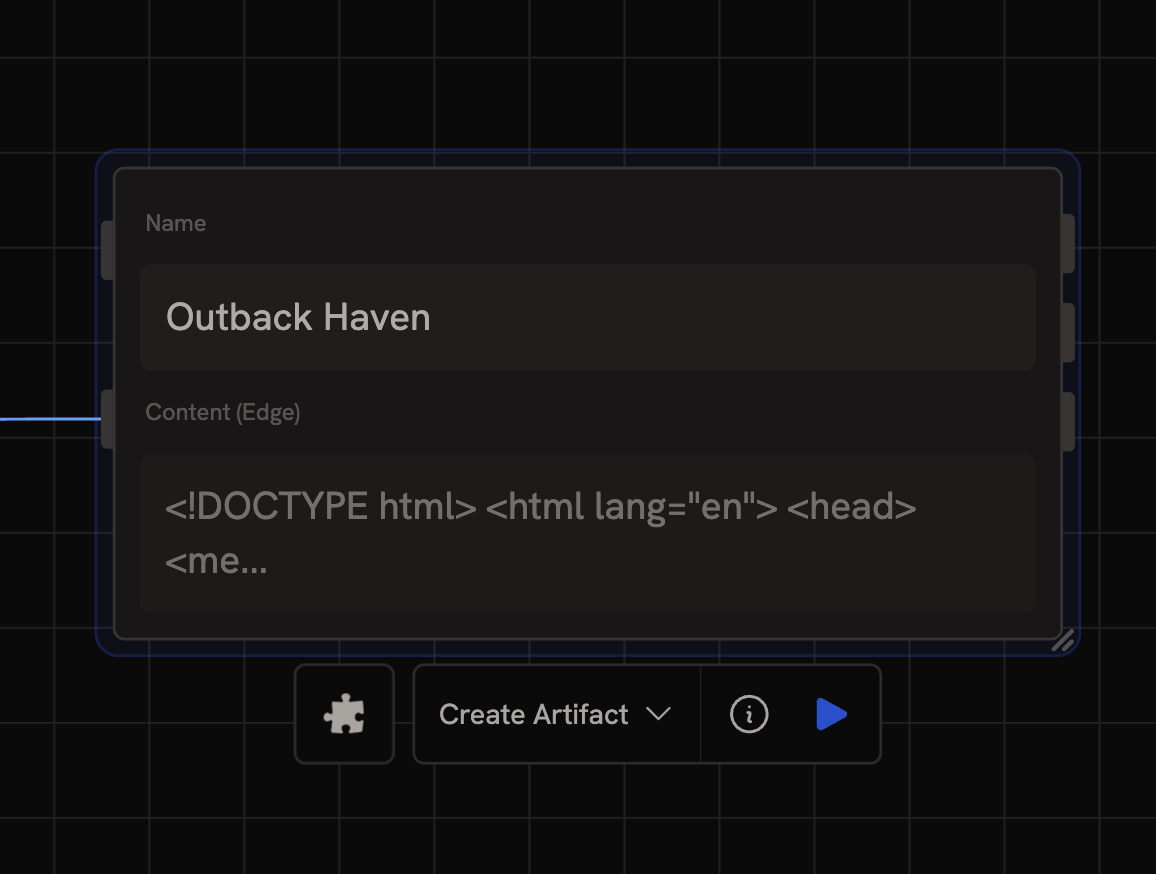
The agent will plug your assets into an [Artifact](/node-reference/nodes/artifact) node set to **Create Artifact** mode. This generates the live artifact page and saves it to your dashboard.
By default, artifacts auto-publish to a public URL. To draft first and publish manually, disable auto-publishing in the Artifact node settings.
## 4. Set your handle (first time only)
Visit [runchat.com/dashboard/artifacts](https://runchat.com/dashboard/artifacts). The first time you open this page you'll be prompted to choose a handle, this becomes the public URL prefix for all your artifacts.
Your artifacts will live at: `https://runchat.com/p//`
## 5. Share
Every artifact has a shareable URL. Copy it from the dashboard and send to anyone, clients, teammates, social, they don't need a Runchat account to view.
If you need to update an artifact later, set an Artifact node to **Update** mode and connect it to the artifact ID.
## Tips
* **Strong style consistency** matters more than asset count. Four images that share a clear visual language beat ten that don't.
* **Describe the brief, not the layout.** "A professional portfolio for a residential architect" gives the agent more to work with than "5 images and 1 video on a white background".
* **Iterate by chat.** "Make the gallery 3 columns instead of 4." "Use a serif headline font." The agent edits the artifact's code and republishes.
* **Test the share link** in an incognito window before sending. Make sure the page loads cleanly without your logged-in state.
## Next steps
* [Tools, Apps, and Libraries](/concepts/publishing/libraries), for the difference between Artifacts (presentation pages) and Apps (interactive workflows)
* [Artifact node reference](/node-reference/nodes/artifact), full reference for create / get / update modes
* [Artifacts dashboard](/concepts/dashboard/artifacts), manage and edit artifacts after publishing
 The agent will plug your assets into an [Artifact](/node-reference/nodes/artifact) node set to **Create Artifact** mode. This generates the live artifact page and saves it to your dashboard.
By default, artifacts auto-publish to a public URL. To draft first and publish manually, disable auto-publishing in the Artifact node settings.
## 4. Set your handle (first time only)
Visit [runchat.com/dashboard/artifacts](https://runchat.com/dashboard/artifacts). The first time you open this page you'll be prompted to choose a handle, this becomes the public URL prefix for all your artifacts.
Your artifacts will live at: `https://runchat.com/p/
The agent will plug your assets into an [Artifact](/node-reference/nodes/artifact) node set to **Create Artifact** mode. This generates the live artifact page and saves it to your dashboard.
By default, artifacts auto-publish to a public URL. To draft first and publish manually, disable auto-publishing in the Artifact node settings.
## 4. Set your handle (first time only)
Visit [runchat.com/dashboard/artifacts](https://runchat.com/dashboard/artifacts). The first time you open this page you'll be prompted to choose a handle, this becomes the public URL prefix for all your artifacts.
Your artifacts will live at: `https://runchat.com/p/