> ## Documentation Index
> Fetch the complete documentation index at: https://docs.runchat.com/llms.txt
> Use this file to discover all available pages before exploring further.
# Agent
> Run an AI agent inside a workflow to research, reason, generate, evaluate, or use Tools
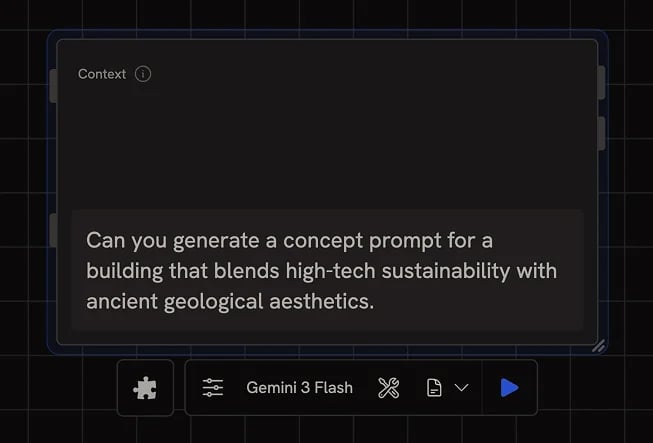
The Agent node runs a single agent turn as part of a workflow. Use it for deep research, idea generation, reasoning, structured data generation, or to call [Tools](/concepts/publishing/agent-tools) on your behalf.
The Agent node runs once per execution and isn't conversational. For an
interactive agent that you can chat with, use [Chat](/concepts/agents/chat)
instead.
## Inputs
The Agent node has four inputs:
* **Context**: messages, images, PDFs, or other documents the model should read before responding. Equivalent to the conversation history in a chat. Common uses include feeding in input from an [App](/concepts/publishing/app-view), wiring previous Agent outputs back in to continue a conversation, or attaching reference images.
* **Prompt**: what you want the agent to do this turn. Within a workflow, prompts should describe a task the agent can complete in one turn. If you need follow-up questions, use Chat.
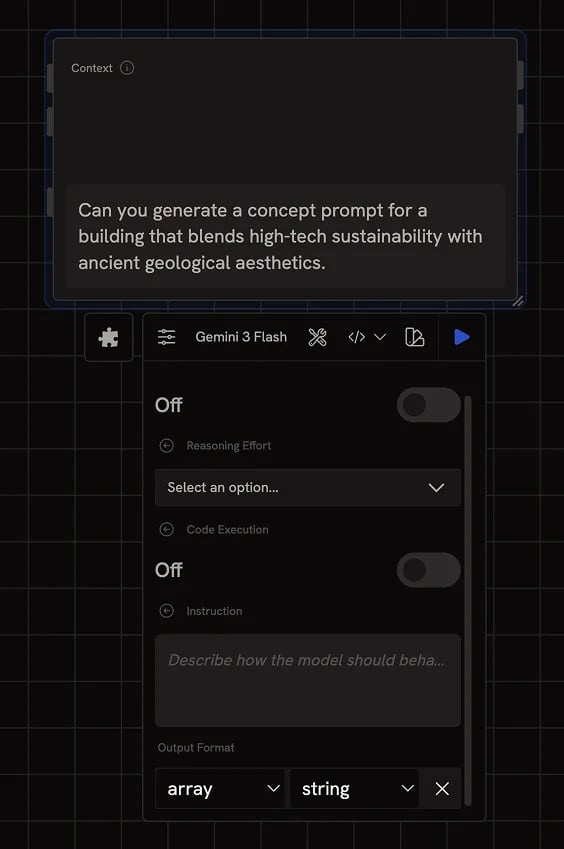
* **Instruction** (hidden by default): a system message describing how the agent should behave. Reveal it from the All Parameters menu when you need it.
* **Format** (hidden by default): a specific schema to enforce when returning data. Used to return lists or JSON objects.
## Selecting a model
Click the model dropdown in the settings bar to choose a text model. The Agent node only shows installed models compatible with text and reasoning. See [Models](/concepts/nodes/models) for installation.
## Output formats
Click the format icon in the settings bar to constrain how the agent returns its answer. Three options are available:
* **Markdown** (default): free-form text. Most flexible, good for general responses.
* **List**: returns multiple items as a list. Each item becomes a separate output, so downstream nodes process them in parallel.
* **Custom**: define a JSON Schema the agent must match. Useful for generating structured data to pass to APIs, drive routing, or feed Grasshopper components.
### Custom schema types
Inside a Custom format, the schema editor supports these types:
| Type | Use for |
| --------- | ------------------------------------------------------------------------- |
| `string` | Text fields |
| `number` | Numerical values |
| `boolean` | True/false values, useful for [routing decisions](/concepts/data/routing) |
| `object` | Nested key-value structures |
| `array` | Lists of items, with a typed item schema |
| `enum` | One of a fixed set of options |
When the format is set to a Custom object, you can also turn on **Spread Output** so each top-level key becomes its own output parameter on the node. See [Parameters](/concepts/nodes/parameters) for the full Spread Output behaviour.
## Tools
Unlike Chat, the Agent node never adds Tools automatically, you specify them explicitly. Click **Select Tools** in the settings bar to attach Tools (your own published workflows or default Tools like search) to this Agent.
The agent will call attached Tools as needed during a single run. For example, an agent prompted to "design a website for a new brand" with search and image-generation tools attached might:
1. Use search to research the brand and similar companies
2. Pull representative images from sources it finds
3. Call an image-generation Tool to create new visuals in a similar style
4. Return an HTML output
For more on building tools and how agents use them, see [Agent Tools](/concepts/publishing/agent-tools).
### Tool effort
The **Tool Effort** dropdown in the settings bar caps how many tool calls the agent can make in a single run:
* **Fast**: up to 3 tool calls. Good when you want the agent to use a specific tool selectively.
* **Moderate** (default): up to 10 tool calls.
* **Max**: up to 25 tool calls. For deeper research tasks.
* **Custom**: set any value from 1 to 50.
Higher effort means more thorough but more credits per run.
## Generating images
Some text models can also generate or edit images (e.g. Nano Banana, GPT-Image, Gemini multimodal). When you select one of these as the Agent's model, the settings bar adds **Variations** and **Size** controls so you can produce multiple image variants per run. The output appears alongside the text response.
## Next steps
* [Chat](/concepts/agents/chat): use an interactive chat agent instead of a one-shot node
* [Agent Capabilities](/concepts/agents/capabilities): the full set of built-in agent tools
* [Agent Tools](/concepts/publishing/agent-tools): attach published workflows as tools
* [Parameters](/concepts/nodes/parameters): use Spread Output to fan a structured response into multiple outputs
* [Routing](/concepts/data/routing): drive workflow flow with boolean Agent outputs
 The Agent node runs a single agent turn as part of a workflow. Use it for deep research, idea generation, reasoning, structured data generation, or to call [Tools](/concepts/publishing/agent-tools) on your behalf.
 Inside a Custom format, the schema editor supports these types:
| Type | Use for |
| --------- | ------------------------------------------------------------------------- |
| `string` | Text fields |
| `number` | Numerical values |
| `boolean` | True/false values, useful for [routing decisions](/concepts/data/routing) |
| `object` | Nested key-value structures |
| `array` | Lists of items, with a typed item schema |
| `enum` | One of a fixed set of options |
When the format is set to a Custom object, you can also turn on **Spread Output** so each top-level key becomes its own output parameter on the node. See [Parameters](/concepts/nodes/parameters) for the full Spread Output behaviour.
## Tools
Unlike Chat, the Agent node never adds Tools automatically, you specify them explicitly. Click **Select Tools** in the settings bar to attach Tools (your own published workflows or default Tools like search) to this Agent.
The agent will call attached Tools as needed during a single run. For example, an agent prompted to "design a website for a new brand" with search and image-generation tools attached might:
1. Use search to research the brand and similar companies
2. Pull representative images from sources it finds
3. Call an image-generation Tool to create new visuals in a similar style
4. Return an HTML output
For more on building tools and how agents use them, see [Agent Tools](/concepts/publishing/agent-tools).
### Tool effort
The **Tool Effort** dropdown in the settings bar caps how many tool calls the agent can make in a single run:
* **Fast**: up to 3 tool calls. Good when you want the agent to use a specific tool selectively.
* **Moderate** (default): up to 10 tool calls.
* **Max**: up to 25 tool calls. For deeper research tasks.
* **Custom**: set any value from 1 to 50.
Higher effort means more thorough but more credits per run.
## Generating images
Some text models can also generate or edit images (e.g. Nano Banana, GPT-Image, Gemini multimodal). When you select one of these as the Agent's model, the settings bar adds **Variations** and **Size** controls so you can produce multiple image variants per run. The output appears alongside the text response.
## Next steps
* [Chat](/concepts/agents/chat): use an interactive chat agent instead of a one-shot node
* [Agent Capabilities](/concepts/agents/capabilities): the full set of built-in agent tools
* [Agent Tools](/concepts/publishing/agent-tools): attach published workflows as tools
* [Parameters](/concepts/nodes/parameters): use Spread Output to fan a structured response into multiple outputs
* [Routing](/concepts/data/routing): drive workflow flow with boolean Agent outputs
Inside a Custom format, the schema editor supports these types:
| Type | Use for |
| --------- | ------------------------------------------------------------------------- |
| `string` | Text fields |
| `number` | Numerical values |
| `boolean` | True/false values, useful for [routing decisions](/concepts/data/routing) |
| `object` | Nested key-value structures |
| `array` | Lists of items, with a typed item schema |
| `enum` | One of a fixed set of options |
When the format is set to a Custom object, you can also turn on **Spread Output** so each top-level key becomes its own output parameter on the node. See [Parameters](/concepts/nodes/parameters) for the full Spread Output behaviour.
## Tools
Unlike Chat, the Agent node never adds Tools automatically, you specify them explicitly. Click **Select Tools** in the settings bar to attach Tools (your own published workflows or default Tools like search) to this Agent.
The agent will call attached Tools as needed during a single run. For example, an agent prompted to "design a website for a new brand" with search and image-generation tools attached might:
1. Use search to research the brand and similar companies
2. Pull representative images from sources it finds
3. Call an image-generation Tool to create new visuals in a similar style
4. Return an HTML output
For more on building tools and how agents use them, see [Agent Tools](/concepts/publishing/agent-tools).
### Tool effort
The **Tool Effort** dropdown in the settings bar caps how many tool calls the agent can make in a single run:
* **Fast**: up to 3 tool calls. Good when you want the agent to use a specific tool selectively.
* **Moderate** (default): up to 10 tool calls.
* **Max**: up to 25 tool calls. For deeper research tasks.
* **Custom**: set any value from 1 to 50.
Higher effort means more thorough but more credits per run.
## Generating images
Some text models can also generate or edit images (e.g. Nano Banana, GPT-Image, Gemini multimodal). When you select one of these as the Agent's model, the settings bar adds **Variations** and **Size** controls so you can produce multiple image variants per run. The output appears alongside the text response.
## Next steps
* [Chat](/concepts/agents/chat): use an interactive chat agent instead of a one-shot node
* [Agent Capabilities](/concepts/agents/capabilities): the full set of built-in agent tools
* [Agent Tools](/concepts/publishing/agent-tools): attach published workflows as tools
* [Parameters](/concepts/nodes/parameters): use Spread Output to fan a structured response into multiple outputs
* [Routing](/concepts/data/routing): drive workflow flow with boolean Agent outputs