> ## Documentation Index
> Fetch the complete documentation index at: https://docs.runchat.com/llms.txt
> Use this file to discover all available pages before exploring further.
# File
> Import images, videos, PDFs, and text documents into a Runchat workflow. Supports drag-and-drop, multiple files, and uploads to Runchat's cloud storage.
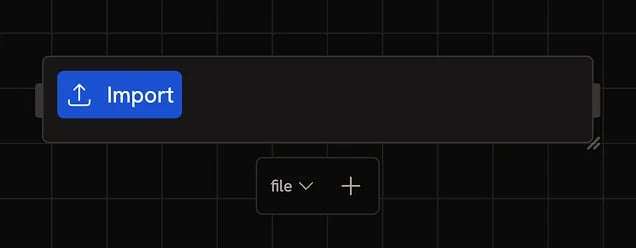 The File node imports files from your computer into a workflow. Click the upload area to choose a file, or drag a file onto the node directly. Click the **+** button in the settings bar to add multiple files.
When you upload an image, video, or PDF, Runchat uploads the file to cloud storage and stores a URL on the node. Plain text files (`.txt`, `.csv`, `.json`, `.xml`, `.html`) are stored directly on the node as text content.
## Supported file types
* Images: `.jpg`, `.jpeg`, `.jfif`, `.png`, `.gif`
* Videos: `.mp4`, `.webm`, `.mov`, `.avi`, `.mkv`
* Documents: `.pdf`, `.txt`, `.csv`, `.json`, `.xml`, `.html`
A single File node can hold multiple files of the same type. To import different file types, use separate File nodes.
## Image Input
For image-only uploads, use the dedicated **Image Input** node instead. It restricts uploads to image formats and is the right choice when you're publishing the node as part of a [Tool](/concepts/publishing/custom-nodes) and want to constrain what users can upload.
## Preview
After uploading, the file is previewed inline on the node. Images and videos render as thumbnails, PDFs display the first page.
## Next steps
* [Data Types](/concepts/data/data-types): how file URLs flow through a workflow
* [Create node](/node-reference/nodes/create): use uploaded images as references for generation
The File node imports files from your computer into a workflow. Click the upload area to choose a file, or drag a file onto the node directly. Click the **+** button in the settings bar to add multiple files.
When you upload an image, video, or PDF, Runchat uploads the file to cloud storage and stores a URL on the node. Plain text files (`.txt`, `.csv`, `.json`, `.xml`, `.html`) are stored directly on the node as text content.
## Supported file types
* Images: `.jpg`, `.jpeg`, `.jfif`, `.png`, `.gif`
* Videos: `.mp4`, `.webm`, `.mov`, `.avi`, `.mkv`
* Documents: `.pdf`, `.txt`, `.csv`, `.json`, `.xml`, `.html`
A single File node can hold multiple files of the same type. To import different file types, use separate File nodes.
## Image Input
For image-only uploads, use the dedicated **Image Input** node instead. It restricts uploads to image formats and is the right choice when you're publishing the node as part of a [Tool](/concepts/publishing/custom-nodes) and want to constrain what users can upload.
## Preview
After uploading, the file is previewed inline on the node. Images and videos render as thumbnails, PDFs display the first page.
## Next steps
* [Data Types](/concepts/data/data-types): how file URLs flow through a workflow
* [Create node](/node-reference/nodes/create): use uploaded images as references for generation