

Install the plugin
1
Find Runchat in the Plugins directory
In ChatGPT, click Plugins in the left sidebar and search for Runchat.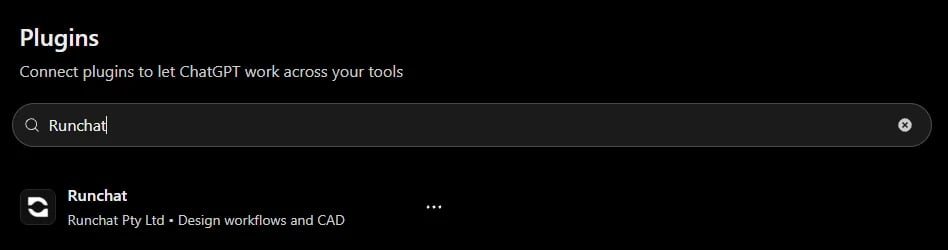
2
Add it and sign in
Open Runchat from the results and add it. A browser window opens. Sign in to Runchat and approve access on the consent screen.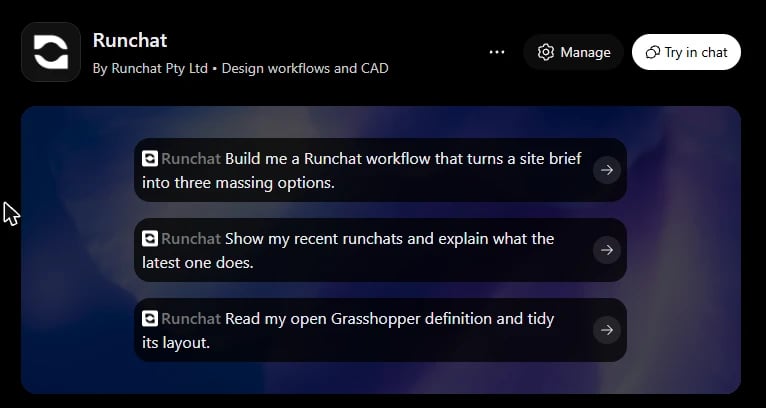
Set permissions
1
Open the plugin's settings
Open the Runchat plugin page and click Manage. You can also go to Settings → Plugins → Runchat.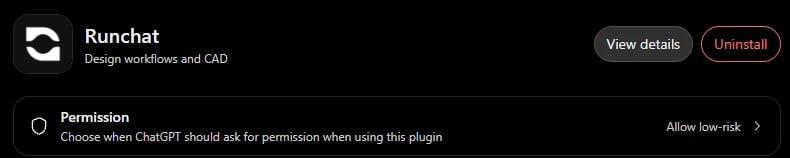
2
Allow all tools
Click the Permission row, then choose Allow all tools.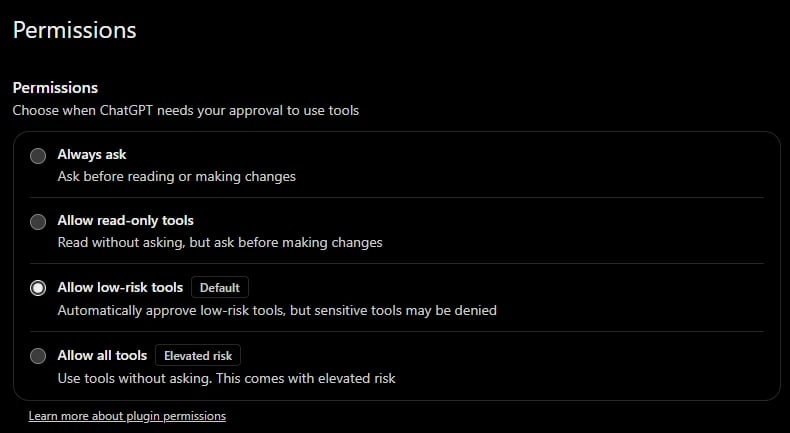
3
Try it
Start a new chat and ask “list my runchats” or “make me a Runchat workflow that generates three logo ideas”.
Running nodes spends your Runchat credits, so the agent will check with you
before running anything that costs money.
Troubleshooting
ChatGPT says it can't create workflows or run nodes
ChatGPT says it can't create workflows or run nodes
Your plugin permission is probably still on the default Allow low-risk tools. Change it to Allow all tools (or Always ask) as described in Set permissions, then start a new chat.
I signed into the wrong Runchat account
I signed into the wrong Runchat account
In Settings → Plugins → Runchat, remove the connected account, sign out of Runchat in your browser, then connect again with the account you want.
ChatGPT can't see a specific workflow
ChatGPT can't see a specific workflow
The agent can only reach workflows you own or that are shared with your team. Paste the workflow’s URL into the chat, or open the workflow, choose Copy ID from the title menu (the workflow name, top-left), and paste that.