

What you’ll learn
- Adding nodes to the canvas
- Writing a prompt and running a Create node
- Connecting nodes with edges to pass data
- Using an Agent node to generate prompt variations
- Returning a list of outputs from one run
1. Open a new workflow
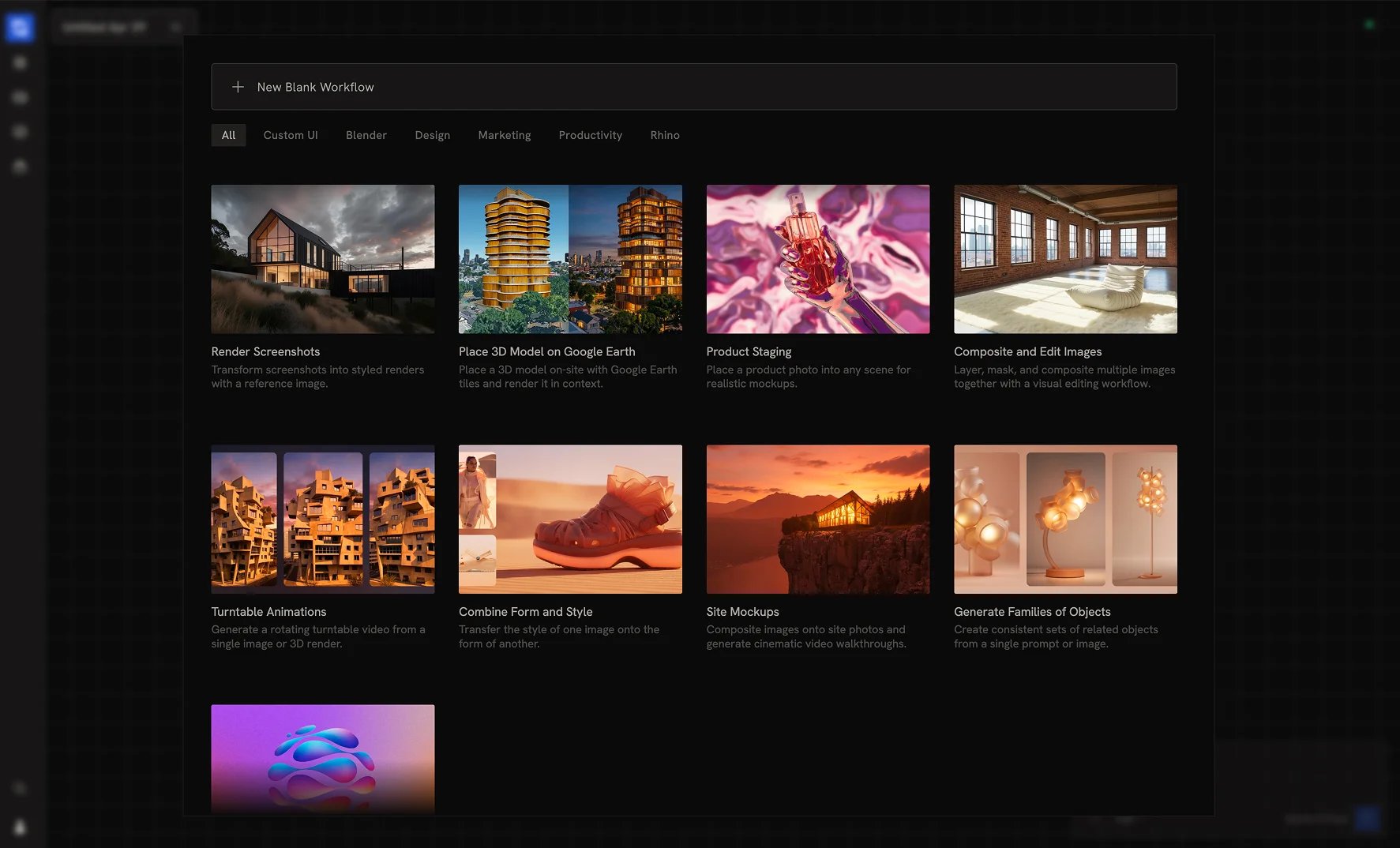
Ctrl/Cmd + S to save manually.
2. Add a Create node
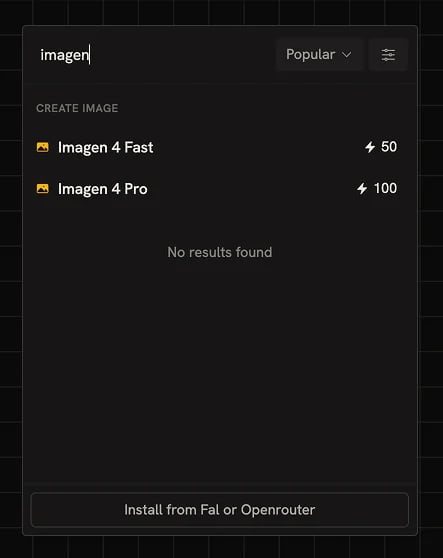
The Create node runs generative AI models for images, video, and 3D. The fastest way to add one is to double-click the canvas and type the model name. Double-click the canvas, typeImagen, and select Imagen 4 Fast.
3. Write your first prompt
In the prompt input on the Create node, paste: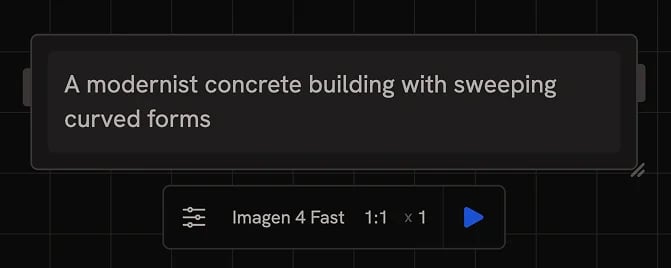
Running a node costs 1 credit, plus the model. Imagen 4 Fast is around 50
credits per image; fast models like Runchat Image are included in the free
usage. Per-model pricing shows next to the model name in the picker. See
Credits for full pricing.
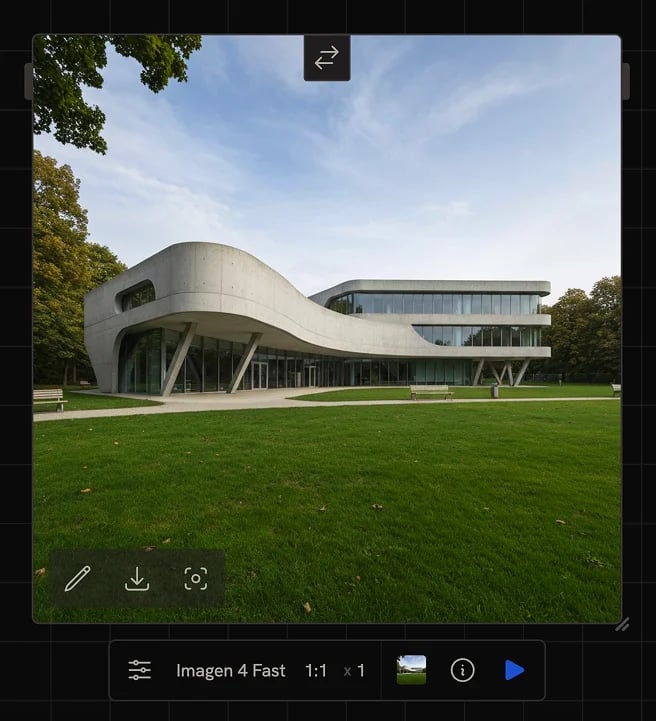
4. View the output
5. Add an Input node
You’ll connect a separate Input node so you can change the design concept without editing the prompt directly. Double-click the canvas, typetext, and add a Text Input node. Move it to the left of the Create node and enter:
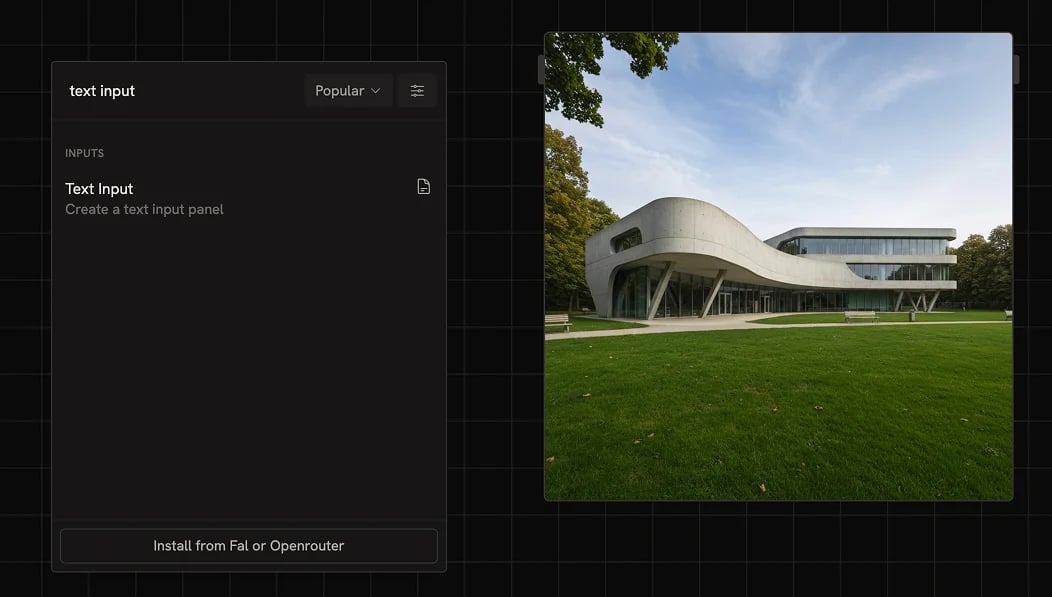
6. Add an Agent node between them
Double-click the canvas, typeagent, and add an Agent node. Move it between the Input and the Create node.
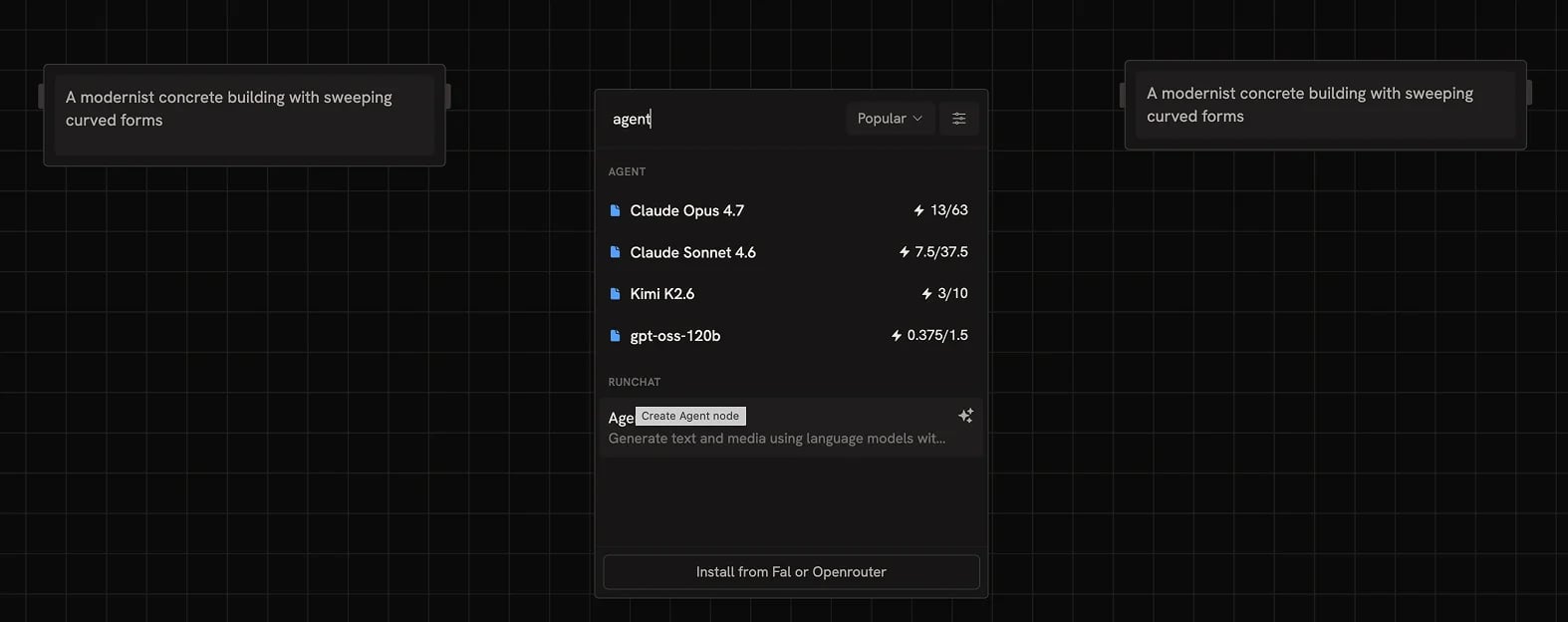
7. Wire the three nodes together
Drag from the output handle on the right side of the Input node to the Context input on the Agent node. Then drag from the Agent’s output to the Prompt input on the Create node.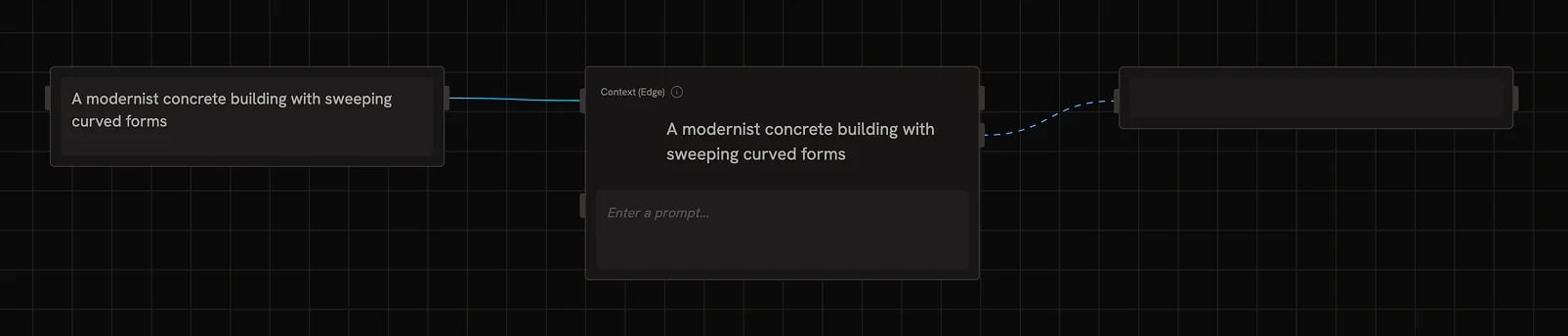
Edge colours indicate data type. Text is blue, images are yellow, and so on.
See Data Types for the full reference.
8. Configure the Agent for variations
In the Agent node settings bar, change the output format fromMarkdown to List. This forces the output to a list of values instead of a paragraph.
In the Agent’s prompt field, enter:
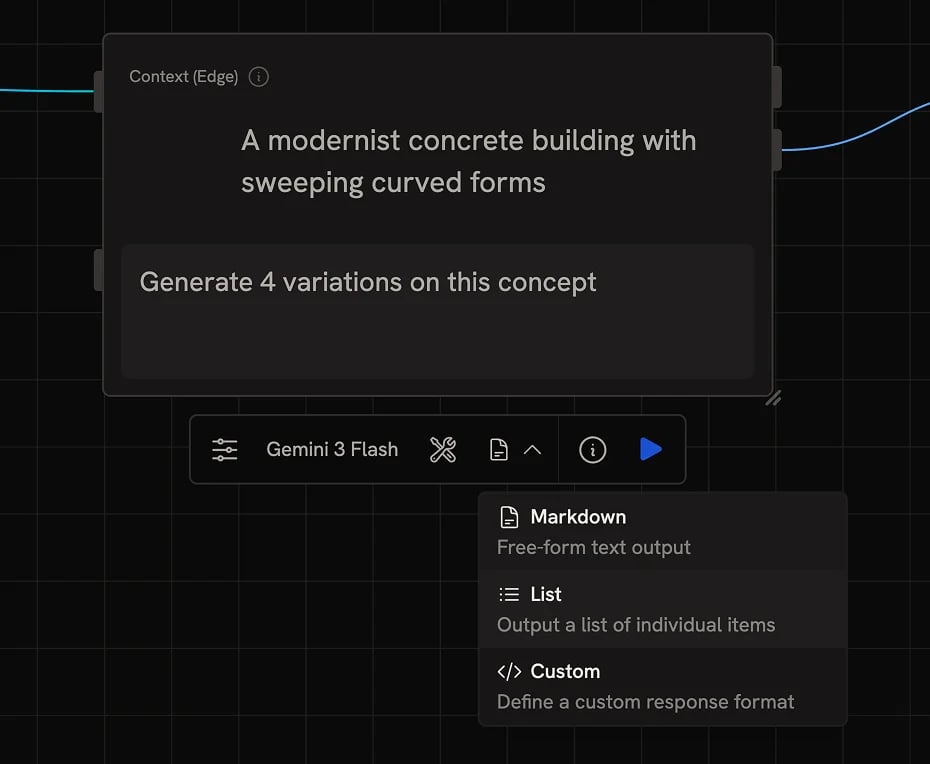
9. Run the workflow
Select all three nodes (drag a selection box, orCtrl/Cmd + A) and click Run in the selection toolbar. Runchat figures out the order automatically: Input first, then Agent, then Create runs four times in parallel.
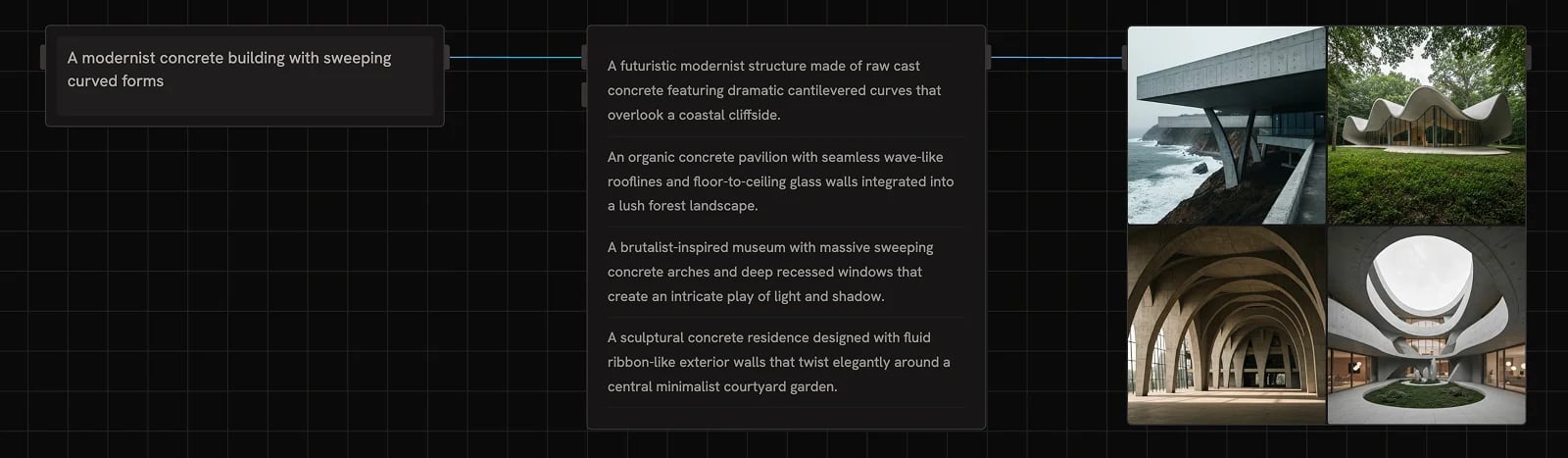
List outputs display in a table view by default. Toggle between table and page
view from the icon in the node settings bar.
Next steps
- Iterate on text-to-image prompts: extract a single variable like material into its own input and explore variations without rewriting
- Browse the examples: worked recipes for rendering, scripting, site research, and more
- Use the chat agent instead of the Agent node for an interactive workflow builder