

Linking accounts requires a Hobby plan or
higher.
Connecting accounts
Open the Link Accounts menu from the Runchat dashboard or the editor’s account menu. Each integration has its own card with a one-time connection step, either an OAuth flow or a place to paste an API key.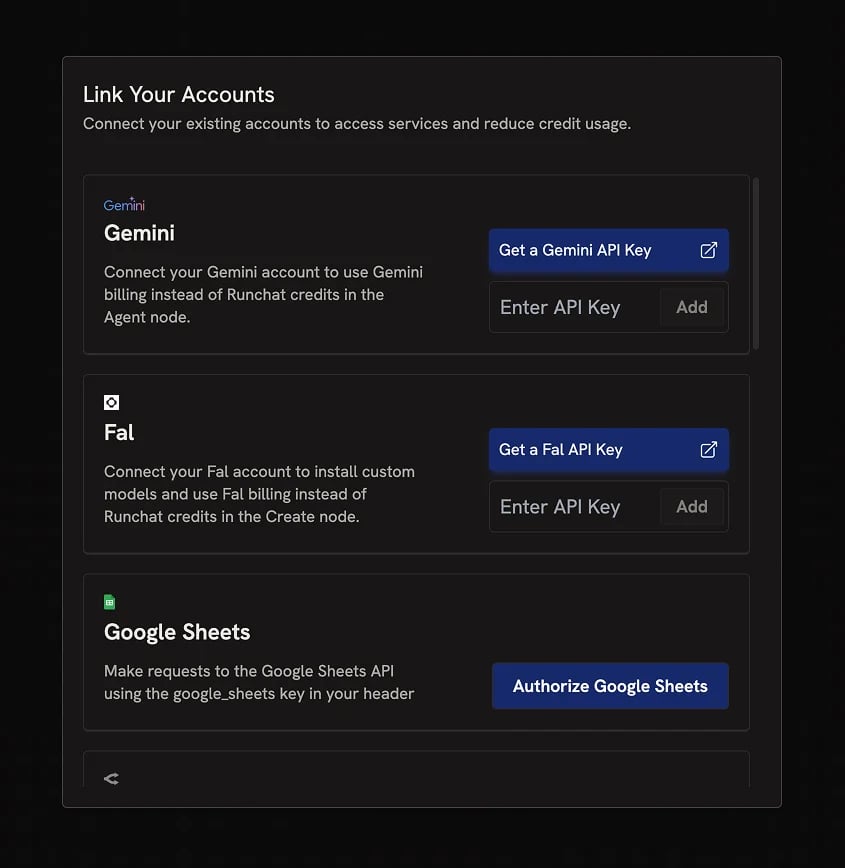
Media
Fal
Fal is a fast inference provider for generative AI models, hosting models for image, video, audio and text generation. Runchat uses Fal as the default provider for media generation in theCreate node. When you connect Fal, Runchat automatically uses your Fal key for any requests to Fal models.
To connect Fal, head to fal.ai and create an account. Visit fal.ai/dashboard/keys and click Add Key. Leave the scope as API, give the key a name (e.g. runchat), and click Create Key. Copy the generated key.
Open the Link Accounts menu in Runchat, paste the key into the Fal section, and click Add. The key is encrypted before being stored.
Adding a Fal key also lets you install custom models from Fal by pasting a
model URL into the Add Nodes panel. See Models for
details.
Google Sheets
Read from and write to Google Sheets directly from your workflows. Runchat ships with a set of Sheets tools for common operations, plus full Sheets API access from Code nodes when you need something custom. Click Authorize Google Sheets from the Link Accounts page to display the OAuth consent screen, sign in, and authorize Runchat. Once linked, the Sheets tools work out of the box. For custom Code node access, reference your encrypted access token viaENV.google_sheets. See Credentials for details.
Text and reasoning
OpenRouter
Linking an OpenRouter account lets you use models in theAgent node without consuming Runchat credits. OpenRouter serves models from most major research labs, including experimental and free models with rate limits.
To connect, visit openrouter.ai and create an account. From the Link Accounts section in Runchat, click Authorize OpenRouter. Sign in to OpenRouter and authorize Runchat. Set a max spend cap if you want, then return to the Runchat dashboard. You can now install OpenRouter models from the Add Nodes panel.
Gemini
Linking a Gemini account lets you use theAgent node to generate text and images without consuming Runchat credits. Gemini models hosted on Fal are not affected, those still bill Fal.
Get a free API key from aistudio.google.com/app/apikey and paste it into the Gemini section of the Link Accounts menu.
Seeing a
RESOURCE_EXHAUSTED error when using Gemini? Image models are not
included in the Gemini Free Tier. You’ll need to link a billing account in
Gemini.Groq
Groq offers very fast inference for supported text models. Linking a Groq account lets you use these models in theAgent node without consuming Runchat credits.
Visit groq.com, create an account, then go to your API keys page and create a new key. Paste it into the Groq section of the Link Accounts menu.
Search
You can use your own API keys for any of the supported search providers. All four offer free tiers, so this is an easy way to save Runchat credits when you do a lot of web research.Brave
Create a key at the Brave Search dashboard and add it from the Link Accounts menu.Tavily
Find your key on the Tavily dashboard and add it from the Link Accounts menu.Exa
Create a key at the Exa dashboard and add it from the Link Accounts menu.PureMD
Get a key from the PureMD dashboard and add it from the Link Accounts menu. PureMD is used for fetching and parsing web content in the Fetch node.Removing accounts
Runchat uses your linked account whenever a request can be routed through it. To return to billing through Runchat credits for a particular service, unlink that account from the Link Accounts menu.Next steps
- Credentials: securely store API keys for any service to use in Code nodes
- Credentials: securely store API keys for any other service
- Credits: how Runchat credits are calculated when you don’t have a linked account