

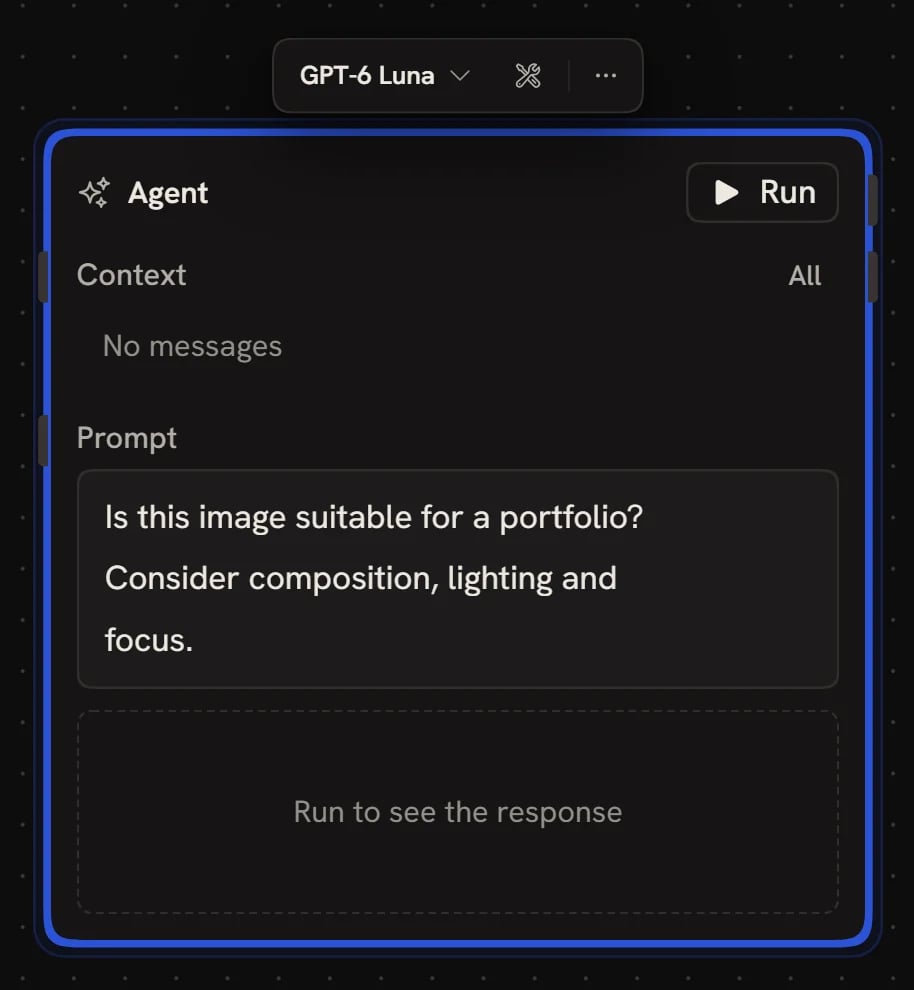
The Agent node runs once per execution and isn’t conversational. For an
interactive agent that you can chat with, use Chat
instead.
Inputs
The Agent node has two inputs on the card:- Context: messages, images, PDFs, or other documents the model should read before responding. Equivalent to the conversation history in a chat. Common uses include feeding in input from an App, wiring previous Agent outputs back in to continue a conversation, or attaching reference images.
- Prompt: what you want the agent to do this turn. Within a workflow, prompts should describe a task the agent can complete in one turn. If you need follow-up questions, use Chat.
- Instructions: a system message describing how the agent should behave.
- Output format: how the agent returns its answer. See Output formats.
Toolbar
Select an Agent node to show its toolbar:- Model: the model button (Swap model) opens Choose a model. The Agent node only shows installed models compatible with text and reasoning. See Models for installation.
- Tools: attach tools to this agent. See Tools.
- Variations: shown for models that generate images. See Generating images.
- More (…): Instructions, Tool effort, Output format, Output schema, Spread output, plus the common node actions such as All parameters, Run details, Duplicate and Delete.
Output formats
Open More > Output format to constrain how the agent returns its answer:- Markdown (default): free-form text. Most flexible, good for general responses.
- List: returns multiple items as a list. Each item becomes a separate output, so downstream nodes process them in parallel.
- HTML: returns an HTML document, ready to preview or publish.
- Code: returns code without surrounding prose.
- Custom schema: define a JSON Schema the agent must match. Useful for generating structured data to pass to APIs, drive routing, or feed Grasshopper components.
Custom schema types
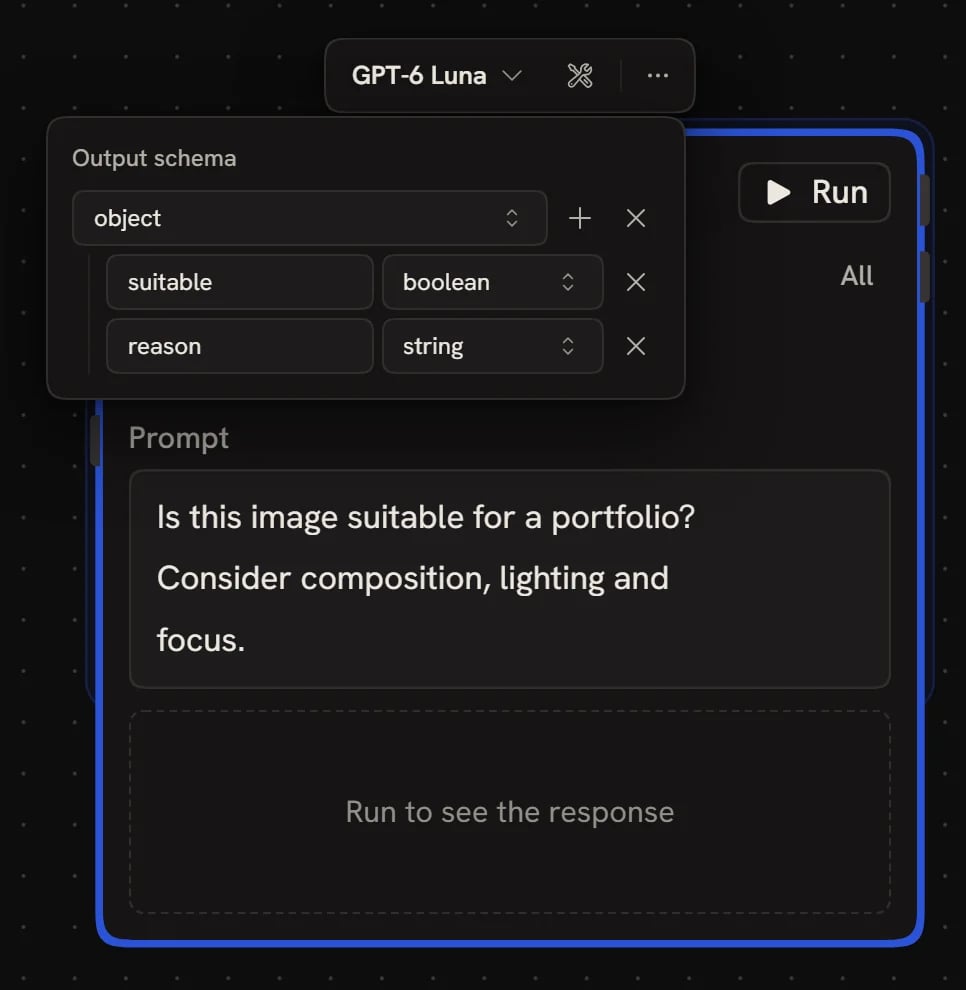
Turn on More > Spread output so each top-level key becomes its own output on the node. To route a workflow on a yes/no decision, add a
boolean field to a custom schema and turn on Spread output. See Spread output for the full behaviour.
Tools
Unlike Chat, the Agent node never adds Tools automatically; you specify them explicitly. Click Tools (wrench icon) on the node toolbar to open Choose tools and attach Tools (your own published workflows or default Tools like search) to this Agent. The button shows how many tools are attached. The agent calls attached Tools as needed during a single run. For example, an agent prompted to “design a website for a new brand” with search and image-generation tools attached might:- Use search to research the brand and similar companies
- Pull representative images from sources it finds
- Call an image-generation Tool to create new visuals in a similar style
- Return an HTML output
Tool effort
Once tools are attached, More > Tool effort caps how many tool calls the agent can make in a single run:- Fast (3 tool calls): good when you want the agent to use a specific tool selectively.
- Moderate (10 tool calls) (default).
- Max (25 tool calls): for deeper research tasks.
- Custom: set any value from 1 to 50.
Generating images
Some text models can also generate or edit images (e.g. Nano Banana, GPT-Image, Gemini multimodal). When you select one of these as the Agent’s model, the toolbar adds Variations and the More menu adds Size, so you can produce multiple image variants per run. The output appears alongside the text response.Next steps
- Chat: use an interactive agent instead of a one-shot node
- Agent Capabilities: the full set of built-in agent tools
- Agent Tools: attach published workflows as tools
- Spread output: fan a structured response into multiple outputs
- Routing: drive workflow flow with boolean Agent outputs