

Creating a descriptive prompt
Open the Runchat editor and click Start from Scratch to create a new workflow. Create a newAgent node from the menu and enter the following in the prompt:
Importing images
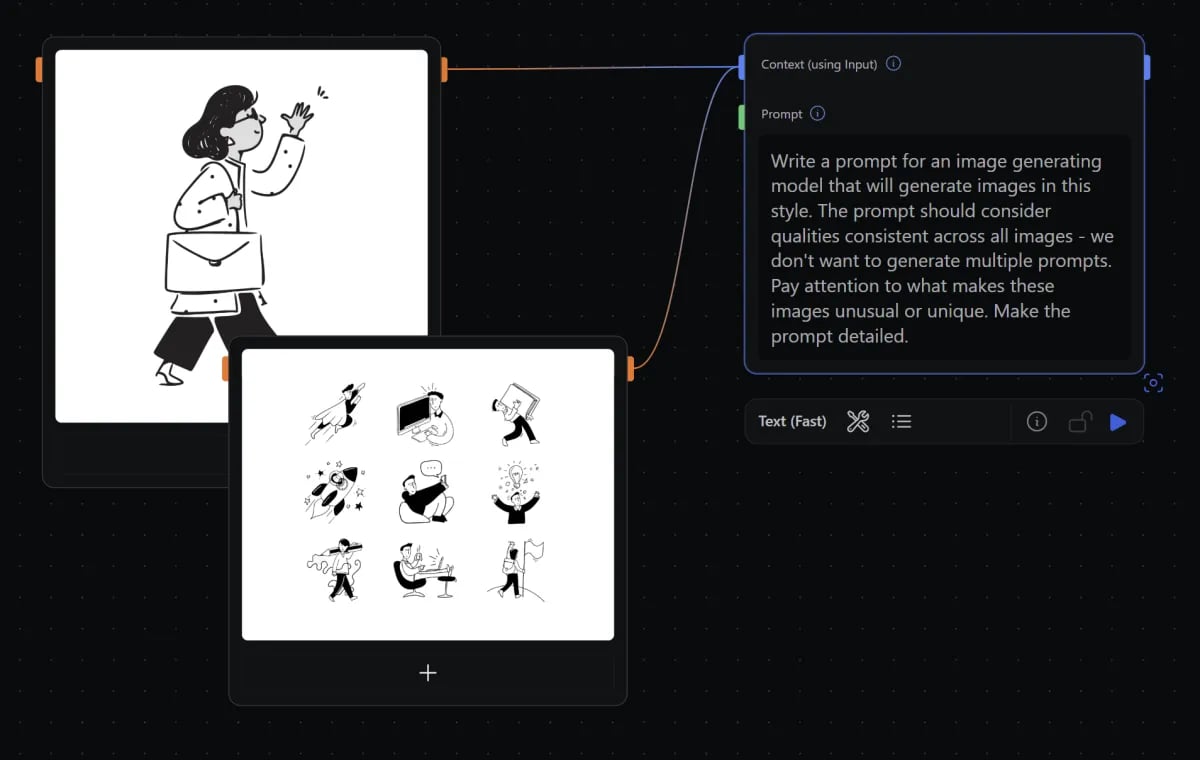
Agent node. There are several ways to import images into Runchat:
- Using an
Image Inputnode from the Nodes menu - Entering a URL to an image in a
Text Inputnode - Dragging and dropping an image file from your laptop onto the Runchat canvas
- Copying an image to the clipboard and pasting into the Runchat canvas
- Taking a screenshot and pasting into the Runchat canvas
- Using chat to search the internet
Context input of the Agent node.
Merging Data
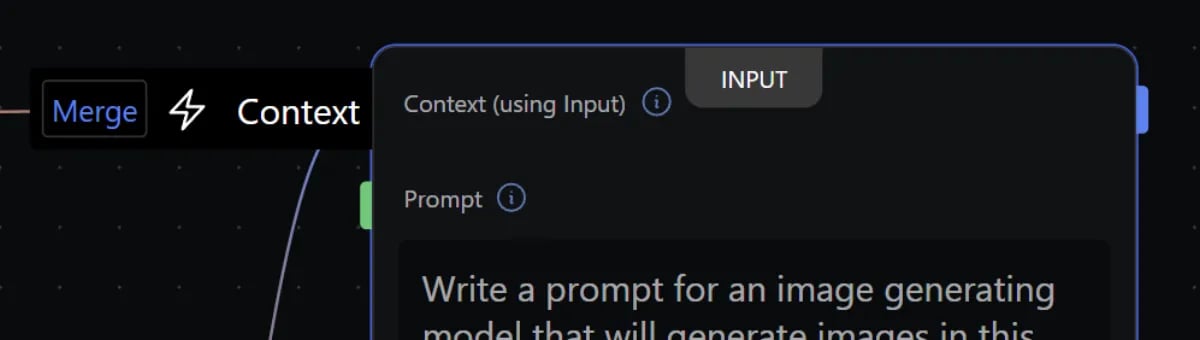
Context input and click Each to toggle the processing to All. Now our prompt will be provided with the list of all images we have connected,
instead of one at a time.
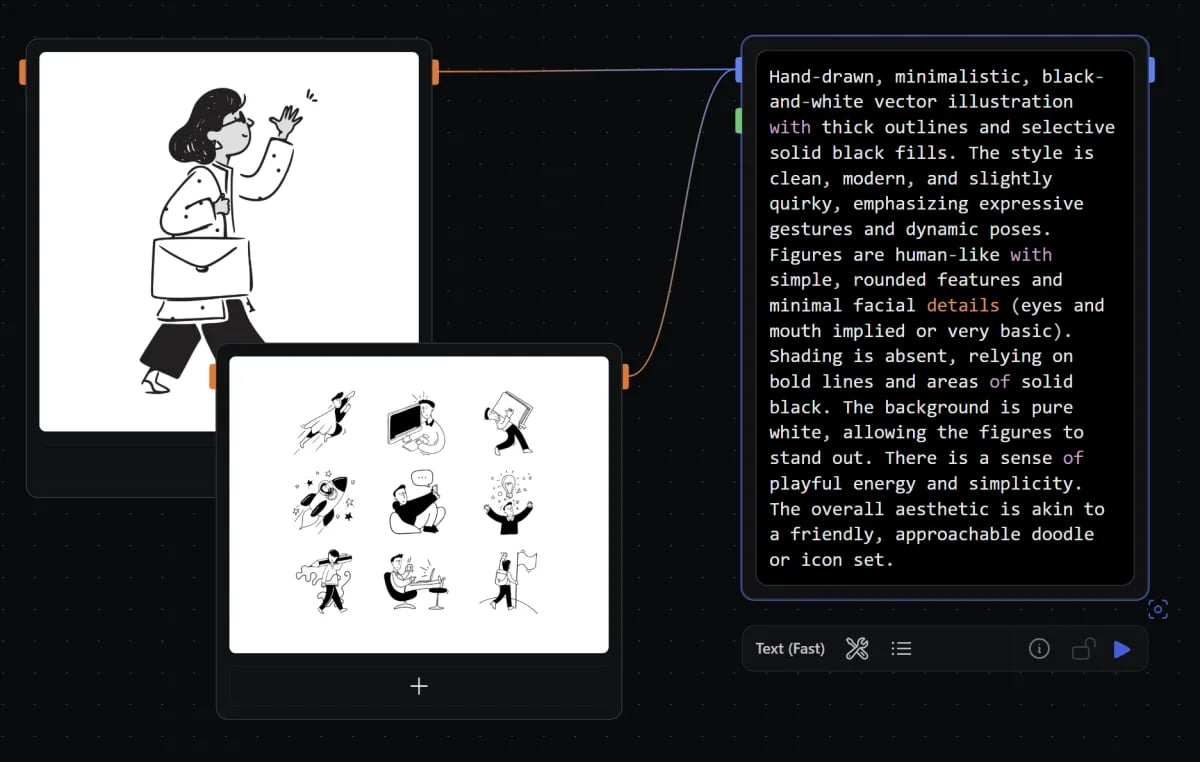
Press play in the editor or node toolbar to run our Agent node and see the resulting description.
Publishing parameters
Every node or workflow in Runchat can be published as a tool to be re-used in other workflows or called automatically in theAgent node.
To publish a tool, we need to specify which inputs we want to receive data, and which outputs we want to return data.
When we publish an input or output, the UI for that input or output will be used to create a new node or app and all other inputs and outputs will be hidden.
Before publishing a tool, you should delete any nodes that will not be directly necessary to generate the output.
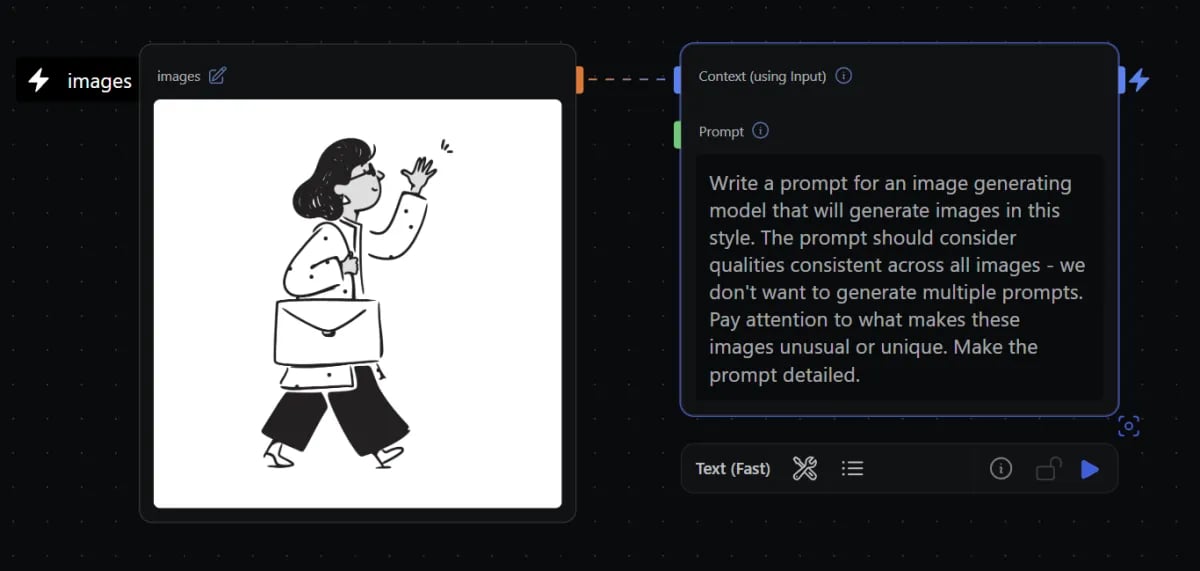
We will use a single Image input node as our tool input. This will mean that we can use the Image picker as our tool UI.
Keep one of your imported images and delete all of the rest. Hover over the input parameter on the image and click the 🌞 Sun icon to publish it.
For language models (and people) to know what our tool does, we need to give this input a name and a description.
Hover over the input parameter and double-click the black input text to edit it. Change the name to images.
Then click the edit button on the ‘images ✎’ label on the node and enter “Connect a collection of images to describe”.
Then hover over the Result output parameter on our Agent node and click the 🌞 Sun icon to publish the prompt output.
Sharing apps
Published tools can be shared as public web apps. This allows anyone to use your Runchat without needing to open the editor. To preview your app, click your workflow’s title (or the chevron beside it) in the top bar to expand the app preview. If you want to try the app out - switch to the Inputs side, click import to select a new image, then press Run to see if you can describe it. You can open the published app in a new tab from the Runchat menu (top-left) via Open App, and share that URL with anyone. You can collapse the preview again with the chevron beside your workflow’s title.Creating tools
To use our Runchat as a node or tool we need to publish it and add it to a Library. Next, select all the nodes in your workflow and click the puzzle piece in the selection toolbar to expand the app preview. Use the Inputs and Outputs sides (toggle from the toolbar) to expose the parameters you want, and set the tool’s name in the top bar (e.g. “Describe Images”).Adding to libraries
Make sure the title in the top bar reads “Describe Images”, then click Publish in the app preview toolbar. In the confirmation, add a description and click Publish to confirm. Your tool is saved as a workflow; add its folder to your nodes from the Workflows panel (right-click the folder and choose Add to Nodes) so it shows up in the create menu.You can add multiple tools to a library, and can save a new version of your
tool without impacting other Runchats that use it.
Using tools in Workflows
Runchat can be used to automate complex process-specific workflows by providing language models with access to custom tools you have created. Create a new Runchat by clicking the Runchat icon in the menu, clickingNew Workflow then choosing New Runchat from the example grid.
Create a new Image node with the Imagen 4 Fast model. Click on the variations button in the node settings and change this to 2.
Search for Describe Images in the editor menu, and click your tool from the list. Connect the output to the prompt input of your image node.
Drop in some images and connect them to your images input to replace the default image that is referenced in the tool.
Select the nodes then press the Run button in the selection toolbar. This will describe our images and create a prompt,
and use this prompt to generate two new high quality images in a similar style.
You can click on the expand icon in the node settings bar after running your
Describe Images node to show all nodes in this tool and their inputs and
outputs during the last run.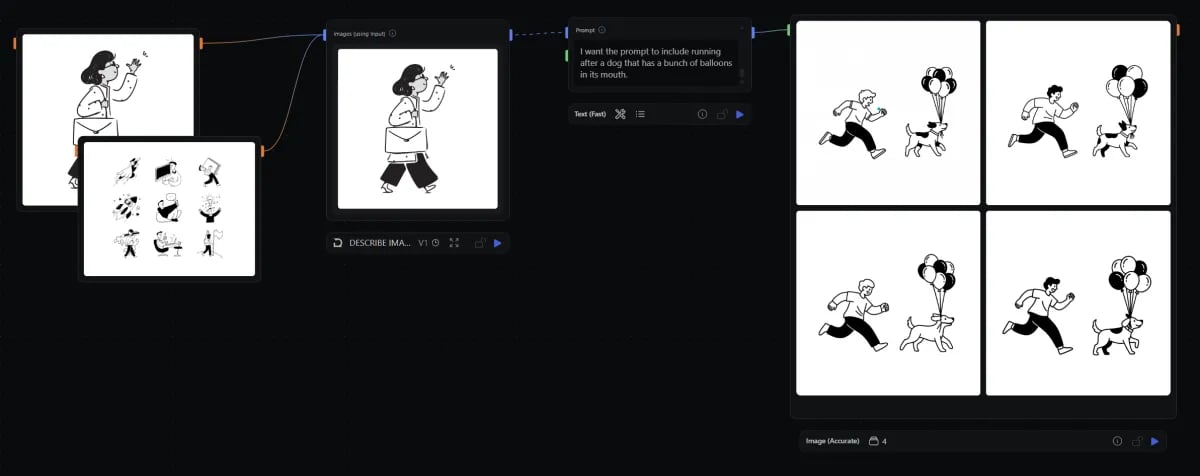
Context of a Agent node,
and then write a prompt that provides instructions for things to add. This is useful for controlling and directing the content.
Tool calling
We can use any workflow we create as a tool in another workflow, or as a tool in anAgent node or by the chat agent.
As an example, click the ”+” button in the chat input and click Tools. Select your tool to add it to the chat context.
Now you can add some images to the canvas and ask the agent to describe them and it will get used if the agent thinks it is needed.
Tools are especially useful for searching the internet, making requests to external resources like databases or third party APIs.
You can build tools in runchat for searching the web, reading and writing to spreadsheets, sending emails and just about anything else that you can think of.