

What you can do
Chat is particularly well suited for:- Research: Ask the agent to search the web, summarize findings and compile results
- Design exploration: Describe a concept and iterate on it through conversation, generating images and variations as you go
- Workflow creation: Describe what you want to build and let the agent set up nodes on the canvas
- Code generation: Ask the agent to write HTML pages, React components, or scripts for CAD plugins
- Quick generation: Generate a single image, text or other output without building a full workflow
Creating a chat
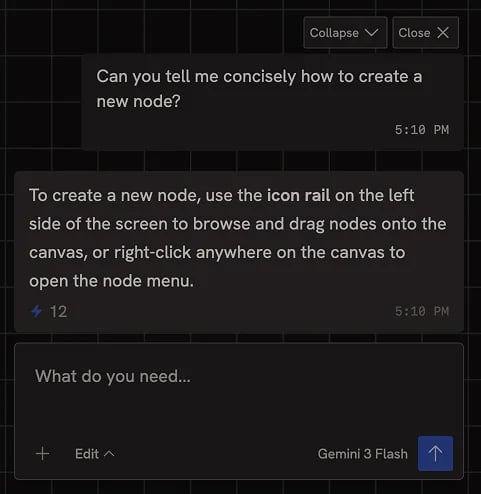
To start a new chat, click on the chat input at the bottom of the editor and start typing. You can ask questions, give instructions, or describe what you want to create. The chat agent will respond and can take actions on your behalf using the tools available in your libraries.You can also run a tool loop or single turn of a conversation from the Agent
node. This is useful for automating agents within workflows, and for using
multiple sub-agents from Chat.
Model selection
Click the model name at the bottom left of the chat input to open the model selection panel. You can choose from any text model you have installed. Models that draw on your free monthly pool rather than credits are marked with a Free badge. The selected model persists within the current chat session. When you restore a previous chat, the model used in that session is automatically restored.Chat settings
Picking a model — including the free default — opens its settings card above the chat input. This is where you set what the agent is allowed to do and how hard it thinks. Models that spend credits show two extra sections: a credit limit per response, and the option to run the agent from your own Claude or ChatGPT subscription instead. Free models skip both, since they don’t draw credits. Every control applies as you set it, so there is nothing to save — close the card with the ✕, or just send your message and it closes itself. The credit limit saves when you click out of the field, and again if you close the card while still typing in it. Permissions and the credit limit are per chat session and carry over when you switch models. Reasoning effort follows the model — each one declares its own default.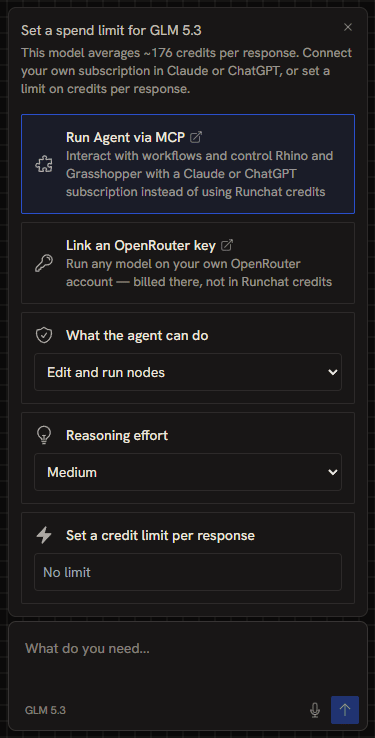
Permission levels
By default, the chat agent can read and edit nodes on your canvas. The chat agent operates in one of three permission levels, set under What the agent can do:- View only: The agent can browse and inspect the canvas, discover models, and answer questions, but cannot create or modify anything.
- Edit (default): The agent can create, connect, organize and update nodes on the canvas. It cannot run or execute nodes, it will present the completed workflow for you to run.
- Edit and run: Full access. The agent can create, connect, organize, and also execute workflows on your behalf.
Reasoning effort
Each model declares its own default reasoning effort, and switching models adopts it. Most default to a low level so the agent acts quickly. Raise it — up to Max — for complex requests where quality matters more than speed, or turn it Off to have the model answer immediately.Chat budgets
On models that spend credits, the agent can use unlimited credits in its responses by default. Type a credit limit per response to cap this. Once the agent reaches this limit it will immediately return its response and stop continuing to reason, search or use other tools. Clear the field to go back to no limit.A single agent step costs around 25 credits, so a lower limit would stop the
response before it starts — Runchat won’t save one. If a stored limit is too
low to send, the settings card reopens and tells you so.
Running the agent from your own subscription
On a paid model, the settings card also links the two ways to run chat without spending Runchat credits: connect Runchat to Claude or ChatGPT over MCP and drive the agent from that subscription, or link an OpenRouter key so model calls are billed to your own OpenRouter account.Learning about Runchat
The chat agent knows about your canvas and the Runchat interface and can help teach you how to use Runchat. You can try explaining what you want to do and have the agent walk through how to do it, or even build workflows for you. If you’re unsure what a node does or why it works in a particular way, try selecting it and then asking the agent to explain its behaviour.Running generative models
From chat you can ask the agent to generate images, videos, 3D models and other media or perform any other task you might take on the canvas. The agent will automatically select the appropriate generative model based on your request and create nodes on the canvas using this model. You can then modify the node in any way (e.g. change the prompt or generative model), and press play on the node to run it like any other node. The agent selects from the models you have installed. You can install any model from Fal and use it with the Agent. You can also be specific about which model to use by naming it in your message.Using custom tools
The chat agent can search for and use any tool you have installed in your libraries, as well as any tool that has been published and approved by the Runchat admins. The agent can inspect the context of the tool workflow to learn from it and make changes (for instance to adapt an example to your specific design task), as well as execute the tool directly if given run permissions.Attaching images and context
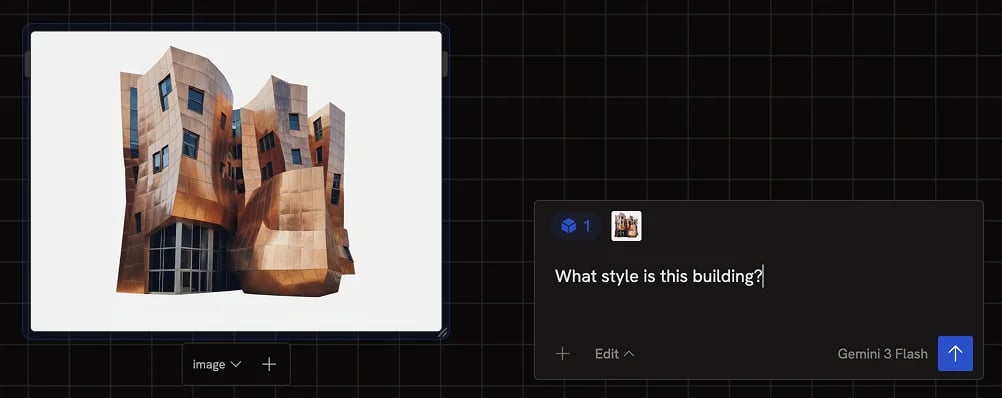
You can provide visual context to the chat agent in several ways:- From your computer: Copy paste an image into the text input in the chat.
- From the canvas: Select image nodes on the canvas, their images automatically appear as thumbnails in the chat input and are sent with your next message. Selected PDF nodes attach the same way and show as a paperclip count.
Web search
Runchat has several custom tools that are installed for every user that perform web searches. The agent can use these to look up information, find reference images, and research topics. See Agent Capabilities → Web Search for patterns that work well, or the Search node reference for setup.Search tool calls cost 10 credits each. You can link Tavily, Brave, Exa or
Puremd API keys to use your own billing accounts (including free tiers)
instead of using Runchat credits.
Creating nodes on the canvas
One of the most powerful features of chat is the ability to create and configure nodes directly on your canvas. You can describe what you want to build and the agent will create the appropriate nodes and configure their inputs and settings. Some things that work particularly well:- Asking the agent to generate custom nodes with a specific interface (e.g. a tool for drawing sketches or adjusting image colours)
- Asking the agent to generate websites and portfolios
- Asking the agent to create interactive charts and visualisations
- Asking the agent to create variations on all of the above as multiple nodes
Debugging with chat
If a node errors, select it and ask the agent to take a look. The agent can read the error, inspect upstream inputs, and in many cases apply a fix directly. See Running and Debugging → Ask the Chat Agent.Skills
The chat agent can load domain-specific skills to get specialized knowledge before creating code nodes. Available skills include guidelines for Rhino Python, Blender Python, Revit C#, HTML and JavaScript. The agent loads these automatically when creating code for these environments.Restoring chats
All of your previous chats are saved and can be restored at any time. Click the chat history icon in the left icon rail to view your chat history for the current workflow or across all workflows. Clicking on a previous chat will restore all messages, tools and the model from that conversation. See Editor Overview → Chats for the chat history panel.Next steps
- Agent Capabilities: the full tool palette the agent has access to
- Agent node: run agent loops as part of a workflow