Creating a new Runchat
Open the Runchat editor, select New Workflow from the menu then click Start from Scratch to create a new workflow. Runchat will auto-save any change you make to the workflow, and you can enter a new file name or press Ctrl/Cmd + S to manually save your work at any time.Starting a new Chat
Runchat’s agent is always available to help from the chat bar at the bottom of the editor. Click in the chat input at the bottom of the editor and send a message to start a new chat, or you can expand the chat drawer and select an existing conversation to continue.If you already have an active conversation, you’ll see the chat panel appear
in the bottom right corner of the editor. You can leave your current
conversation by closing the chat toolbar.
Searching for ideas
Let’s use the agent to explore some ideas for a new kitchen renovation. There isn’t any right or wrong way to do this, but for this tutorial we will start by finding some examples from great designers for inspiration. First, add a search tool to the chat context by clicking the ”+” button and selecting Tools. Then add Tavily Search from the list of available tools. Type “who are some award winning residential architects in Melbourne?” and press enter to start a chat. Feel free to replace Melbourne with your city. Runchat will think about your prompt and then suggest some tools to use to help it find the answer. The agent might choose to use the search tool directly, or add a node to the canvas. You can always instruct it to do one or the other if you know what you want.Each search costs 10 credits. You can sign up for a free Tavily, Exa or Brave
account and then link your API key to run searches for free!
Exploring images
The agent will run several searches to try to find the answer for your prompt, and eventually come back with some results for you to consider. Next, we’re going to search for images by these designers and load them on the runchat canvas so we can choose some we like. Type “great, now search for images of 2 or 3 recent projects for each designer” and press enter. You can add an image search tool like Brave Image search if you like - you might get better images as a result. The agent might show images in it’s chat response, or it might add them to the canvas as nodes. Again, you can be specific in terms of the behaviour you want. You can also ask the agent to look at specific images so it understands their content: the agent won’t know what an image is just from the URL. Ask the agent to add some images to the canvas if it hasn’t already, then click a node (or drag around it) to select the node, then return to the chat.Image Search
Now we’re going to find more images of this specific project, and designs like it. Type “We’re doing a kitchen renovation, can you find some images of the interior of this project or projects like it?” and hit enter. The agent will now continue searching the internet and finding images matching your query.Editing images
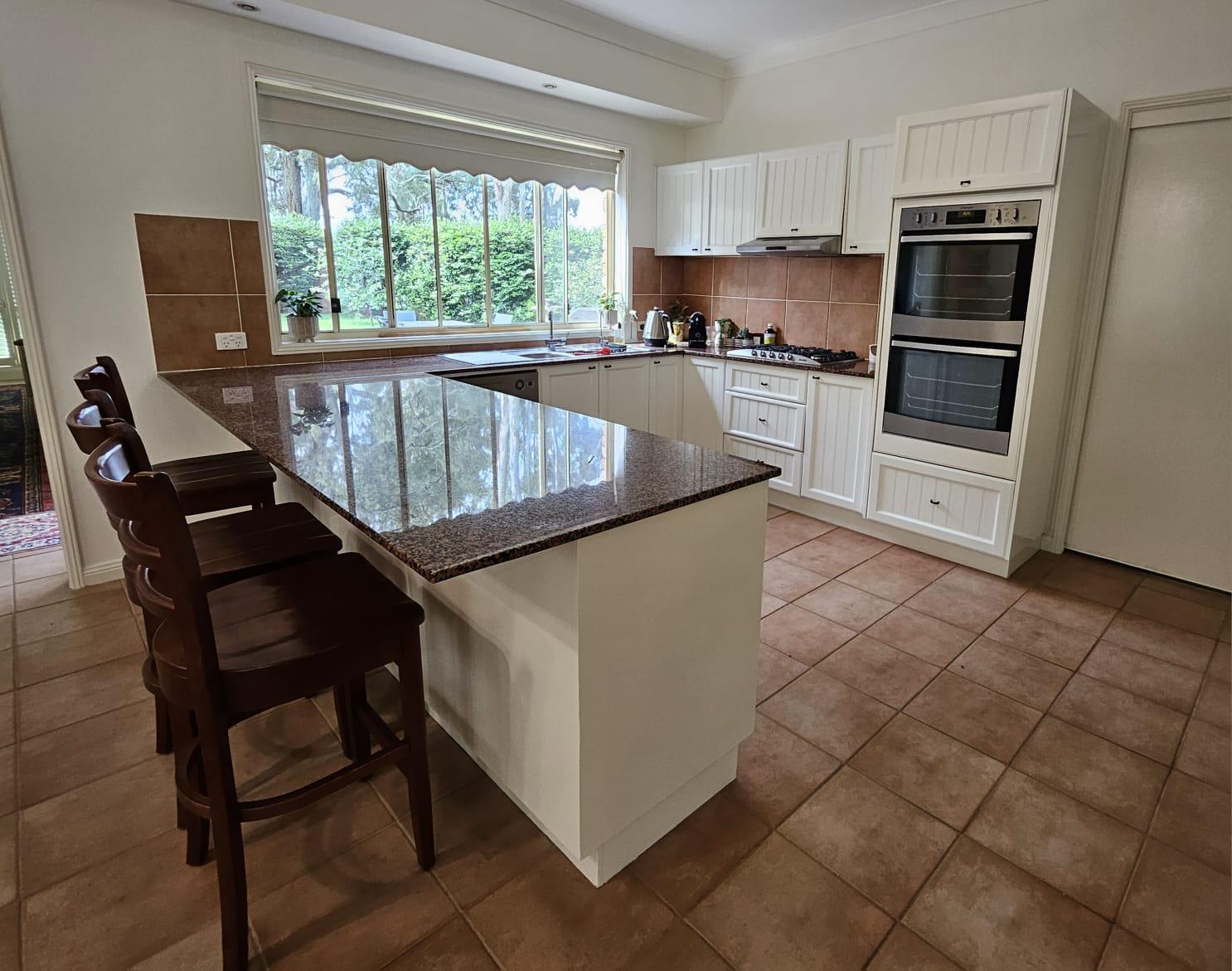
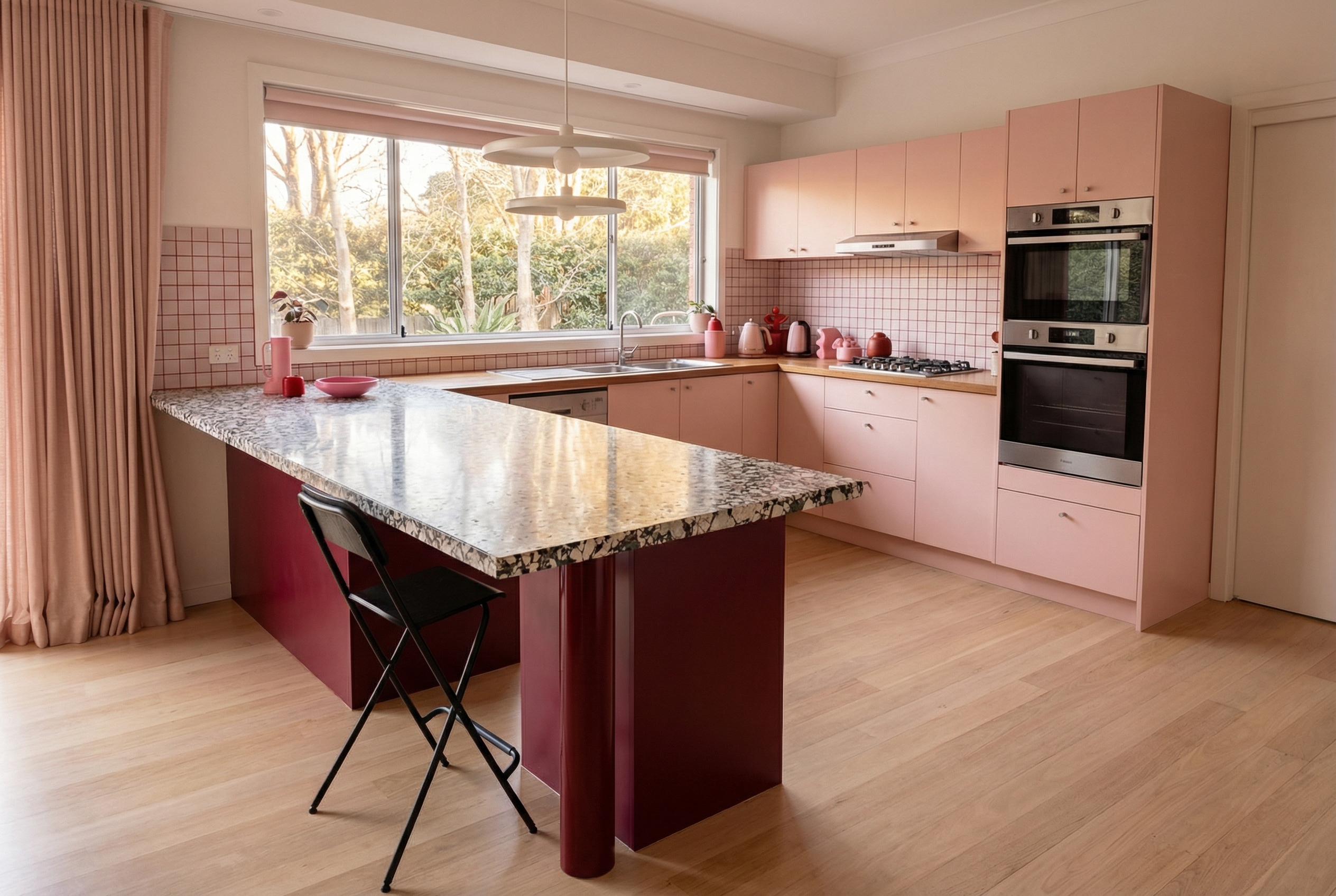
Once the agent finishes this new search, select an image of a kitchen with a design you like. We’re now going to use this design as a reference for our own kitchen space to explore ideas. Copy paste or drag and drop this image onto the runchat canvas: