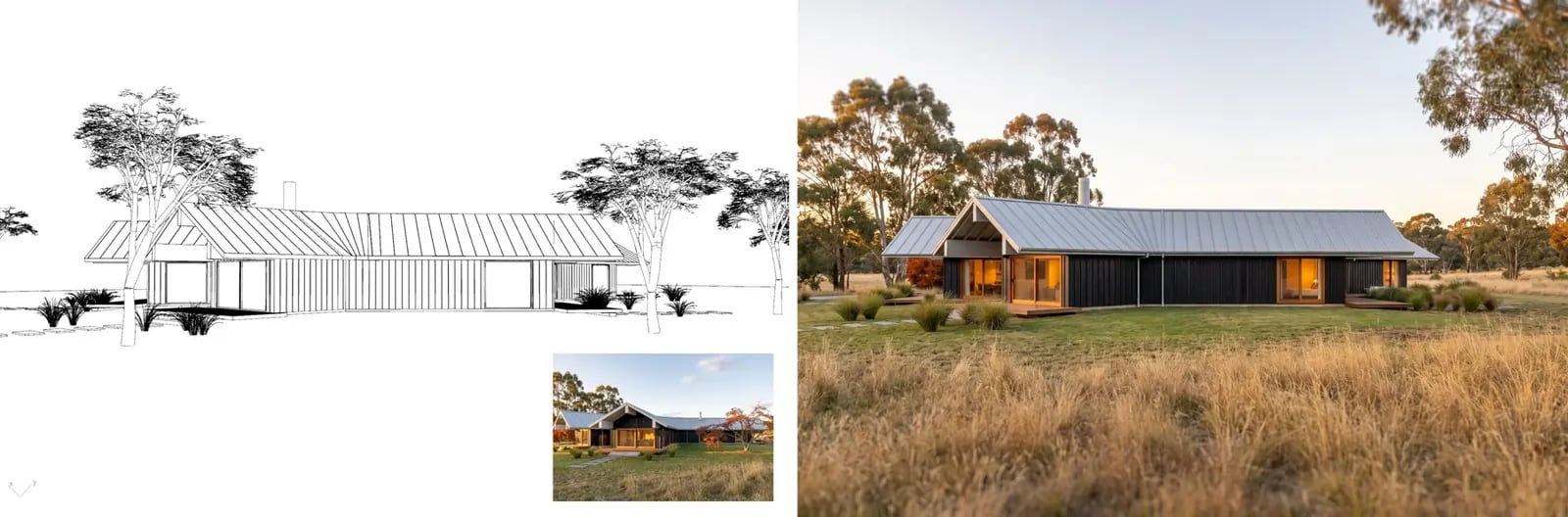
Once one view is approved, you want every other view to match it. Placing the approved render as a thumbnail inside the new line drawing keeps the model focused on the drawing while it copies the style.
A line drawing of the back of the house with the approved front render as a corner thumbnail, and the matching rendered back view

Open the example workflow

Make a copy of this workflow in your account to try it with your own images.

How it works

  1. Approved render (style reference) is the finished view.
  2. New view with the reference as a corner thumbnail is the new Rhino view with the approved render pasted small in the bottom-right corner. The Rhino node composites it for you.
  3. Render new view in the reference style (Nano Banana Pro): Apply the style of the photograph in the bottom-right corner thumbnail… then remove the thumbnail and continue the scene across that corner.

Tips

  • Sending the reference as a second full-size image often makes the model copy it instead of rendering the drawing. The thumbnail avoids that.
  • More on this technique in Render from a Rhino screenshot.

Use your own model

The image input holds a capture from our demo Rhino model, so the workflow runs as it is. To use your own model, open Rhino with the Runchat plugin signed in, set up your view, and run the node marked (optional) Rhino. Then drag its screenshot into the image input. The scripts use only the standard display modes and match layers or materials by the keywords in their inputs, so they work on any model.