

For more on the techniques in this example, see also render variations (3 min) and producing render sets (8 min).
1. Get a strong baseline render
Start by feeding two things into a Create node with Nano Banana Pro:- A clean line drawing screenshot from Rhino (pen linework, not shaded). Colours and shading in your screenshot muddy the output.
- A prompt that names three things: lighting, material, and a named reference.
What controls the output
- Aspect ratio: match the output aspect ratio to your screenshot. Output portrait if your screenshot is portrait.
- Image order: Nano Banana is most influenced by the last image you provide. Put the screenshot you want to render last.
- Switch to Pro for client work: Nano Banana Pro handles ambiguity better, especially when references and screenshots have different camera angles. The cost is worth it for ship-quality output.
2. When the model returns the wrong thing
Two failure modes are common when you’re rendering against a reference: The model returns the reference instead of editing the screenshot. Use the thumbnail technique: paste your screenshot as a small thumbnail inside the reference image. Now you have a single image with both, and the model pays attention to the main frame while staying influenced by the thumbnail. The model just returns the screenshot unchanged. This happens when the reference and screenshot are very similar. The thumbnail technique fixes this too. For a deep dive on these techniques and more, see the 12 ways to improve your Nano Banana images walkthrough.3. Write a multi-step prompt for control
When you need fine control over photographic qualities (film grain, vignetting, light balance), write the prompt as a sequence of steps rather than one sentence:- Film grain
- Vignetting
- Light and shadow balance
- Colour palette
- Activity and people
- Greenery or context
4. Branch the prompt with an agent
Once your baseline render works, generate stylistic variations by feeding the prompt through an Agent node: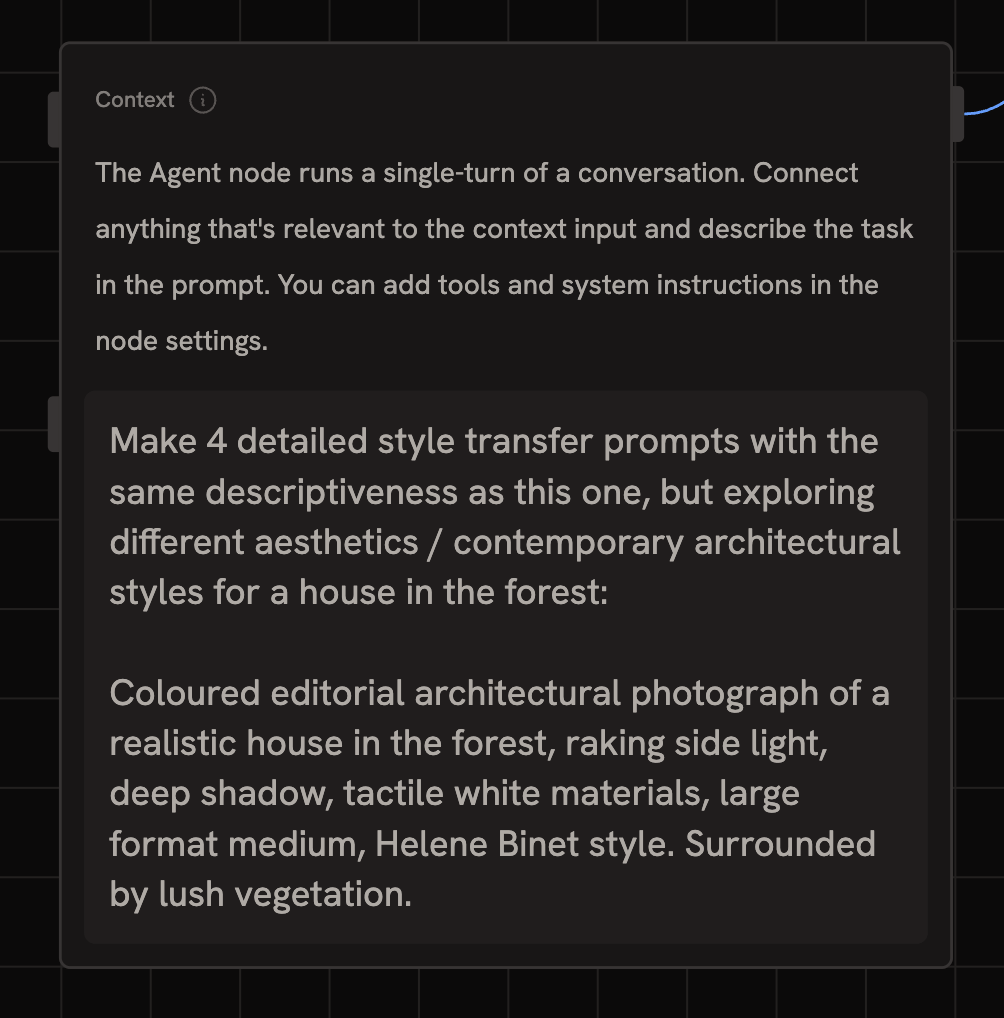
- Add an Agent node
- Set output format to list
- Connect your original prompt as context
- Prompt the agent:
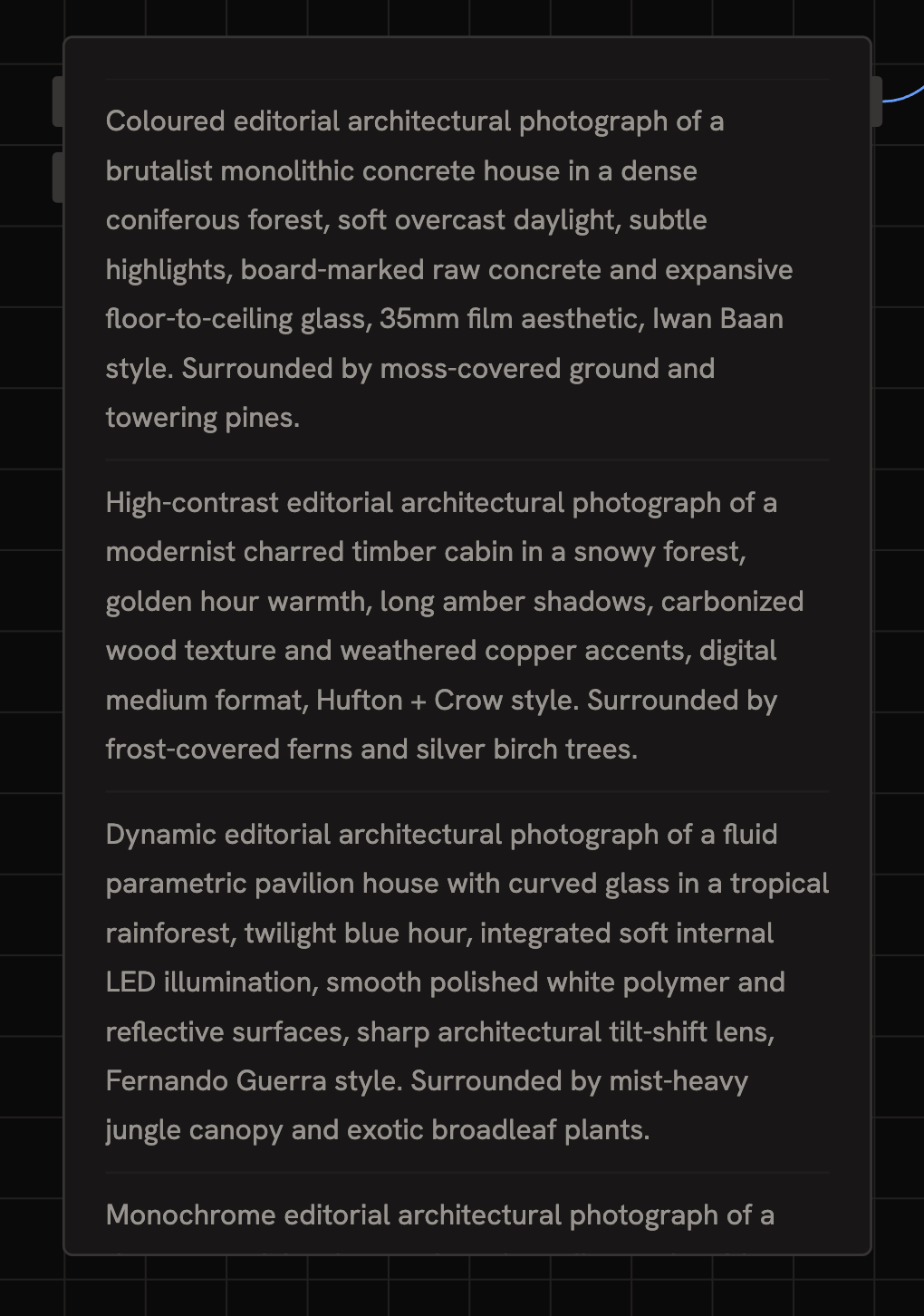
Generate 4 variations of this prompt that explore different photographic styles. - Connect the agent’s list output to a new Create node
- Each list item becomes a separate render
5. Carry the style across other views
Once one variation works, lock it in and apply it to other angles of the same building:- Take the finished render and crop it to just the building (remove surroundings).
- Collage it into the top-left of a new screenshot from a different angle.
- Prompt Nano Banana Pro: “Apply the style from the top left to the main image. The screengrab shows the same building from a different angle. The vegetation and surroundings must match the new camera position.”
Rotating camera angles is one of the hardest things for any image model.
Style-transferring many views in one batch usually fails. Work through them
one at a time, tweaking prompts per view.
Quick tips
- Use
@(orTab) to inline reference any node’s output into a prompt. See Connecting Nodes. - Alt-drag to duplicate a node. Alt-shift-drag duplicates with connections.
- Crop references before collaging. Less clutter, more focus.
- Square aspect ratios for cropped references. Wild aspect ratios produce worse results.
- Workshop long prompts with the chat agent when one isn’t producing what you want.
Next steps
- Make controlled edits to AI images, fix specific parts of a render with masks instead of regenerating
- Train a custom LoRA, for when reference images can’t capture your studio’s specific aesthetic
- Runchat for Rhino, capture screenshots directly from Rhino into a Runchat workflow