

- A Google Cloud account with Streetview, Places, and Geocoding APIs enabled with billing
- Familiarity with the Code node and Credentials
What you’re building
By the end of this tutorial you’ll have:- A custom JavaScript component that fetches Streetview images by address
- An agent-driven analyser that summarises planning, heritage, and streetscape features from Streetview imagery
- A Marble 3D environment built from Streetview images, viewable in Rhino
- A reusable Places API tool that an agent can call to answer questions like “how many parks are near this address?”
- A planning API integration for natural-language queries about a site
1. Set up your Streetview key
You’ll need a Google Maps API key with Streetview enabled. Create one in Google Cloud Console. In Runchat, open Account menu → Manage Secrets:- Add a secret named
streetviewwith your API key as the value - Set allowed origins to:
https://maps.googleapis.com
2. Build the Streetview component
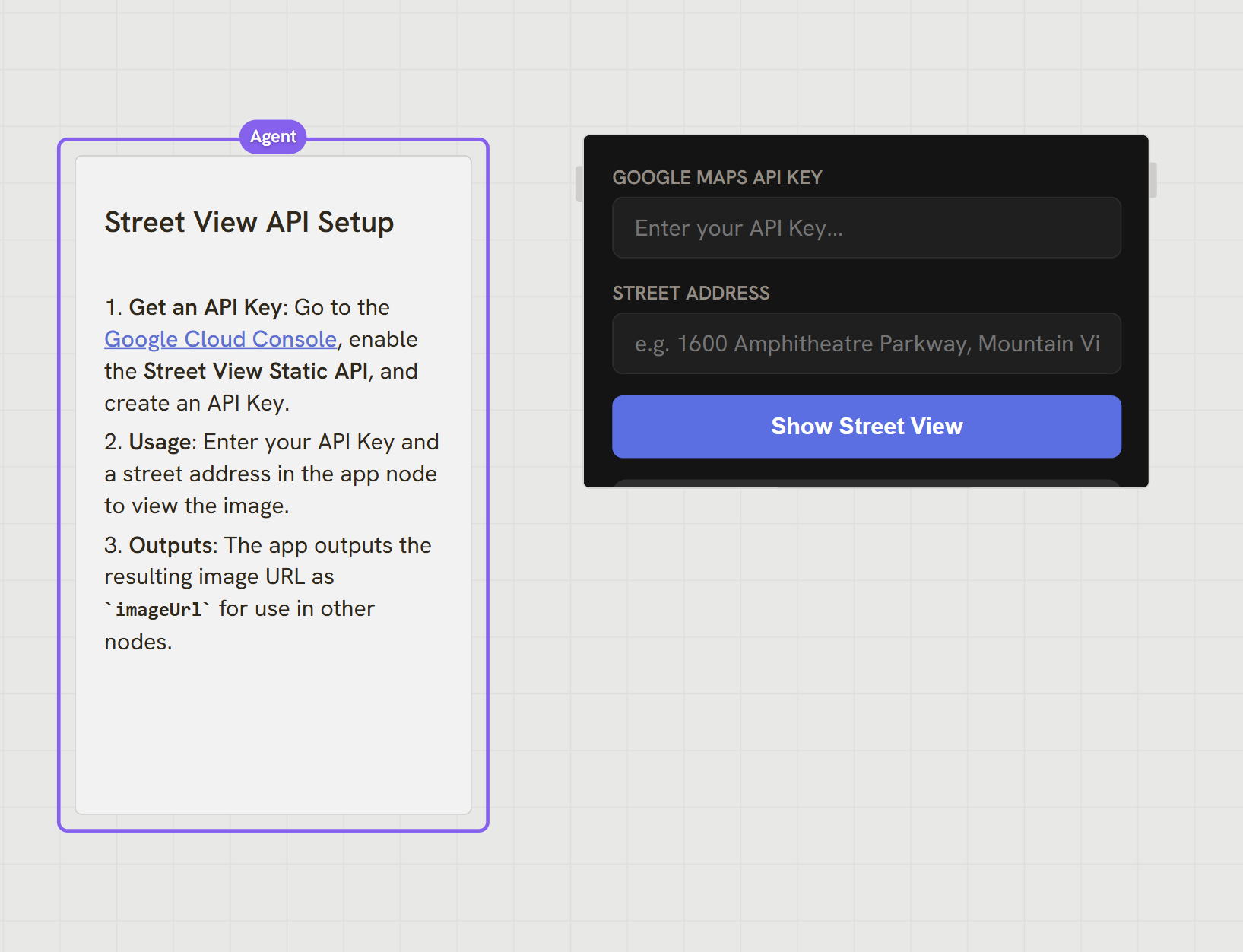
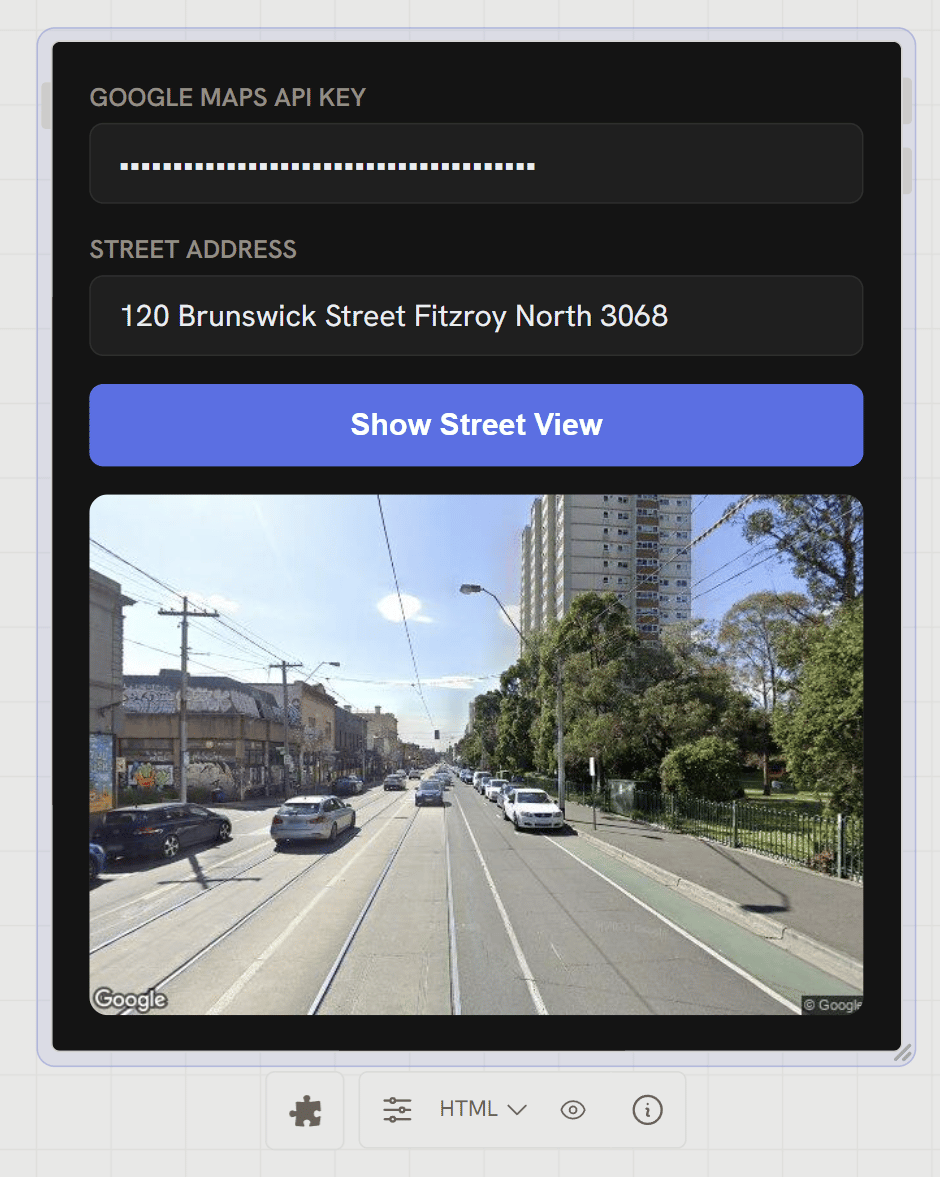
The fastest way is to share the API documentation with the chat agent and let it build the component:- Click + in the chat input, add the Get Website tool (fetches raw HTML for a given URL)
- Prompt:
3. Render the image locally and remove the key from output
The first version returns an image URL with the API key embedded, bad. Update the component so it fetches the image and renders it as base64: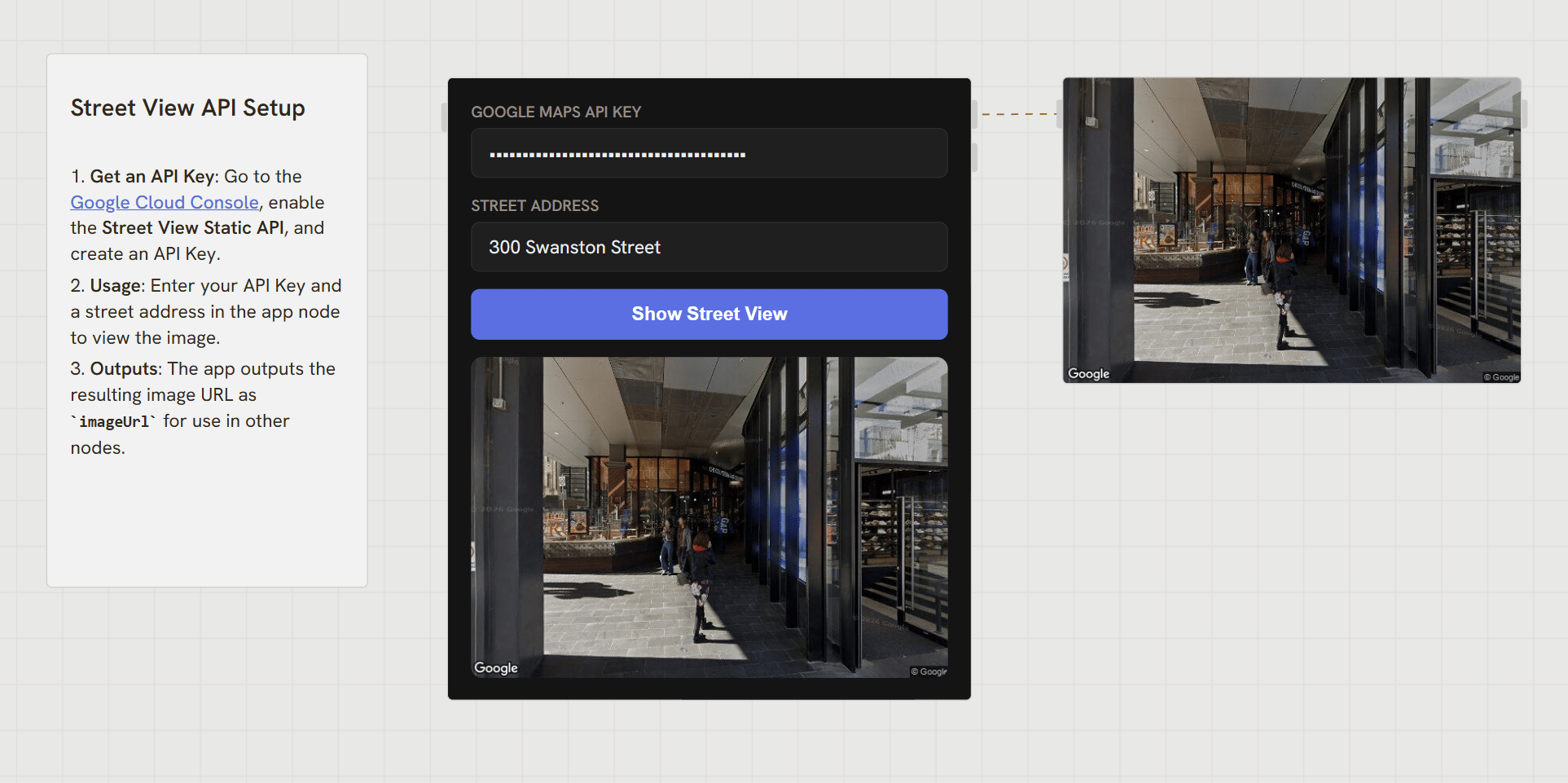
4. Make the address parametric
To use this in a parametric workflow, expose the address as an input: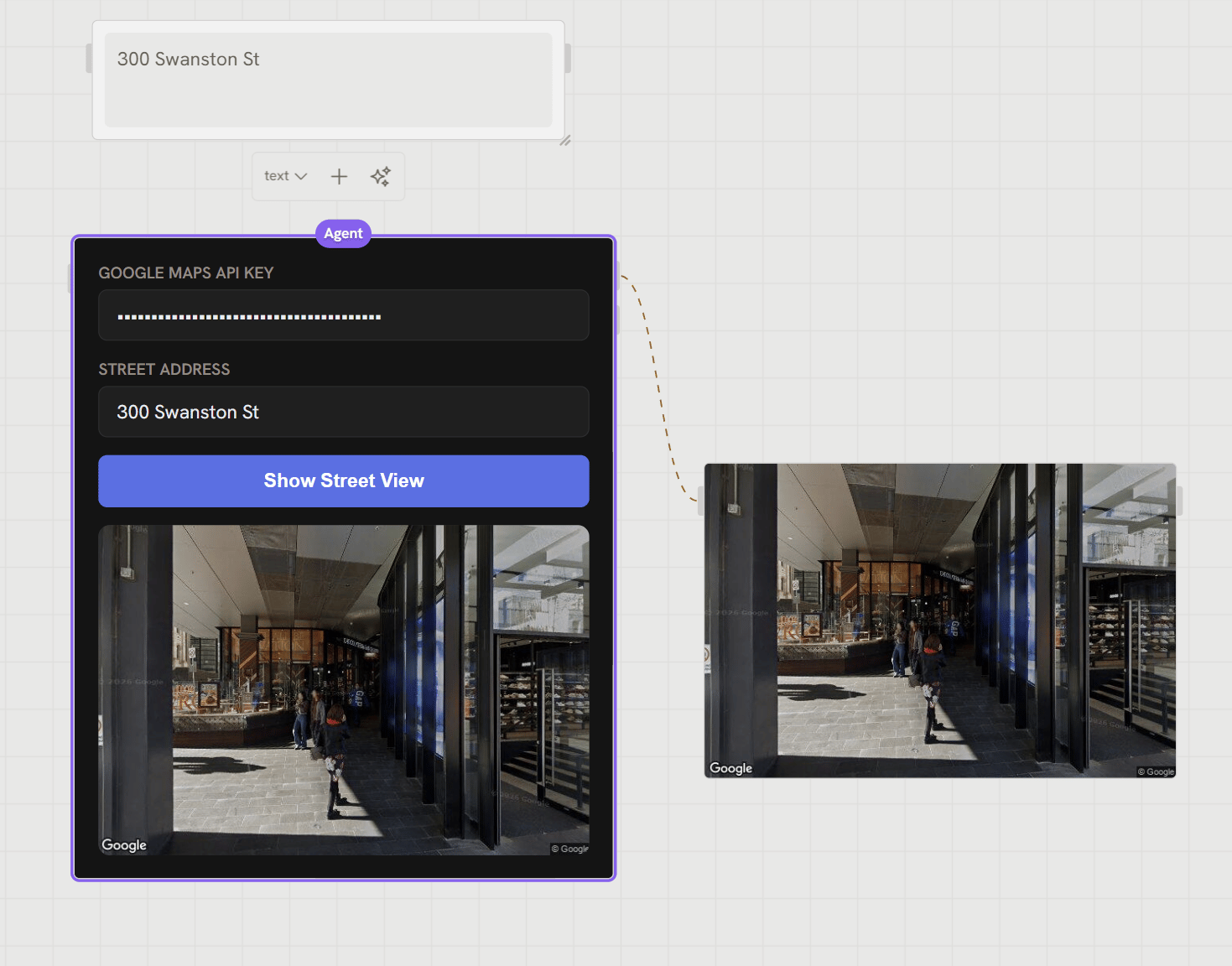
@ syntax). Either works.
5. Convert to JavaScript for tools and Grasshopper
Custom HTML components run in your browser. That’s fine for the editor, but if you want to use this as a tool with an agent, or run the workflow from Grasshopper, you need a server-side version.streetview credential to the new node by pressing Tab in any input field and selecting it from the credentials list. See Credentials for the full credentials pattern.
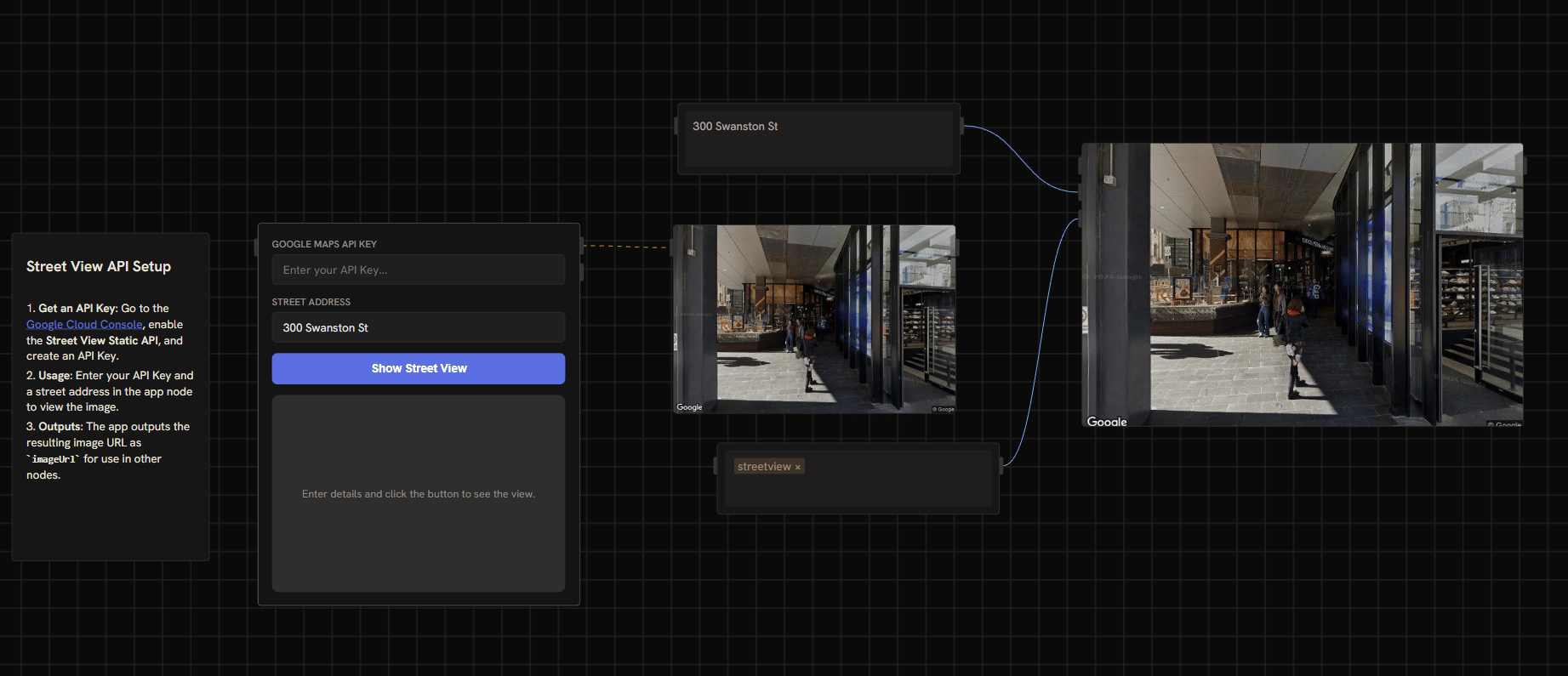
6. Process multiple addresses
Connect a list of addresses to the JavaScript component to fetch a Streetview image for each: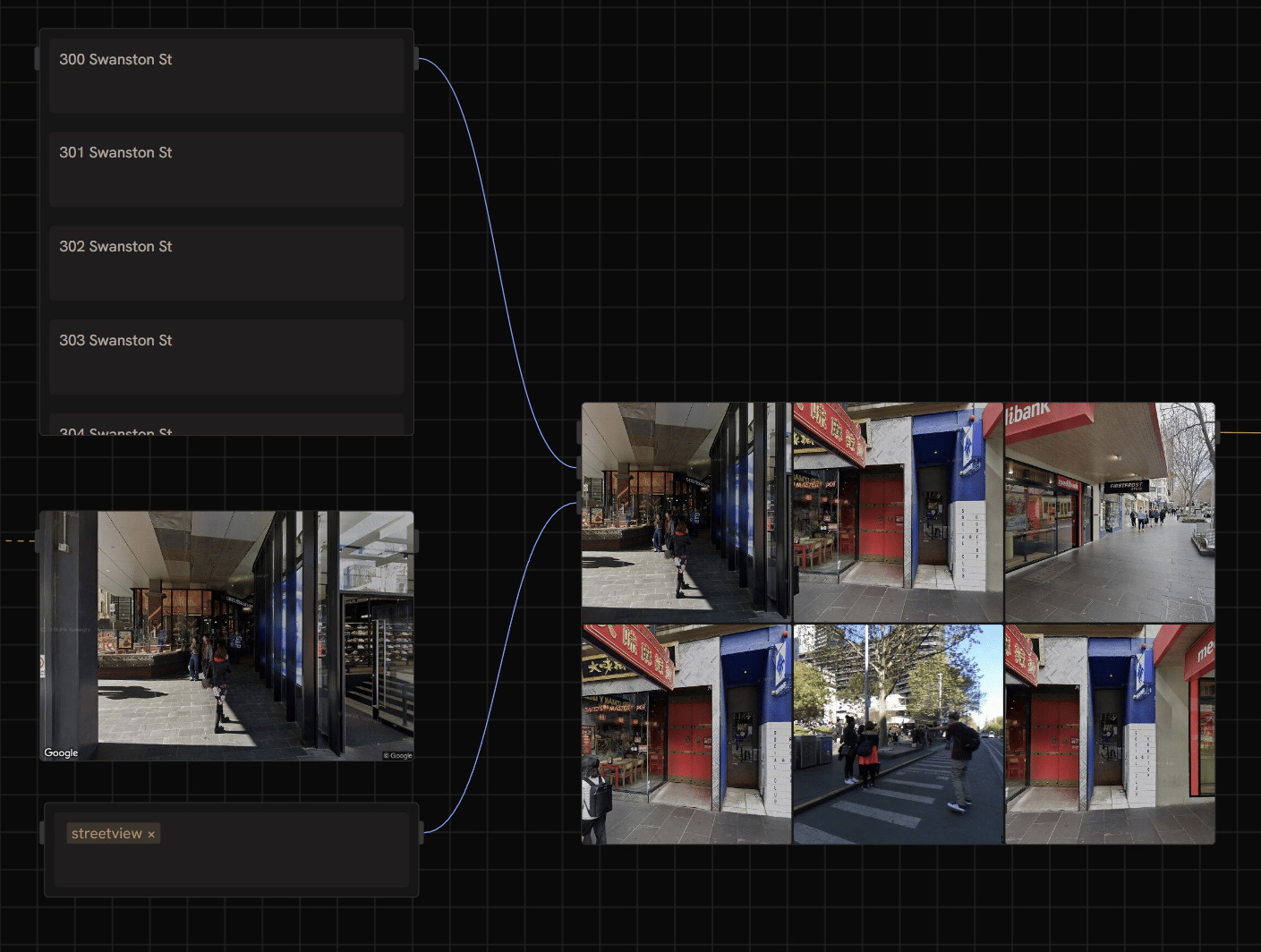
7. Analyse images with an agent
Connect the Streetview output to an Agent node. Give it a prompt for whatever analysis you need, quantities and summaries of street planting, setbacks, heritage features, building typologies: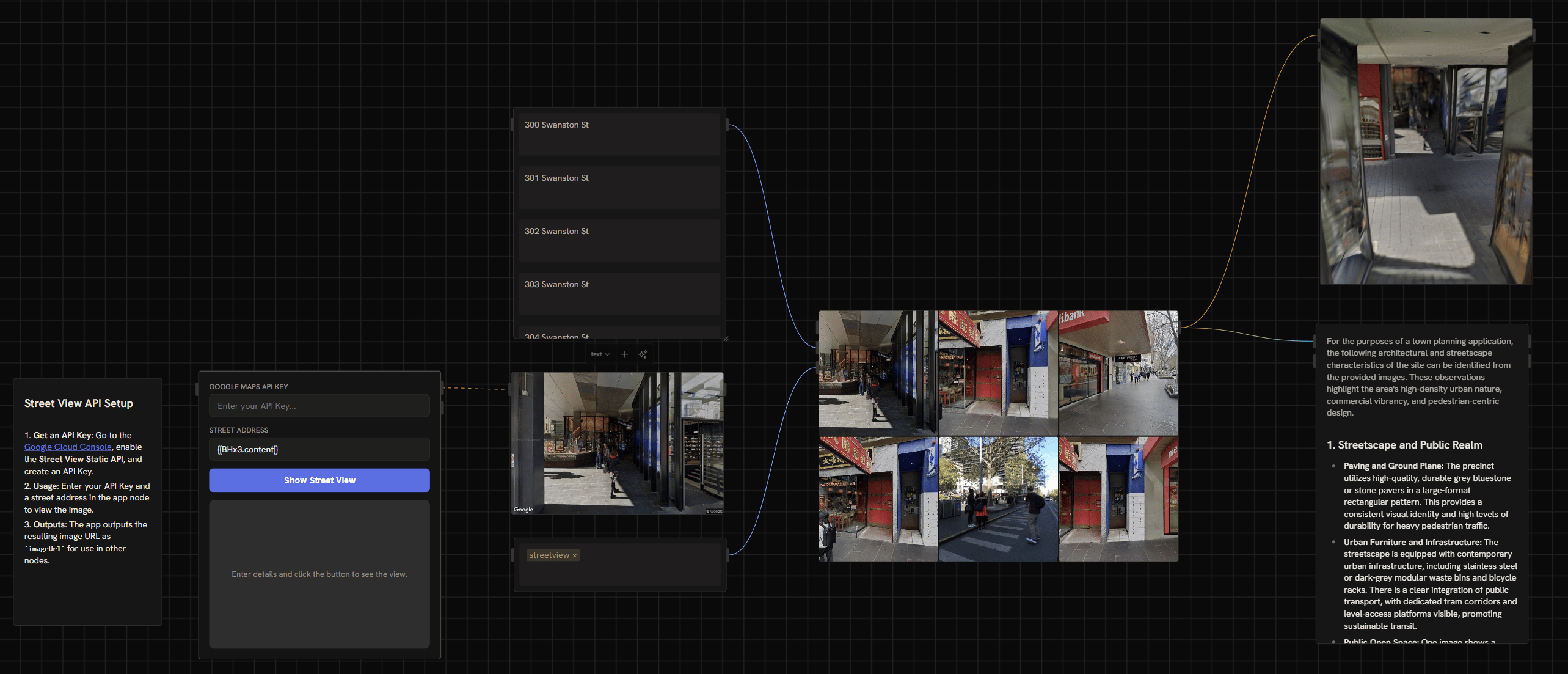
8. Use Streetview as a Rhino viewport background
For modelling against site context, use the agent to write a Python script that sets a Streetview image as a Rhino viewport background. In the Runchat plugin in Rhino, prompt: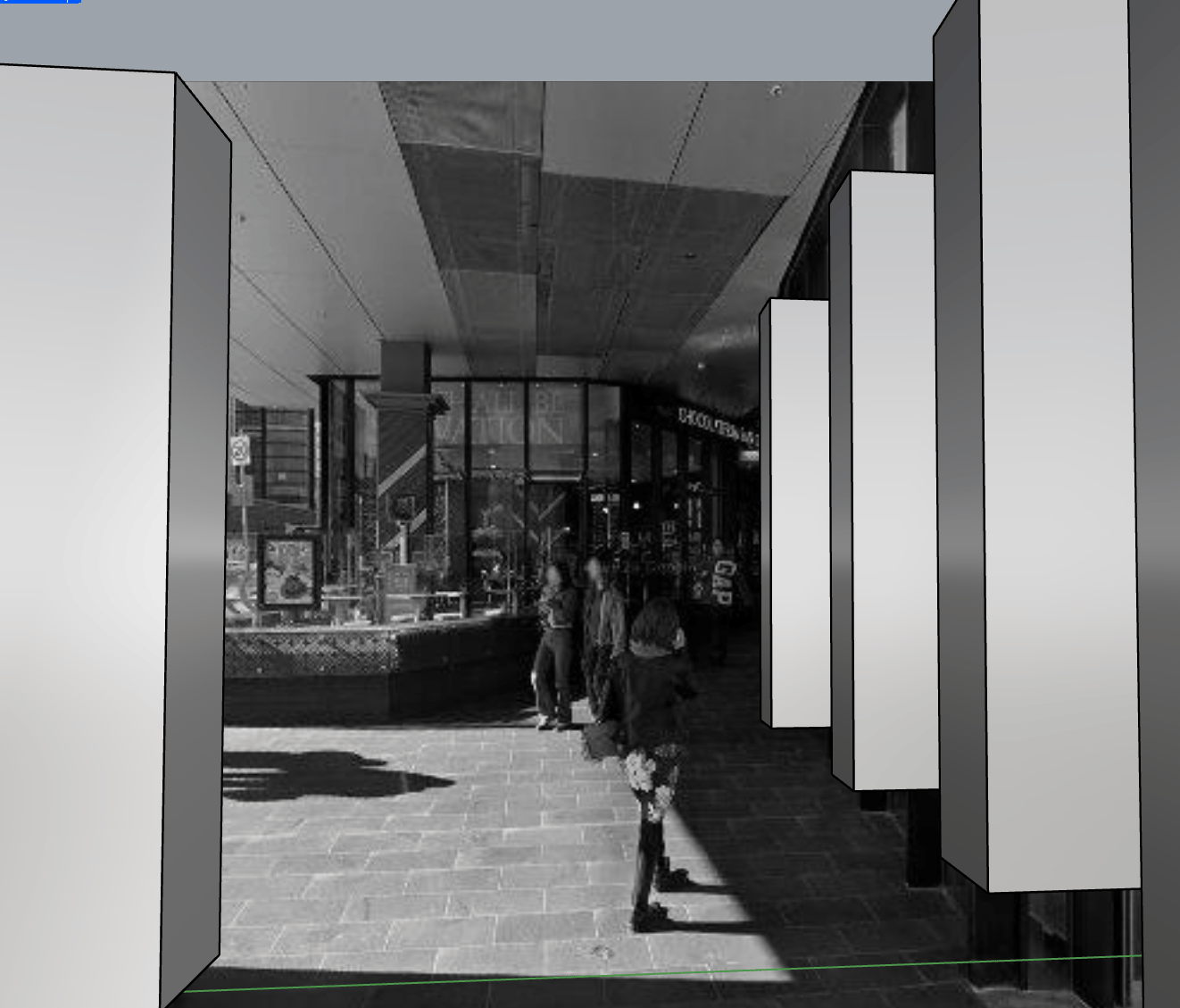
9. Generate 3D environments with Marble
For immersive site mockups, generate a 3D model from a Streetview image using Marble Mini:- Add a Marble Mini node to the canvas
- Connect a Streetview image
- Optionally write a prompt to guide content not visible in the input
- Run. Takes about 30 seconds for a Gaussian splat
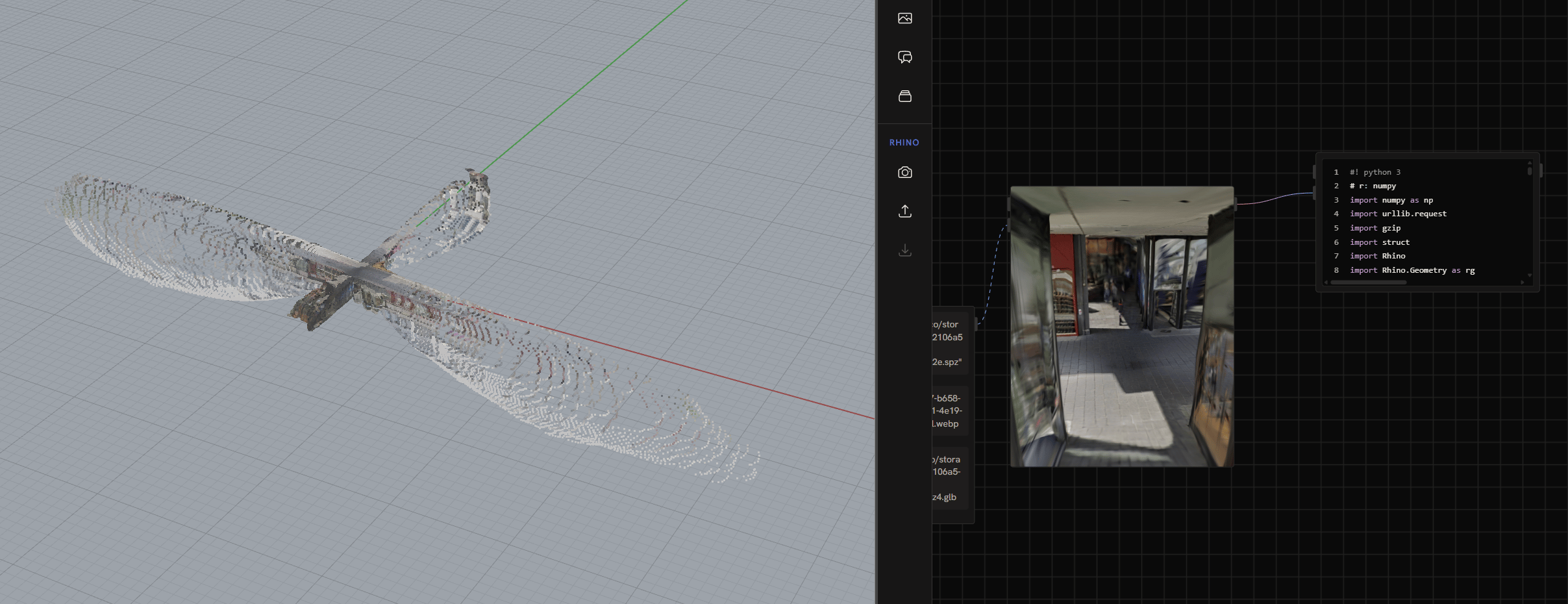
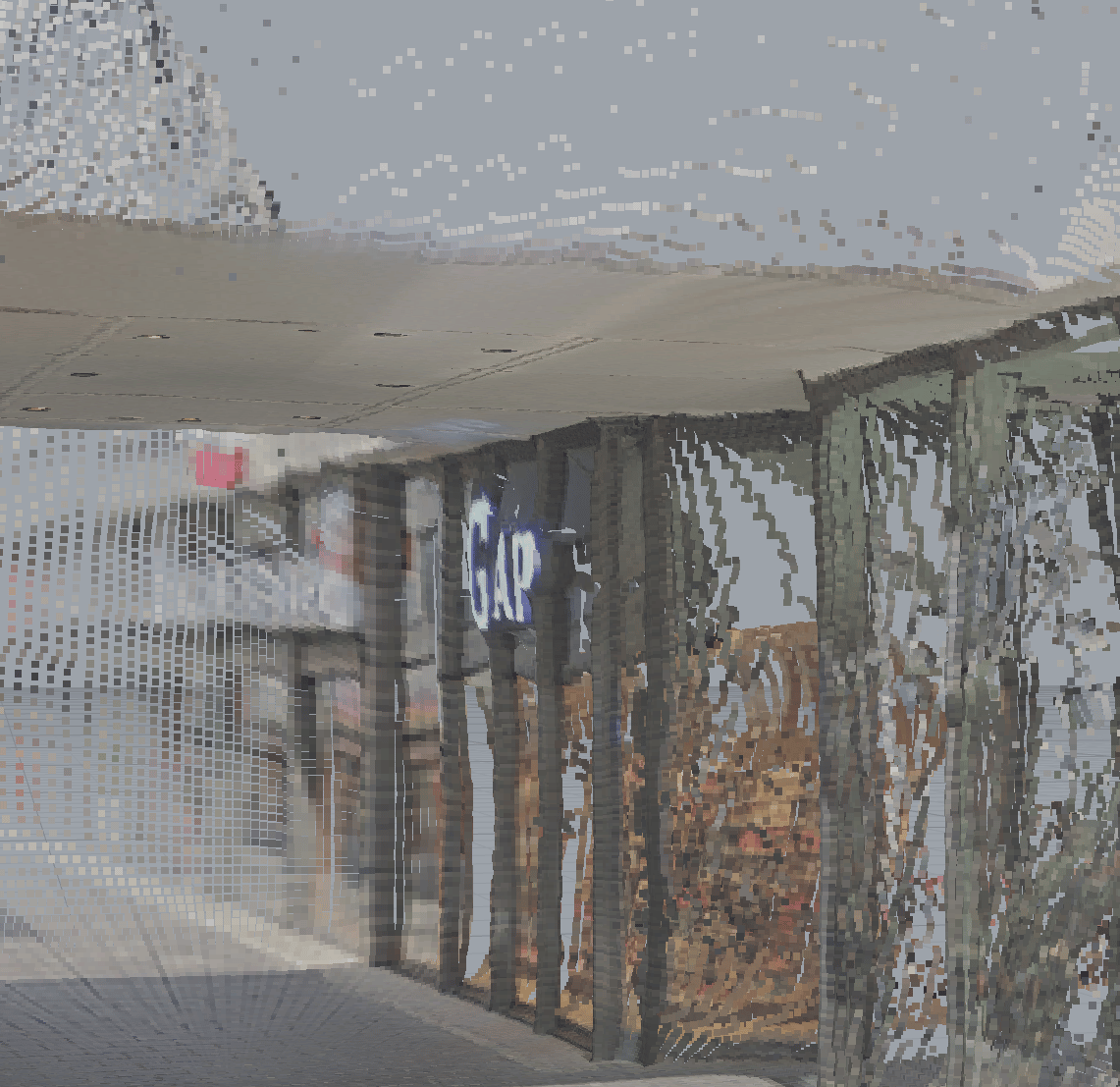
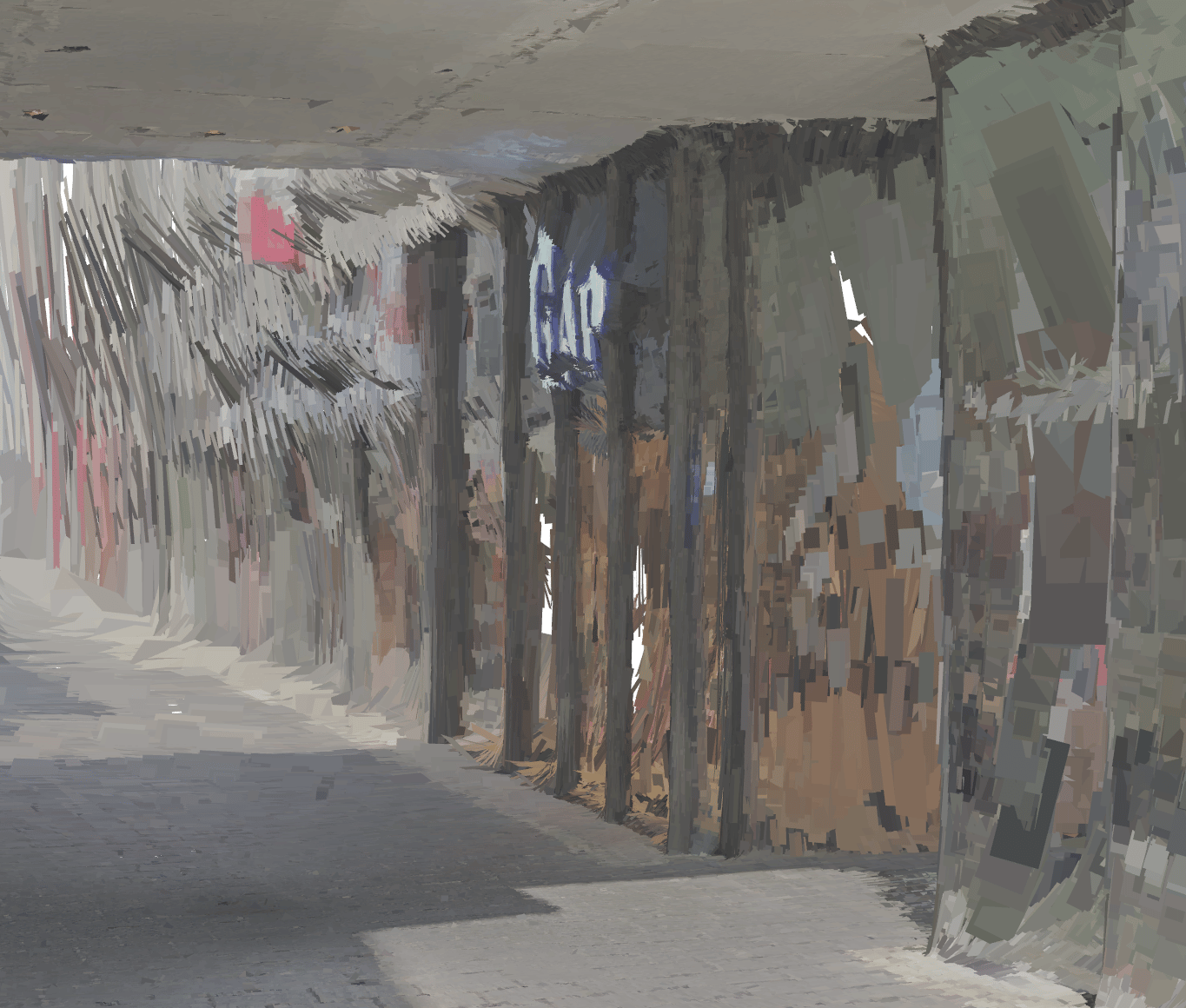
.spz format to a coloured pointcloud:
- Grab the SPZ format spec markdown
- Prompt Opus:
We have a splat file in spz format. Write a Python script that converts this to a coloured pointcloud we can render in Rhino. The reference spec is below.(paste the spec) - Iterate on errors until it works
10. Build a Places API component
Streetview is one source. Places is another, useful for “what’s near this site?” queries (parks, schools, transit stops).- Enable Places API in Google Cloud
- Add
https://places.googleapis.comto the allowed origins of yourstreetviewsecret (or create a new secret) - Grab the Nearby Search docs and click “Copy page to markdown”
- Prompt the chat agent:
Create a JavaScript component that fetches place information using the Places API:(paste the markdown)
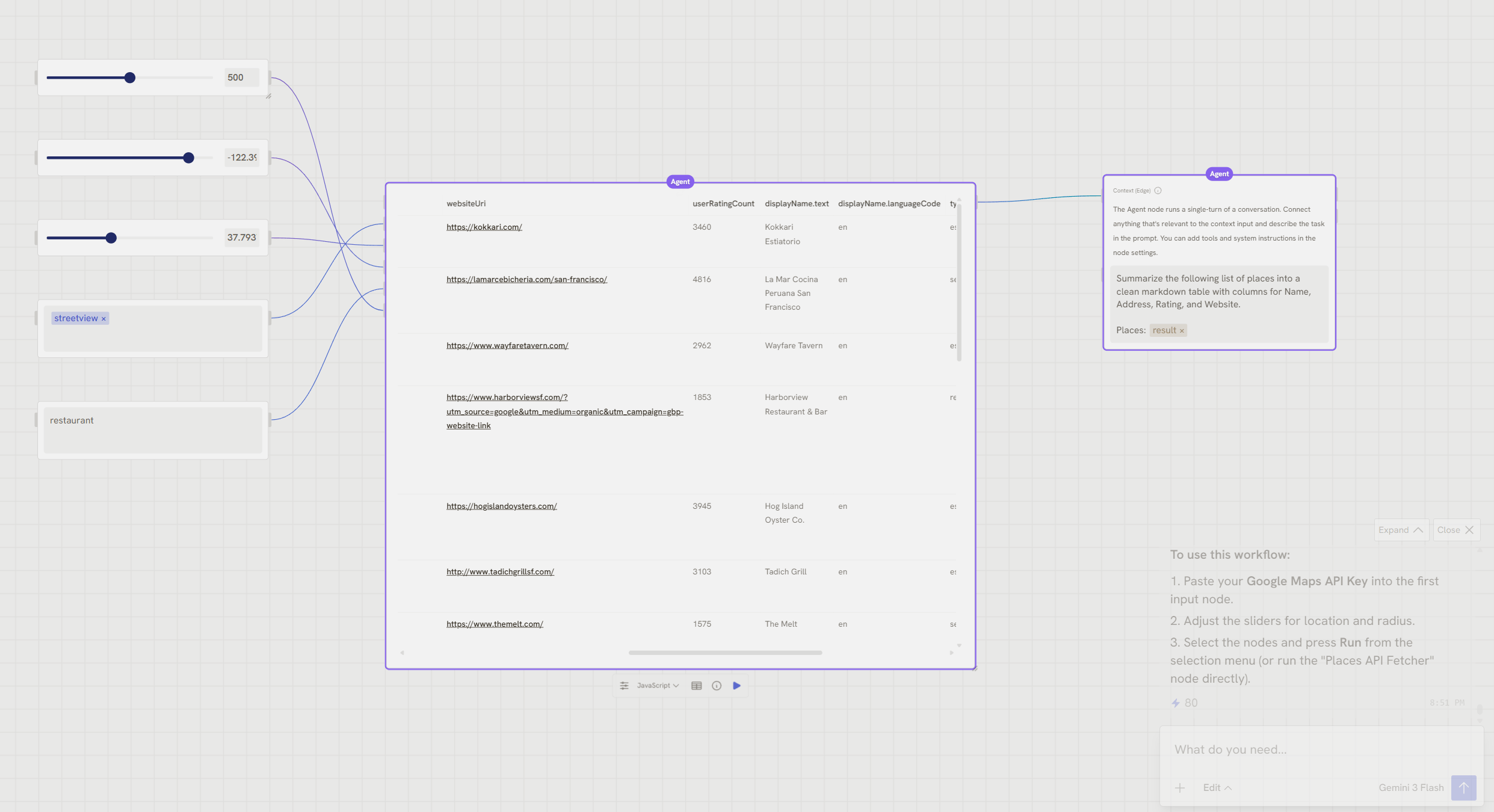
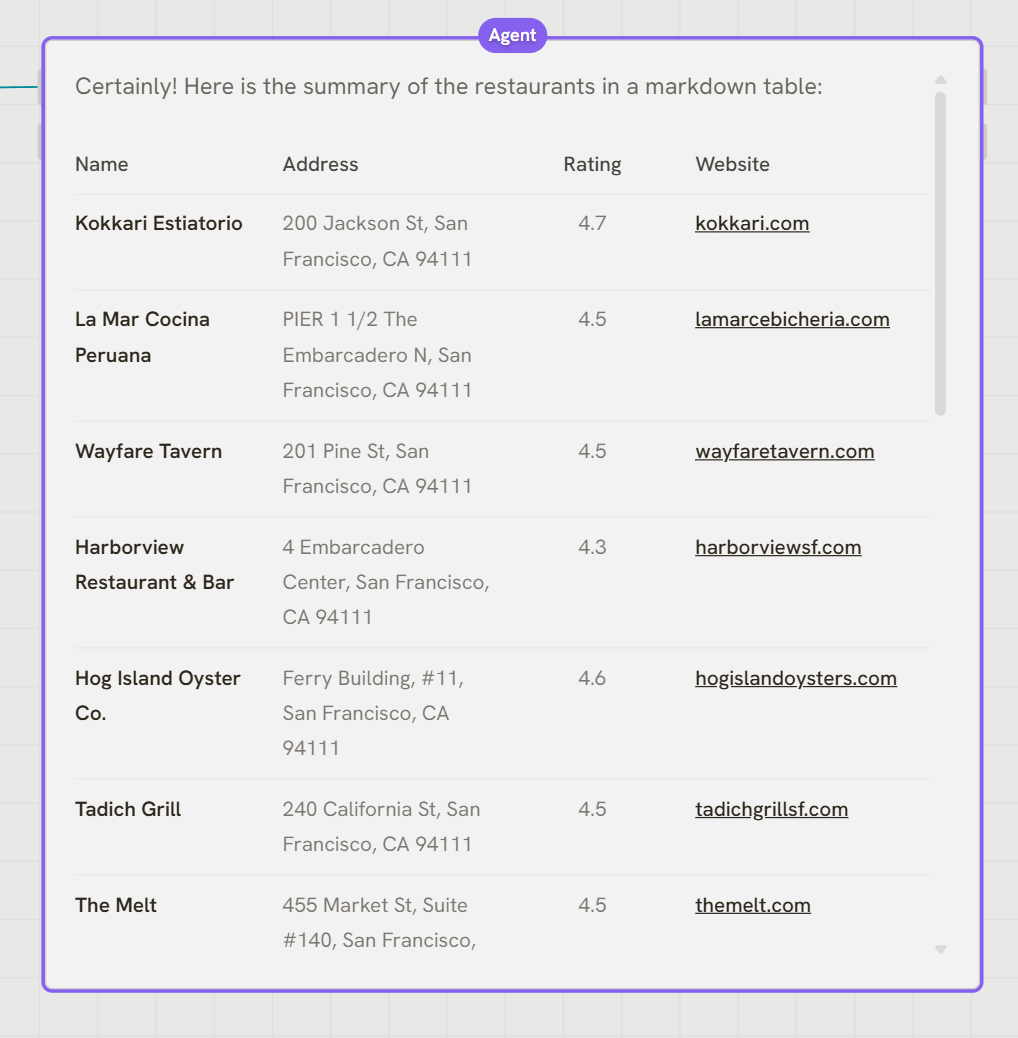
Watch out when the Agent uses both referenced parameters AND edge inputs. In
the table-summary example, the table can end up injected into the prompt AND
the message context. Double-coverage. Pick one.
11. Publish the Places workflow as a tool
The real power is letting an agent call this directly. To do that, publish your Places workflow as a Tool that exposes address, type, and radius as parameters while keeping the API key internal. First, add a Geocoding step so users can pass an address instead of lat/long. Enable Geocoding API, then ask the agent to add a node that converts addresses to coordinates: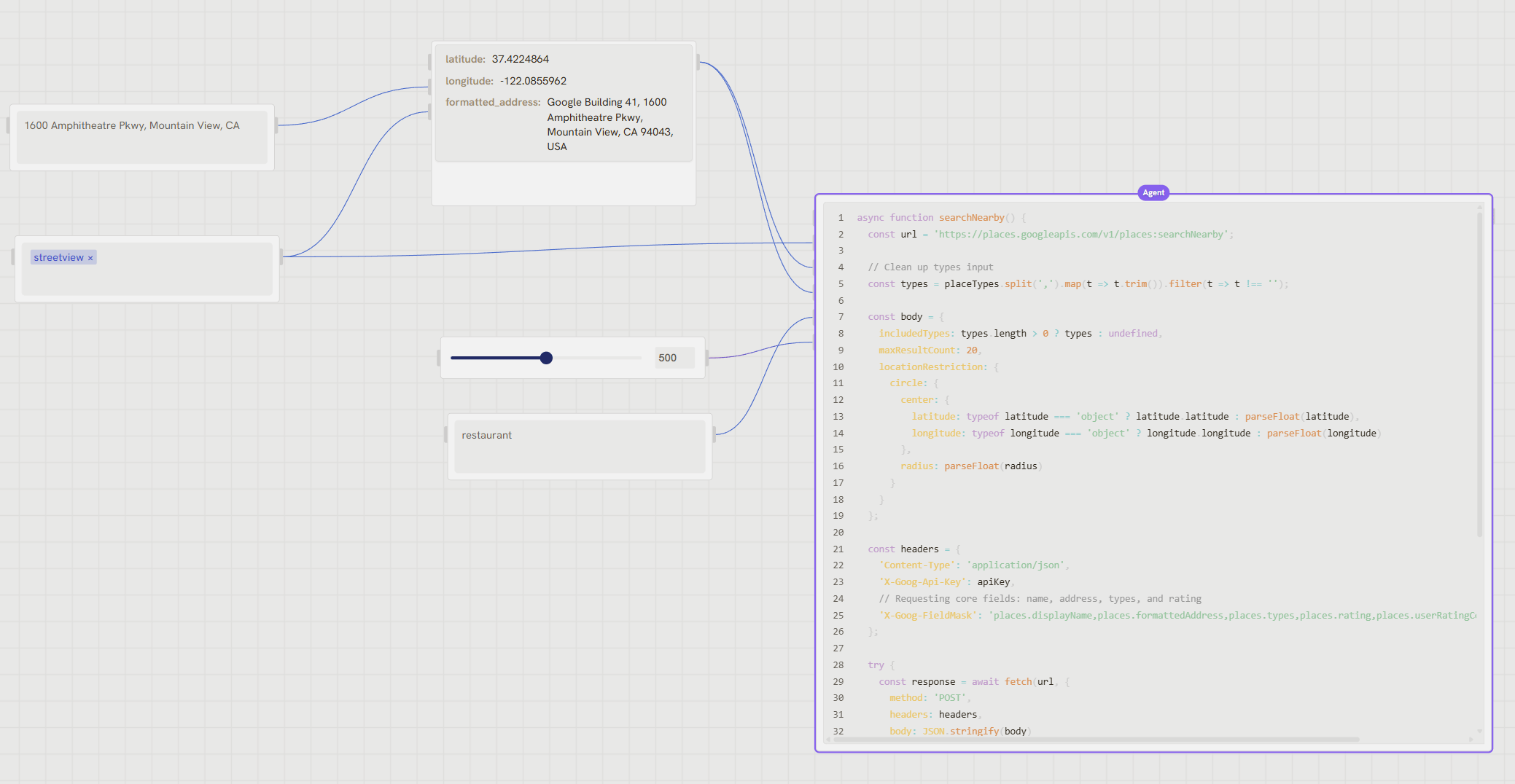
- Open the app preview from the editor menu: Share → Publish App
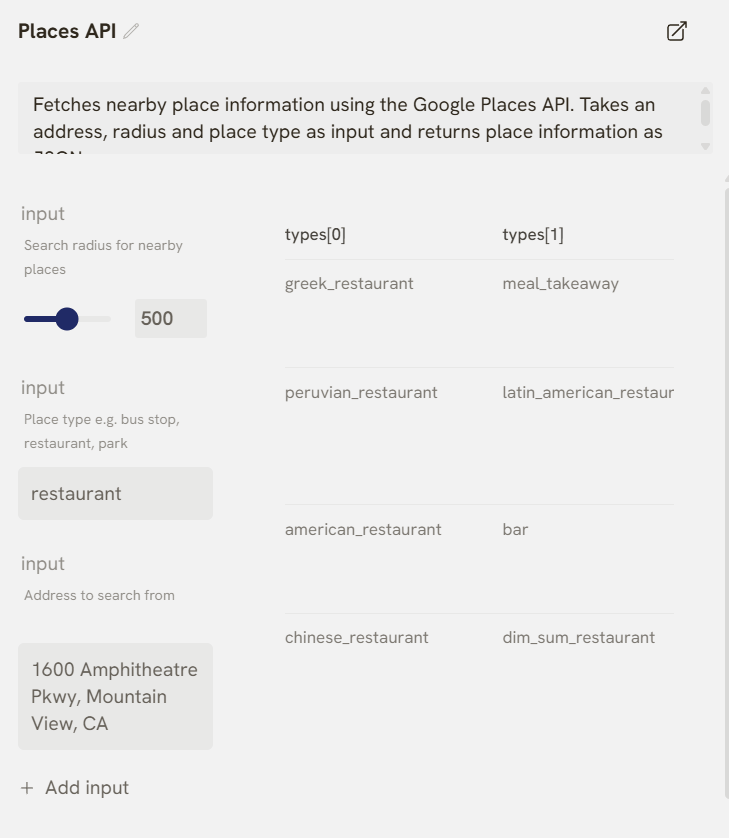
- With the panel open, click the puzzle piece on the address, radius, and type input handles and on the places table output handle to expose them (add descriptions while you’re there)
- Name the workflow in the top bar, then add a strong description in the panel footer and click Publish (the agent reads this description to decide when to use the tool):
Fetches nearby place information using the Google Places API. Takes an address, radius and place type as input and returns place information as JSON.
- Click Publish V1
12. Add the tool to a library
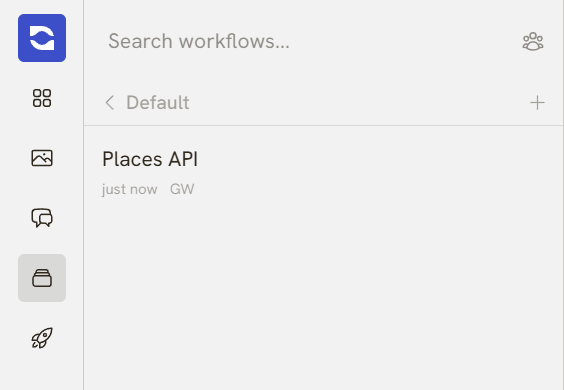
For an agent to use your tool it has to be in an installed library:- Click Workflows in the editor drawer
- Click + to create a new folder, name it
Google APIs - Drag your Places workflow into the folder
- Right-click the folder and choose Add to Nodes
13. Use the tool in a chat
Create a new workflow (you can’t use a tool inside its own workflow). Click + in the chat, Tools, select the Places tool. Now ask: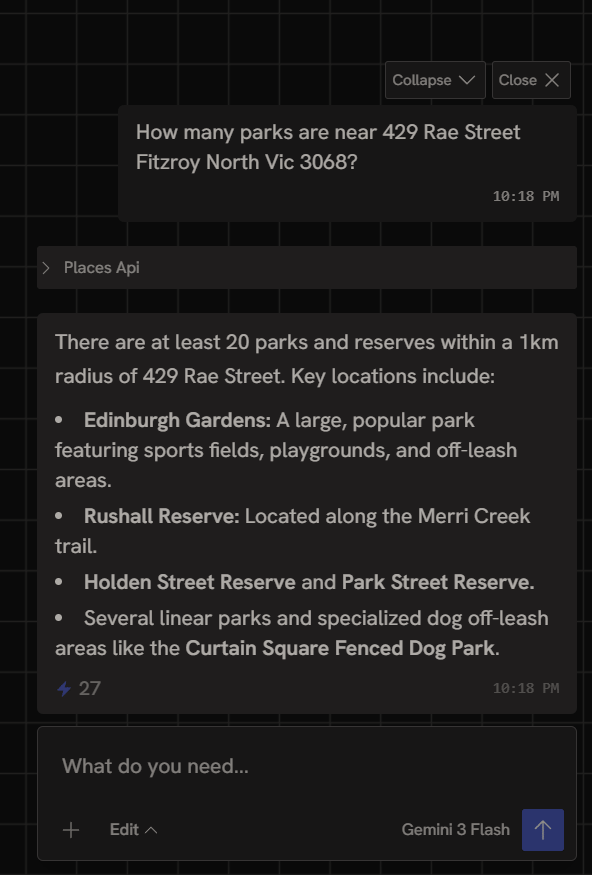
14. Plug in a third-party planning API
The same pattern applies to any API. As an example, here’s a planning data API for Western Australia:- Add the API key as a secret named
corbcode, with allowed originhttps://townplanning-app.salmonflower-34e8b60d.australiaeast.azurecontainerapps.io - Add a Code node and reference the credential as
ENV.corbcode
What you’ve built
A complete site research workspace:- Streetview fetcher (HTML and JavaScript versions)
- Multi-address batch processing
- Image analysis via the Agent node
- 3D environment generation with Marble + custom Rhino import
- Places API tool for nearby search
- Planning API for natural-language queries
Next steps
- Credentials, the underlying patterns for any API integration
- Tools, Apps, and Libraries, full reference for publishing reusable tools
- Build and publish an artifact, bundle site research into a shareable site report