

Running agents
With agent teams turned on, an agent keeps working after you close its workflow, so it can be running without a tab open. The Running section lists every agent at work, grouped by workflow, with what it is doing and the credits it has used so far.- Click Stop to stop one agent. The work it has done so far stays on the canvas and in the chat.
- Click Stop all to stop every agent on that workflow.
- Click the workflow name to open it and pick the chat back up.
Scheduled and Runs
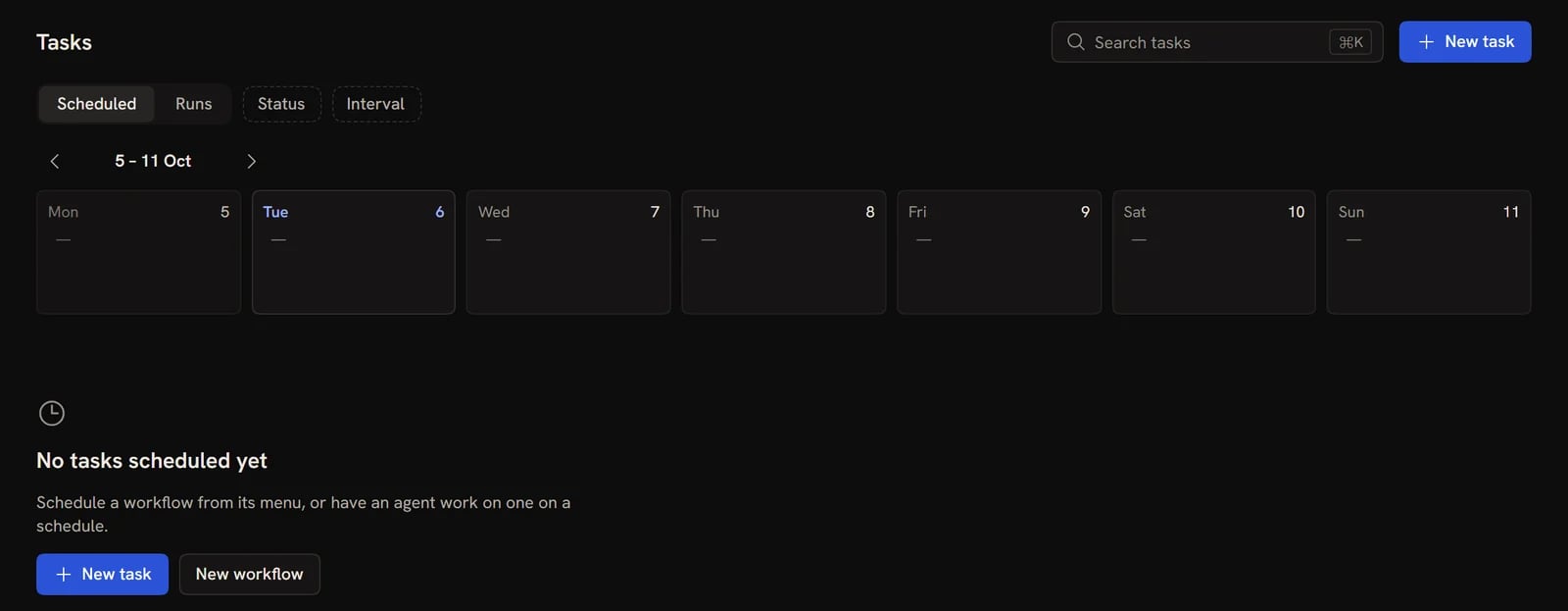
A toggle at the top switches between two views:- Scheduled: every scheduled agent, next run first
- Runs: the run history, grouped by day, newest first. Click Load older runs to go further back.
Week strip
The week strip above the list shows one week at a time. Each day lists how many runs ran or failed, and which agents are scheduled. Use the arrows to move between weeks, and This week to jump back. Click a day to show only that day’s agents or runs. Click it again, or click Clear day, to see everything.Scheduled agents
Each row shows the agent’s name, its interval, when it runs next, and a Last ok or Failed badge for its most recent run. Agents that run a prompt carry a Prompt badge; the rest run their workflow as it is. Click an agent that runs a workflow to open the workflow. Click one that runs a prompt to edit it. Open a row’s … menu, or right-click it, for:- Edit (agents that run a prompt only): change the agent’s settings
- Run now: run the agent immediately, without waiting for the next interval. Useful for checking a schedule works.
- Change interval: switch between Hourly, Daily, Weekly and Monthly
- Pause: stop the schedule without deleting it. Paused agents show Paused in place of the next run. Pick an interval under Change interval to resume.
- Open workflow
- Delete…: remove the schedule and its run history. The workflow itself is kept.
Runs
Each run shows the workflow name, when it ran, how long it took and the credits it used. Failed runs are marked Failed and show the first line of the error. Click a run to open the workflow with that run loaded, so you can inspect what happened.Agents that run a prompt
Scheduling a workflow gives you an agent that runs it as it is. To have the agent do more than that, give it a prompt. For example: check the latest outputs every morning and summarise what changed. Click New agent to open the New agent dialog:- Agent name
- Workflow: the workflow the agent works on. You can also create a new one from here.
- Schedule: how often the agent runs
- Instructions: the prompt, which is what the agent should do each time it runs
- Model: the agent’s model
- Permissions: View only, Edit canvas, or Edit and run. Pick Edit and run if the agent needs to run nodes.
- Context tools: installed tools (workflows you’ve added with Add to my nodes) the agent should have on hand
- Reasoning effort: from Off to Max
- Max budget per run: a credit cap for each run, or No limit
Next steps
- Scheduling agents: schedule a workflow from the editor or dashboard
- Webhooks: trigger workflows from external events instead of on a fixed schedule
- Dashboard: the rest of the dashboard