

Sidebar
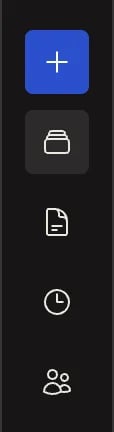
The sidebar has five places to go:
Account menu
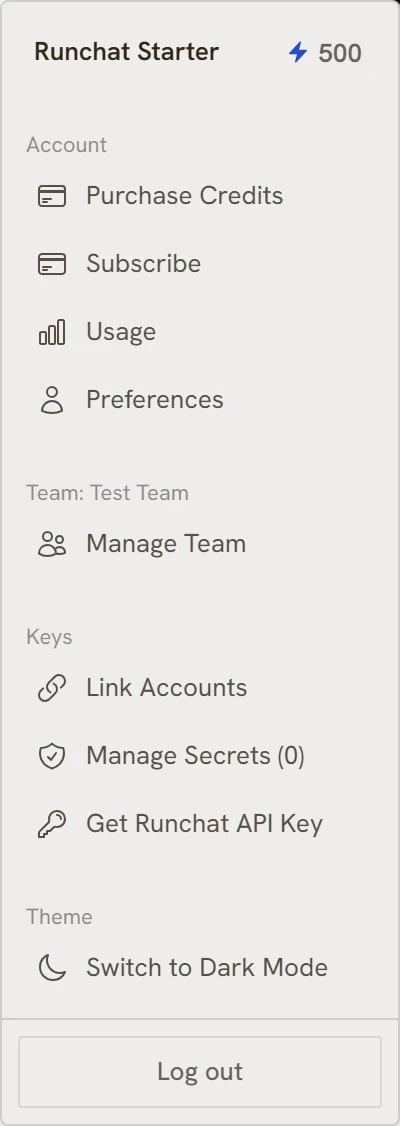
The account button at the bottom of the sidebar opens the account menu. The header shows your current plan and credit balance, and the sections below link out to everything tied to your account:
- Purchase Credits and Manage Subscription: top up credits or change your plan. See Credits and Subscriptions & Credits.
- Usage: a breakdown of your credit spend across workflows and models.
- Preferences: your profile and account preferences.
- Manage Team: members, seats, roles, and the shared credit pool. See Teams.
- Link Accounts: connect provider accounts like OpenRouter or Fal to use your own billing instead of credits. See Link Accounts.
- Manage Secrets: encrypted API keys for use in Code nodes. See Credentials.
- Get Runchat API Key: create keys for the Runchat API and the CAD plugins.
- Theme: switch the app between light and dark mode.
Workflows grid
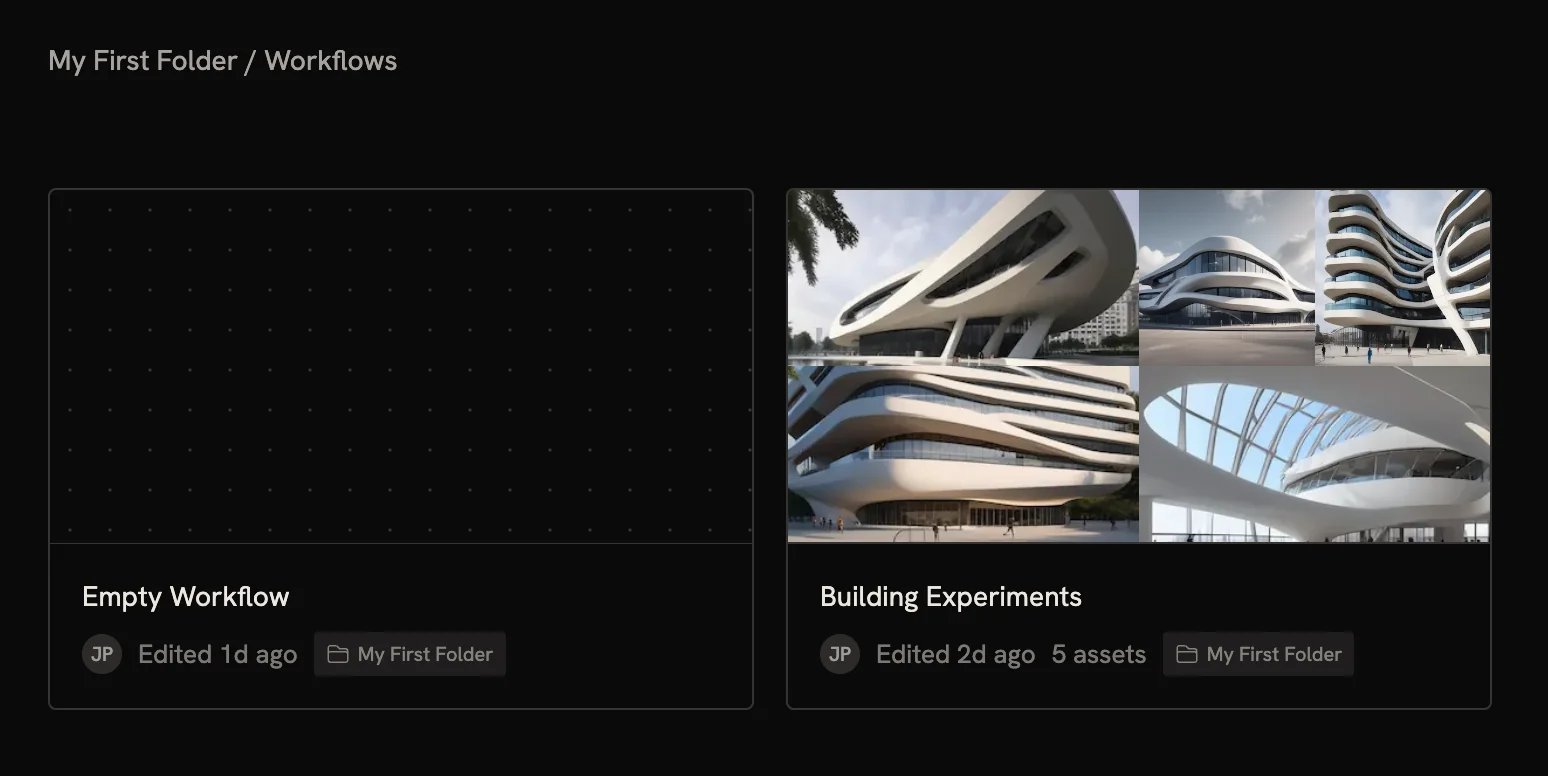
Workflows show up as a grid of cards, sorted with the most recently edited first. Each card shows a preview made from the workflow’s recent outputs, its name (editable on the card), when it was last edited, who made it, and any folder. A search box at the top finds workflows by name. Right-click any card for the common actions: rename, move to a folder, schedule it to run, download assets as a zip, or delete.Asset actions on workflow cards
Expanding a card surfaces actions on the generated assets themselves: favourite an image, bulk download a set, share to a public URL, or use a selection of images to train a custom LoRA. Easy to miss and worth knowing about.Folders
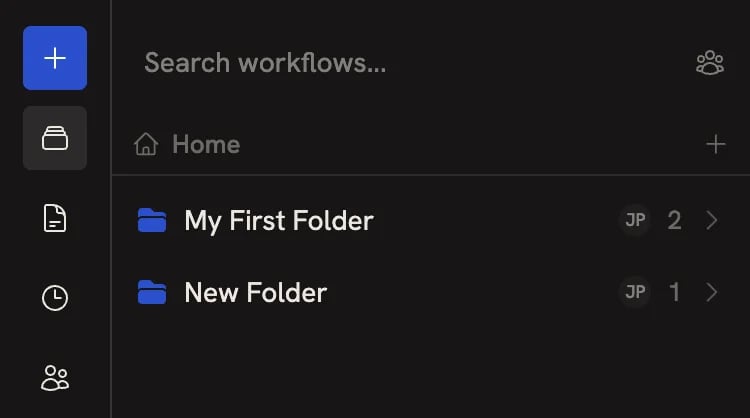
Personal vs team view

Examples
The public Examples gallery is a good place to grab a starting point or see what’s possible. Click any example to open it, then save a copy to customise without affecting the original.Next steps
- Artifacts: browse and manage published pages, presentations, and websites
- Tasks: view scheduled workflows and their run history
- Saving and Loading: how Runchats are saved, organized, and made private