

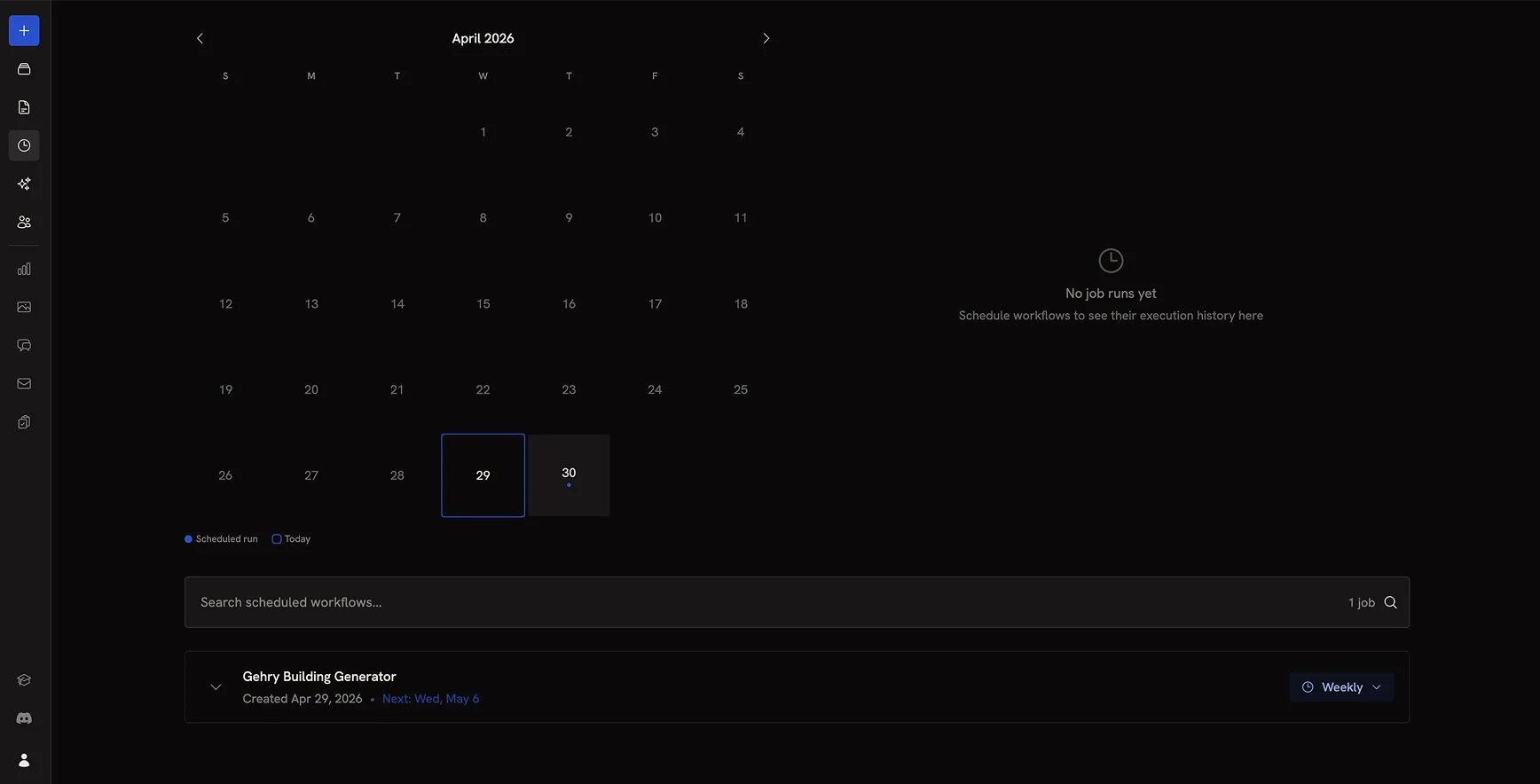
Calendar view
The calendar at the top shows when each scheduled workflow will run next. Days with scheduled runs are marked with a dot. Click a day to see which workflows are scheduled.Scheduled workflows list
Below the calendar is a search-filterable list of every workflow you’ve scheduled. Each row shows:- The workflow name and creation date
- The next scheduled run
- The current interval (Hourly, Daily, Weekly, Monthly)
- Run history with success/error status for past runs
- Logs for any failed runs
- Test Job button to run the workflow immediately, useful for verifying the schedule works without waiting for the next interval
- Interval selector to change the schedule or remove it
Run statuses
Past runs in the history list show one of two statuses:- Success: the workflow completed without error
- Error: the workflow failed. Expand the run to see the error logs.
Next steps
- Scheduling Tasks: set up a new scheduled run from the editor or dashboard
- Webhooks: trigger workflows from external events instead of on a fixed schedule
- Dashboard: the rest of the dashboard surfaces