

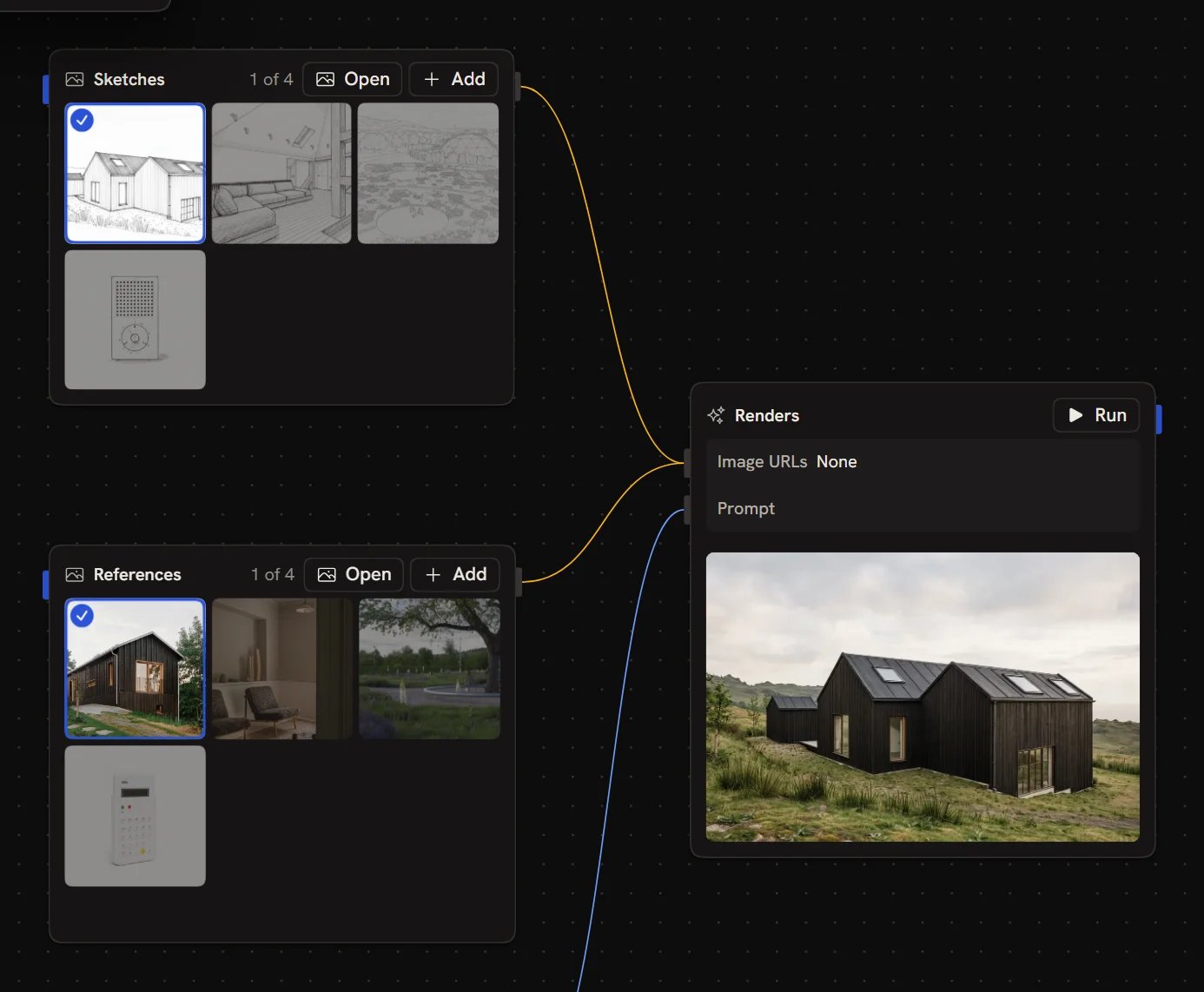
Adding images
Click Add on an Image input to upload more images, or drop image files onto the node. As soon as it holds more than one image, the node shows them as a grid with a count such as 1 of 4. To add images from elsewhere, click Open to open the collection, then:- Upload: choose files from your computer
- Paste a link: add an image from a URL
- Import from > Your assets: pick images you’ve generated or uploaded before, searchable by prompt
Choosing which images flow on
Click an image on the node to select it, and click it again to deselect it. Unselected images are dimmed.- Some images selected: only those images flow on.
- Nothing selected: every image flows on.
The collection editor
Click Open on the node (or double-click its grid) to open the collection full size.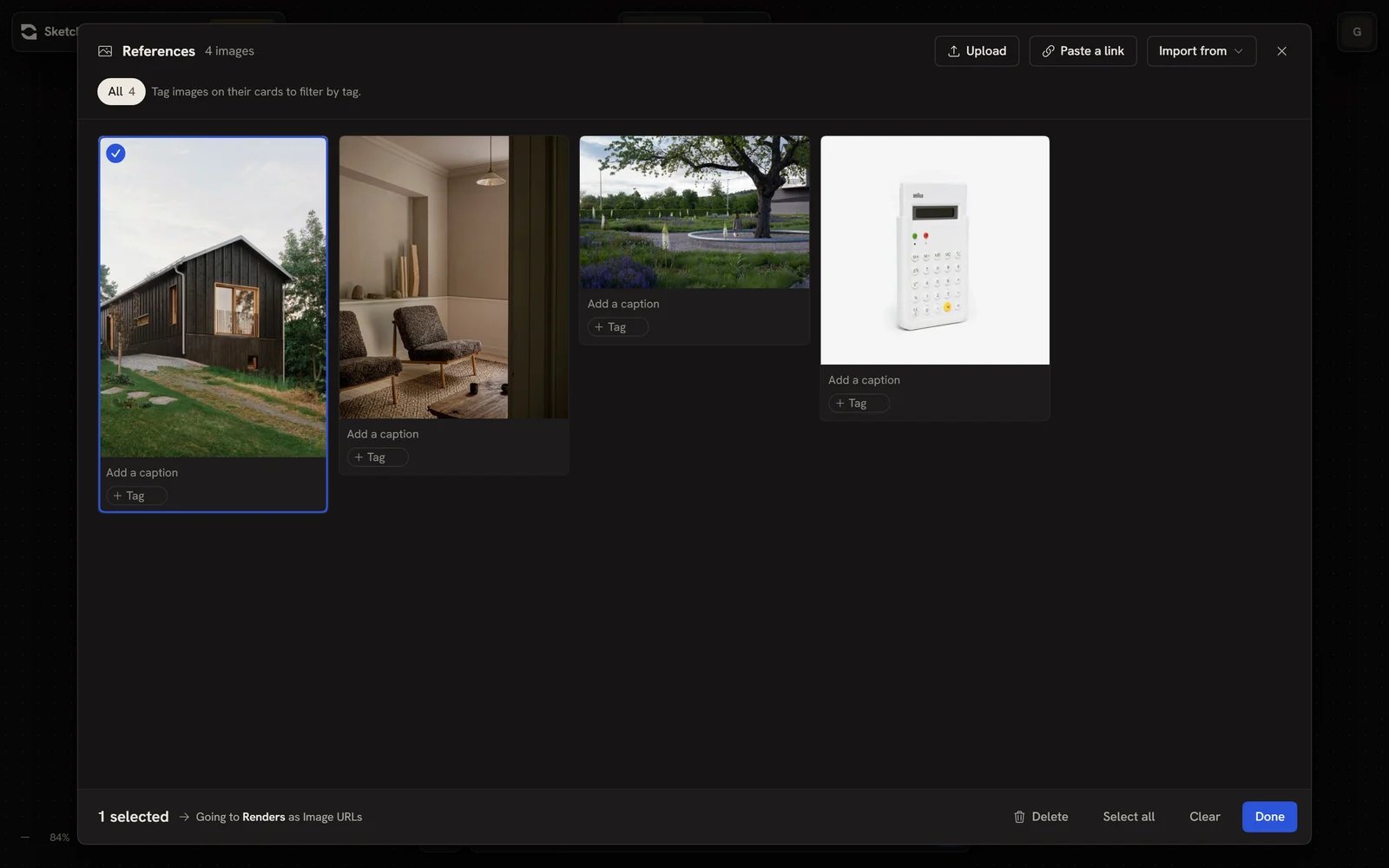
- Click images to select or deselect them, or use Select all and Clear
- Add a caption to an image
- Add a Tag to an image, then click the tag chips at the top to filter the collection by tag
- Delete the selected images
Esc to close it.
Next steps
- Image editor: mark up and edit a single image
- Data Matching: how lists of images pair up with other inputs
- File input: other file types you can bring into a workflow