

Tab, and publishing parameters.
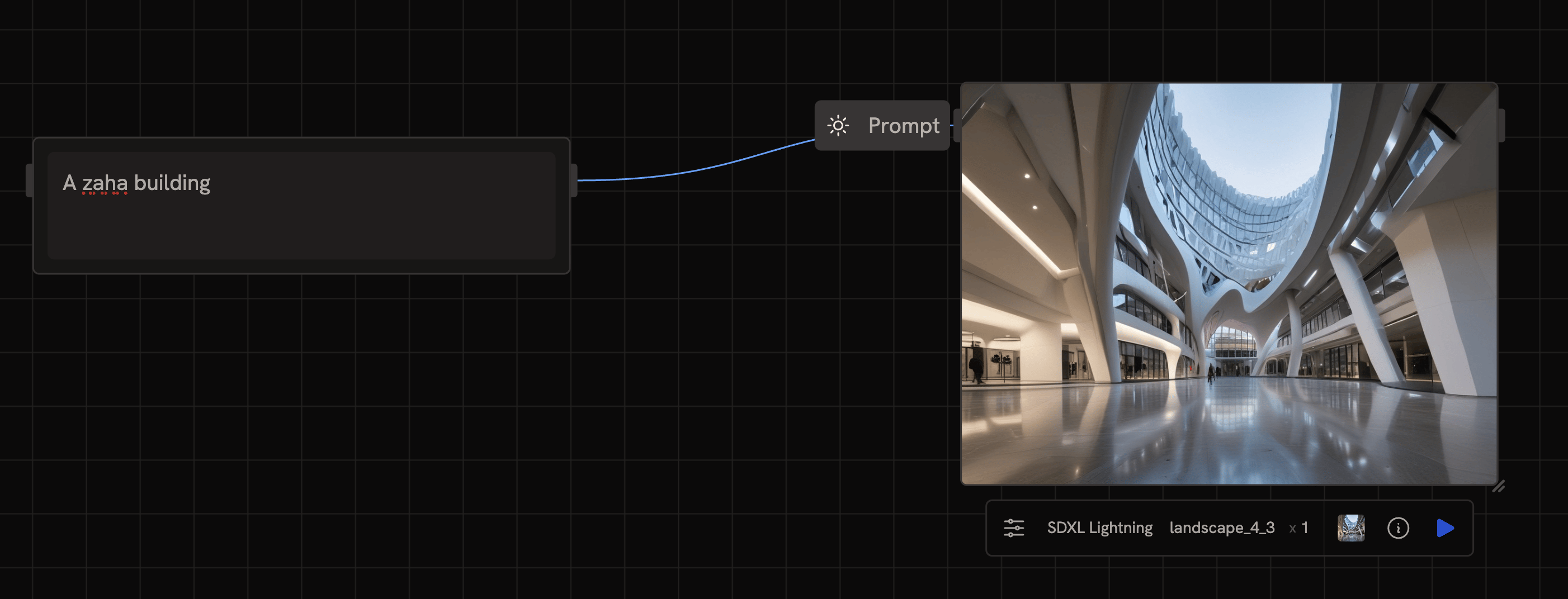
Drawing an edge
To connect two nodes, drag from an output handle on the right side of one node to an input handle on the left side of another. From then on, whenever you run the downstream node, Runchat automatically grabs the latest result from the upstream one and feeds it in. Runchat checks compatibility as you connect. If you try to plug a video into a parameter that expects text, it won’t let you, and it’ll show why.Dropping an edge on the canvas
Drag from an output and release on empty canvas to open the node menu at that spot. Pick a node or model and it’s created there, already connected to the output you dragged.Edge colours
Edges are colour-coded by the type of data flowing through them. You don’t need to memorise these, at a glance the colour tells you what kind of data is moving:
For the full list of types and how Runchat casts between them, see Data Types.
Inline references with Tab
Sometimes you don’t want to draw an edge, you want to drop a node’s output value into the middle of a prompt. Use theTab key inside any text field.
Hit Tab to open a panel listing every output from other nodes on the canvas. Pick one and it drops into your text as a tag. When you run the workflow, the tag gets replaced with the live value from the other node.
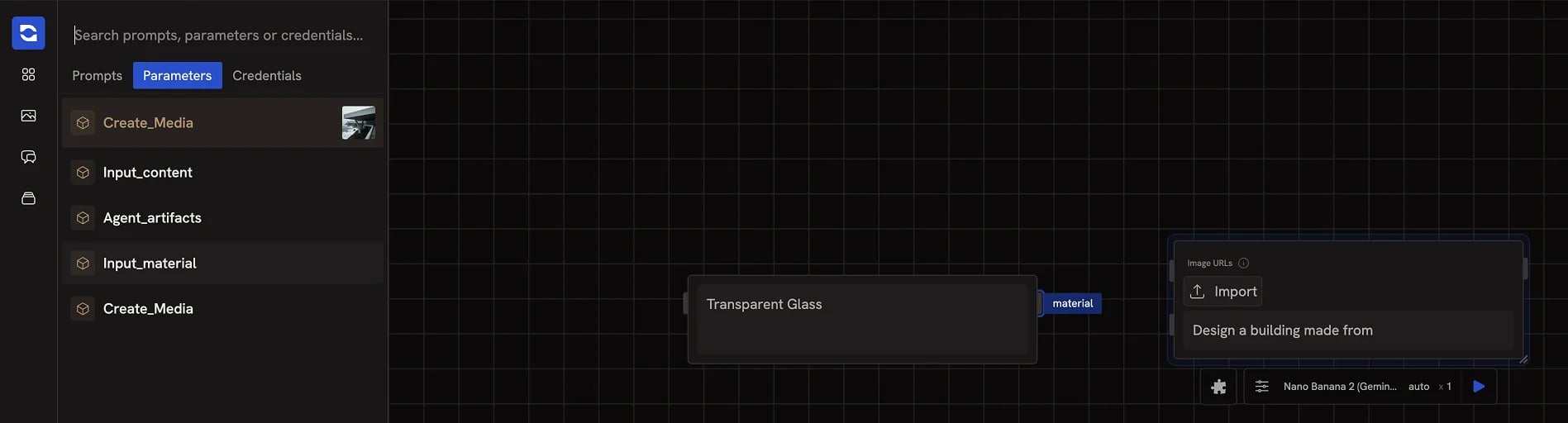
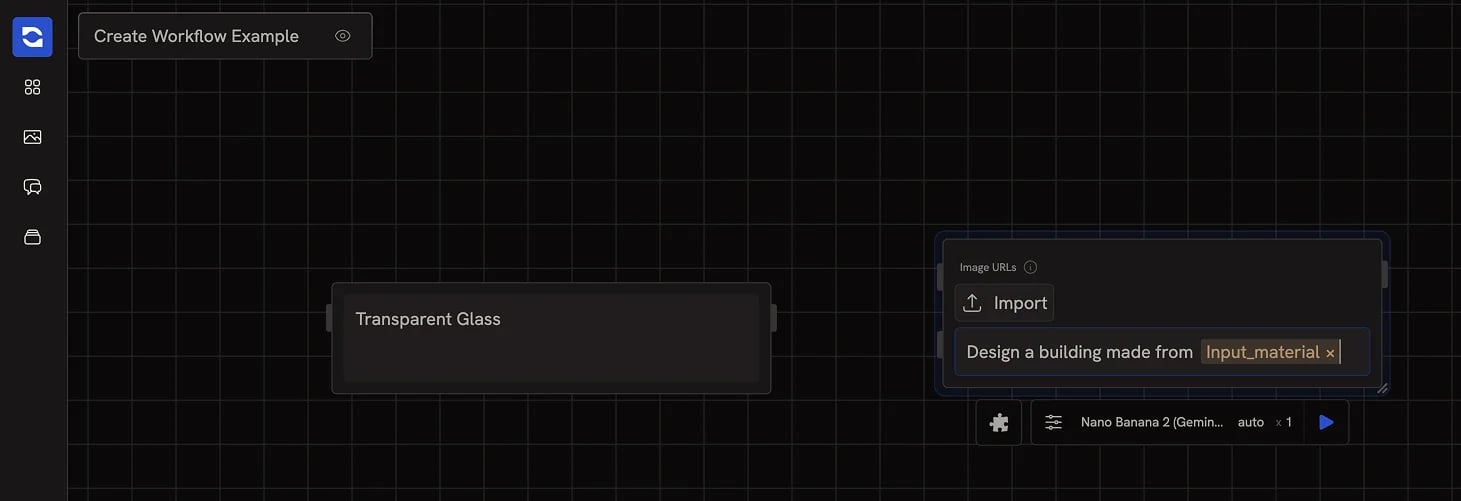
Typing
@ does the same thing, but also zooms the canvas out so you can
visually see which node you’re about to reference. Useful when you have a lot
of nodes and can’t remember what’s named what.Publishing a parameter
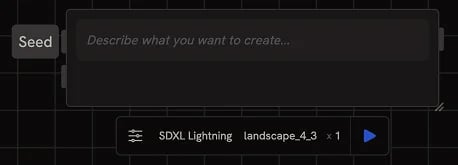
Any parameter in a node’s “All parameters” menu can be published onto the node, which turns it into an input handle you can connect to from another node.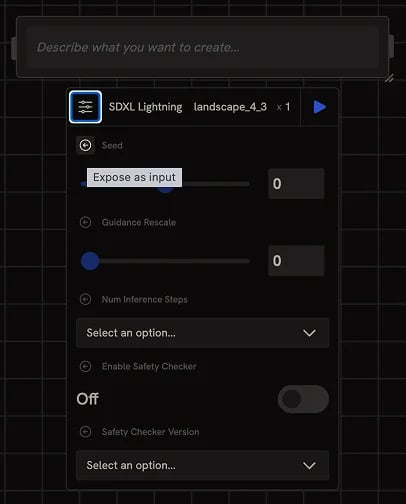
- A number input or slider
- An agent’s output
- A visitor’s input in an App that runs your workflow
When to use which
- Edges for primary data flow (the prompt, the image, the result).
- Tab references for values you want to inline into a prompt or template, they keep your canvas tidier.
- Published parameters for settings you want exposed to a downstream node, an agent, or an end user of your App.