

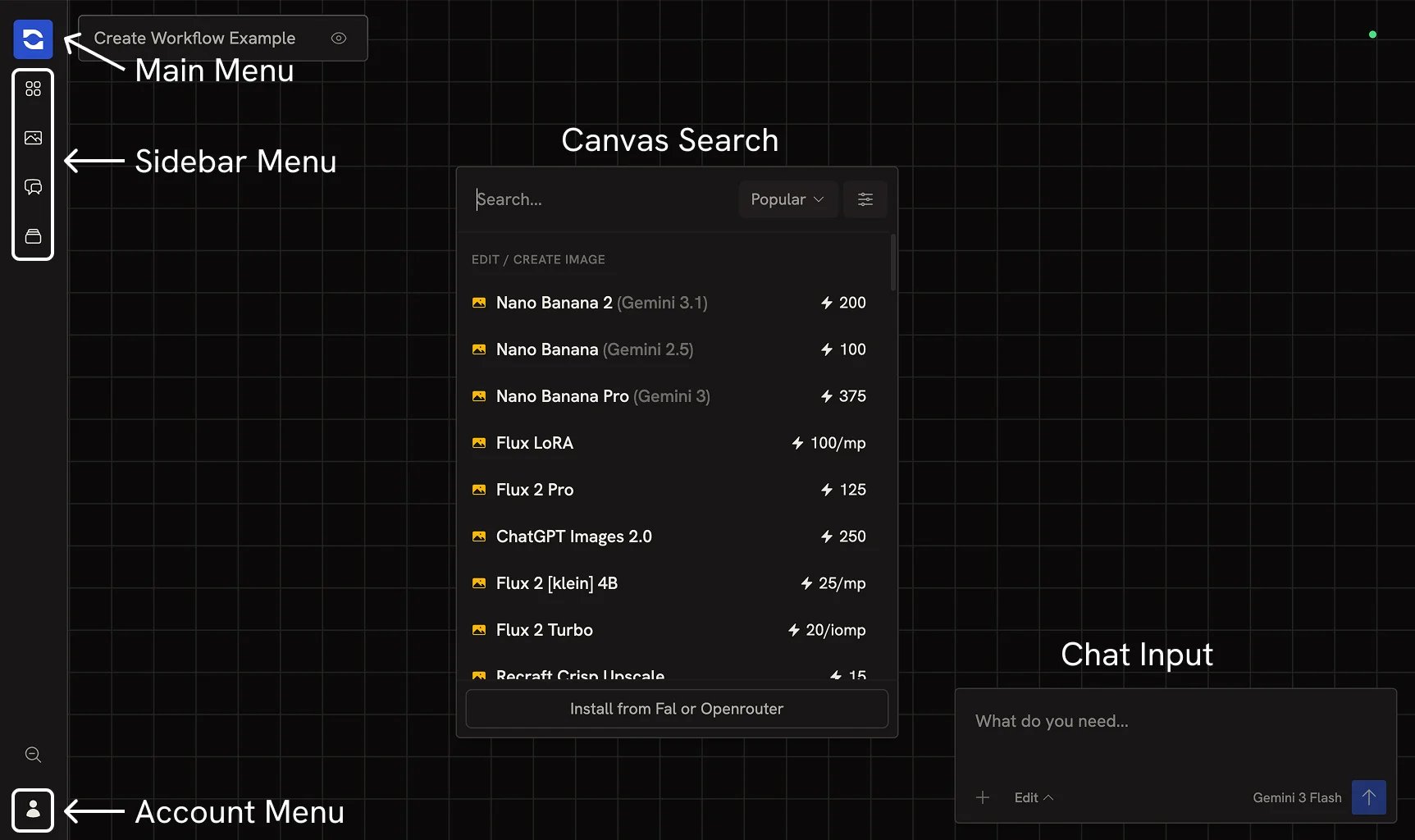
Main menu
The Runchat icon at the top of the left rail opens the main menu. From here you can create a new workflow, save a copy, toggle workflow privacy or browse save history. The menu also provides access to dashboard pages to browse workflows, published artifacts (websites and blogs), scheduled tasks and training runs. You can also find links to explore nodes published by the community, open these docs or join our discord community.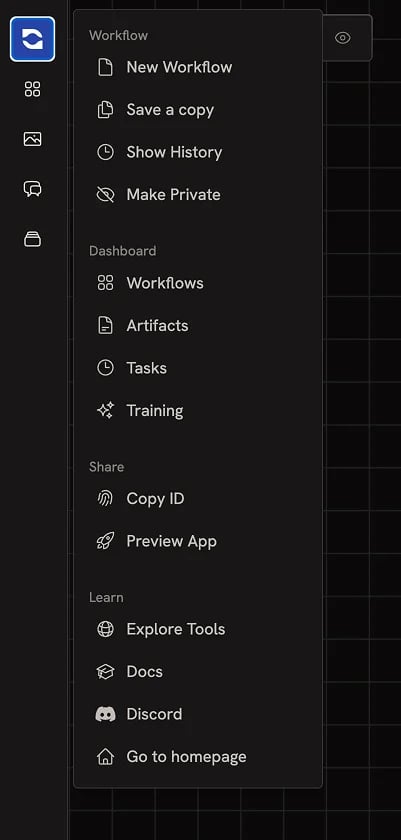
Account menu
The account button at the bottom of the left rail opens the account menu. It shows your current plan and credit balance, and links out to billing (Subscriptions & Credits), your usage breakdown, team management, linked provider accounts, secrets for Code nodes, and Runchat API keys. See the Dashboard overview for a tour of each item.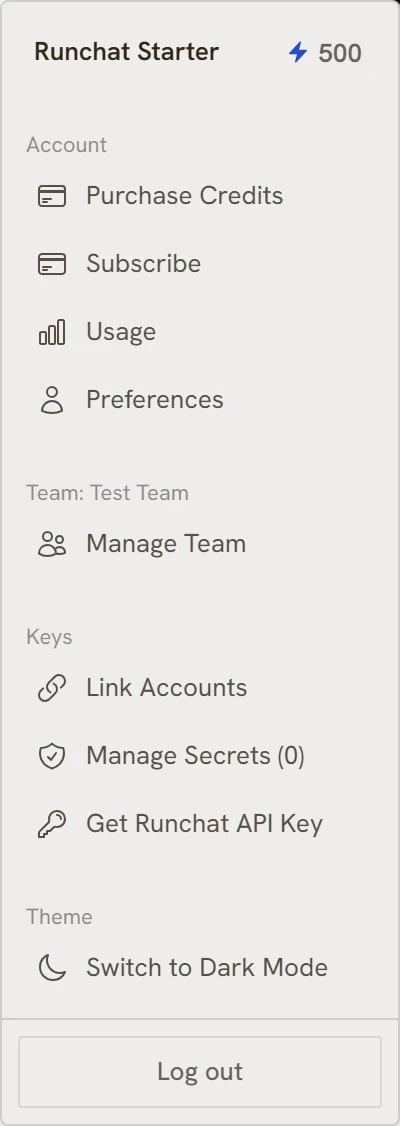
Sidebar
The sidebar on the left side of the editor has four panels:- Add Nodes, browse nodes, models, and tools to add to the canvas
- Gallery, view all media generated by this workflow or your account
- Chats, view chat history for this workflow or all workflows
- Workflows, browse and organize other workflows
Add Nodes
The Add Nodes panel is where you browse everything you can drop on the canvas: input nodes, agent and create nodes, and the full library of installed models and tools. Filter the panel between Nodes, Models and Tools at the top. You can sort by cost, type or name as well as filter visible items by tags and category. Click the Add button at the top of the Models filter to install additional models from Fal or Openrouter.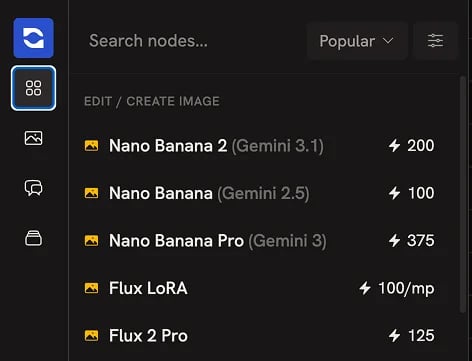
Gallery
The gallery panel shows all media generated by this workflow. You can hover an image to view the full resolution preview, and drag an image out of this panel to create a node in the workflow. You can also toggle showing media from all other workflows when needed.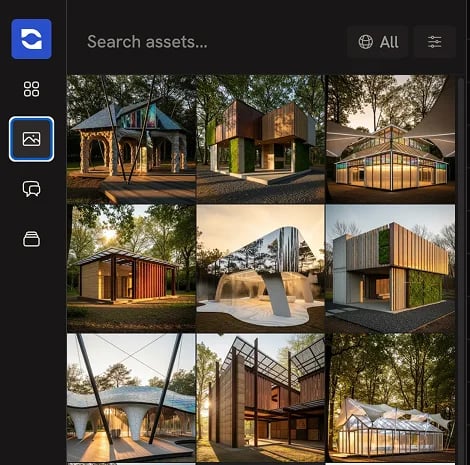
Chats
The chats panel shows all conversations from this workflow. You can start a chat directly from the chat input at the bottom of the editor. You can click on an old conversation to reload the messages and tools from that conversation.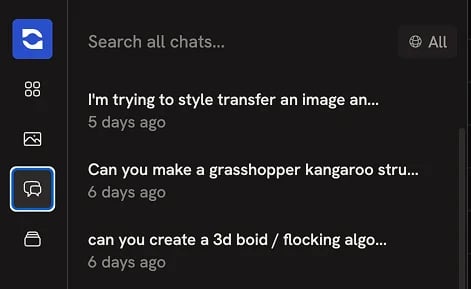
Workflows
The workflows panel shows all created workflows and folders (also called libraries). By default, all workflows and libraries created by everyone on your team will be displayed. You can click the Crowd icon in the top-right of the workflows panel to toggle between filtering to your own content and all team content. You can create new folders from the + button at the top of the folder browser, and drag and drop workflows to folders to move them. Right click on a workflow or folder to show the context menu. From here you can move workflows, delete workflows and schedule tasks.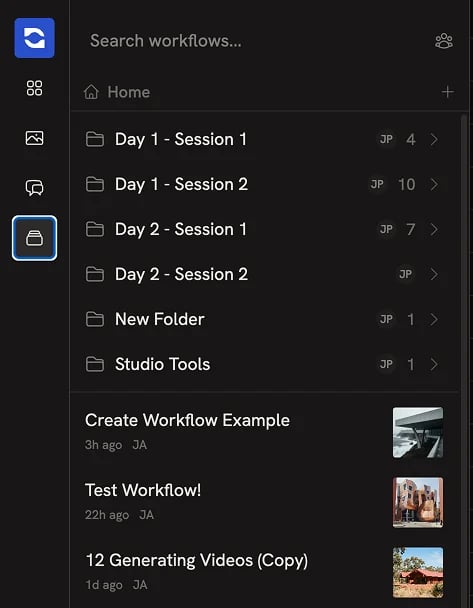
Canvas search
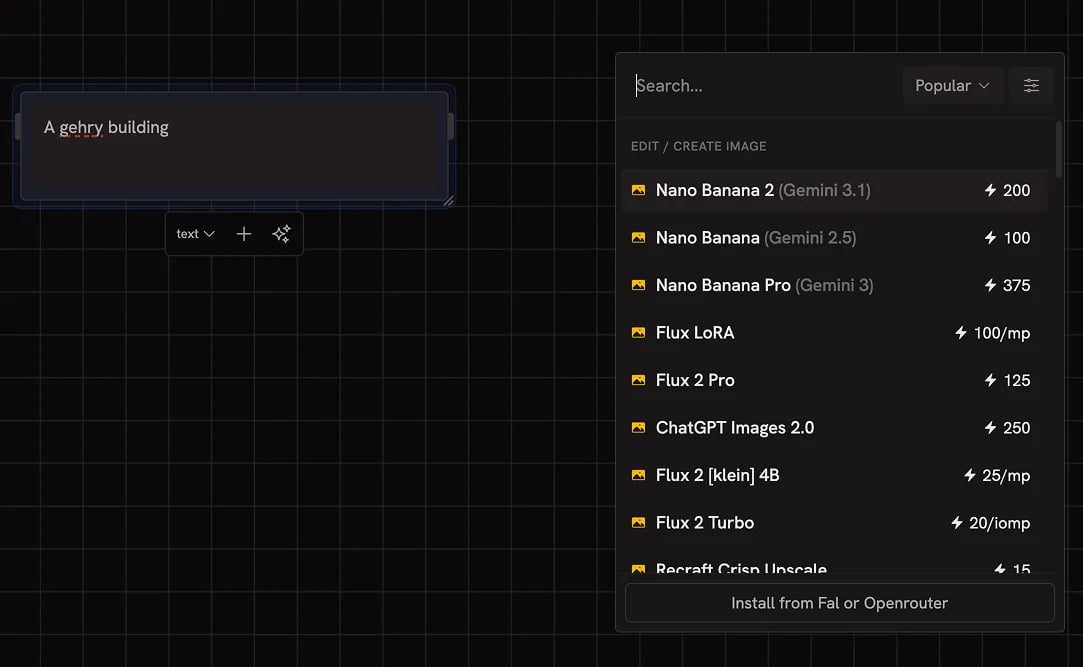
The canvas search is a floating picker for adding nodes inline without going to the sidebar.- Double click the canvas to open it at the cursor
- Drag out from a node parameter to open it filtered to compatible nodes and models
Chat input
The chat input at the bottom of the editor is where you talk to the Chat Agent. Click the model name on the input to swap the language model used by the agent. The picker reuses the Add Nodes panel filtered to text models.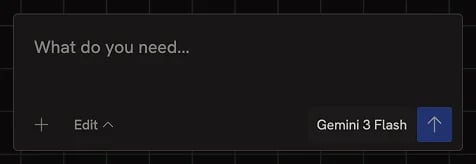
Next steps
- Connecting Nodes: wire nodes together with parameters and references
- Running and Debugging: execute nodes and inspect results