

Publishing a Tool
You configure which inputs and outputs to expose in the app preview, then click Publish. The published Tool can be dropped into other canvases as a node, called by the chat agent and the API, and run from Apps.- Open the app preview from the editor menu: Share → Publish App. You can also ask the chat agent to publish the workflow for you.
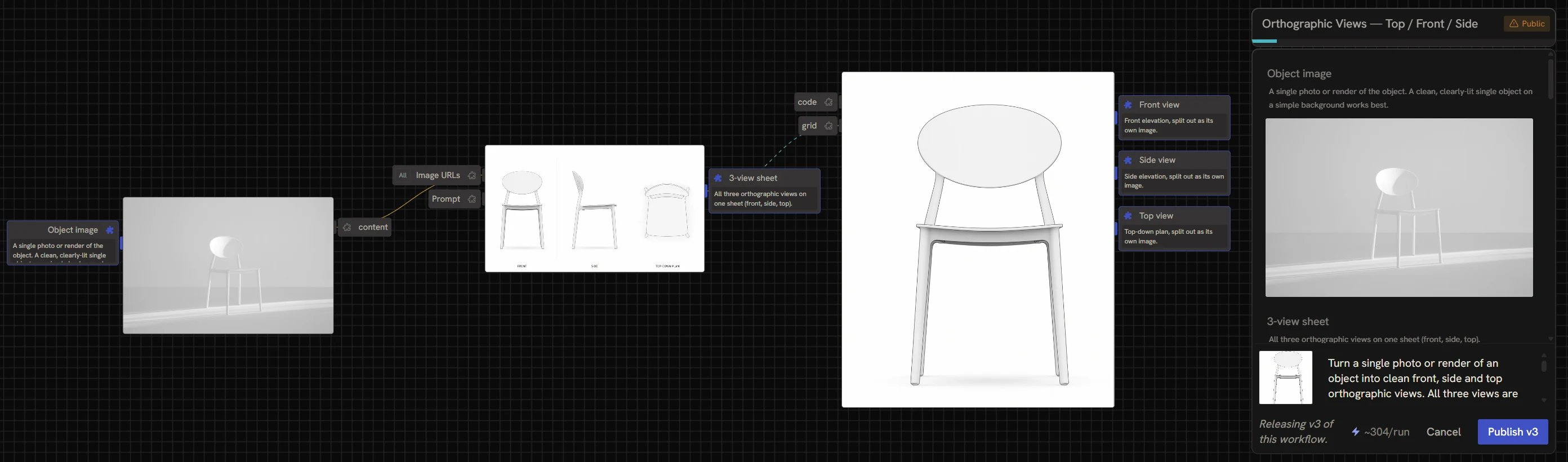
- Choose which inputs and outputs to publish by clicking the puzzle piece on the parameter handles themselves. While the panel is open, every input and output handle on the canvas gets one:
- Click an empty puzzle piece (Add to app) to expose that parameter. It fills in and the handle is outlined in the accent colour, and the parameter appears in the panel
- Click a filled puzzle piece (Remove from app) to take it back off, or hover the parameter in the panel and click the X
- The panel lists everything you’ve exposed — inputs and outputs together, in one column, in the order a user of the Tool will see them
- Set a thumbnail and description in the panel footer, where you’ll also see a credit-per-run estimate, then click Publish at the bottom-right. Subsequent publishes increment the version (Publish v2, v3, and so on).
Adding parameter descriptions
Double-click a parameter’s label on the canvas handle to rename it, and click the label in the app preview (or on the canvas) to expand and add a description. Descriptions are essential when the Tool will be used by an agent, the agent reads them to decide what to pass in. They’re also useful for your future self: you will forget what your inputs do.Adding the Tool to a Library
To make the Tool show up in the node picker and reusable across workflows, add it to a library.Published Tools are saved as workflows. You can browse and organise them from the Workflows panel just like any other Runchat.
Writing a good description
The description on a Tool is what the agent reads when deciding whether to use it. Treat it like you’re describing the Tool to a smart assistant who has no context. Answer:- What does it take in?
- What does it give back?
- When would you reach for it?
Custom UI nodes (Client nodes)
When you publish a workflow as a Tool, the Tool’s UI is determined by the published parameters. If you need full control over the input or output UI, you can build a Client node using arbitrary React code. Client nodes are useful for interactions that need to happen in the browser rather than on the server, for example:- Painting masks on an image
- Compositing multiple images
- Editing audio or trimming video
- Custom drawing or sketching tools
- Interactive parameter pickers
Next steps
- Tools, Apps, and Libraries: how Tools fit alongside Apps and Libraries
- Agent Tools: make your Tool callable by the chat agent
- Apps: give your published Tools a custom web front-end