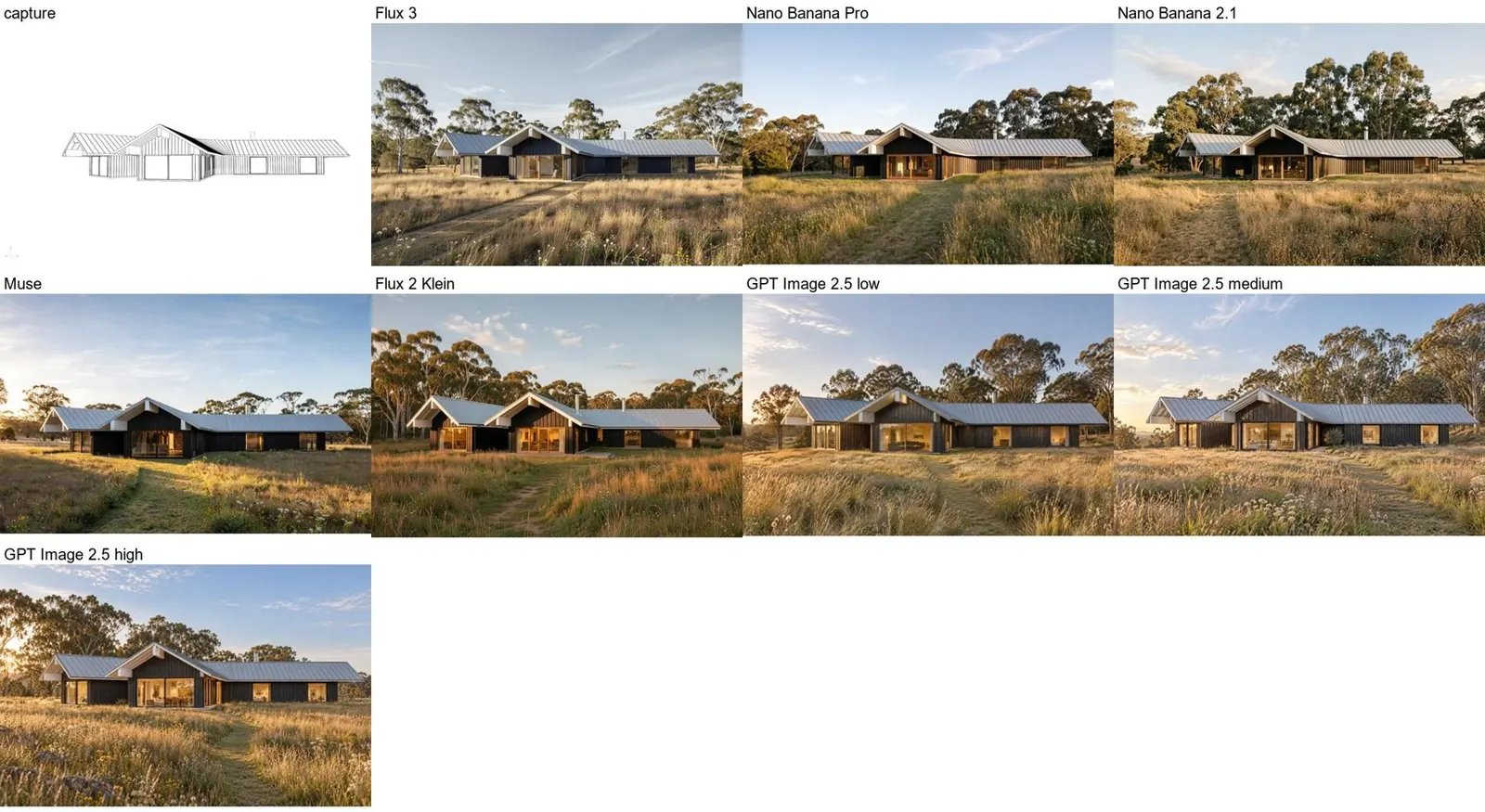
Wire one capture and one prompt into several models at once to see which suits your project, and sweep a parameter to see what the extra cost buys.
The same house rendered by Flux 3, Nano Banana Pro, Nano Banana 2.1, Muse, Flux 2 Klein and GPT Image 2.5 at three quality settings

Open the example workflow

Make a copy of this workflow in your account to try it with your own images.

How it works

  1. Rhino capture and Prompt feed every model.
  2. Five image models run side by side: Flux 3, Nano Banana Pro, Nano Banana 2.1, Muse and Flux 2 Klein.
  3. GPT Image 2.5 (quality sweep) takes its quality from a list (low, medium, high) and renders once per value.

Tips

  • In this run Flux 3 kept the capture’s framing exactly, while the others pulled the camera in. Higher GPT quality added detail and warmer light.
  • See Choosing a model.

Use your own model

The image input holds a capture from our demo Rhino model, so the workflow runs as it is. To use your own model, open Rhino with the Runchat plugin signed in, set up your view, and run the node marked (optional) Rhino. Then drag its screenshot into the image input. The scripts use only the standard display modes and match layers or materials by the keywords in their inputs, so they work on any model.