

How it works
- Build and publish a workflow in runchat.com with the inputs and outputs you want exposed.
- Copy the workflow ID from the URL.
- Drop a Runchat node onto the Grasshopper canvas. It starts with a single
IDparameter. - Right-click the
IDparameter, set the workflow ID, and the node rebuilds with matching inputs and outputs. - Wire Grasshopper data into the inputs and run. Results come back asynchronously, so Grasshopper stays responsive while the workflow runs.
Input and Output Parameters
The parameters on the node match what you published in Runchat. If you change what is published (add a new input, rename an output), use Reset Runchat from the right-click menu to reload the schema. All values are cast to strings. If your workflow returns a JSON object, use theJSwan plugin to deserialize it and access individual properties.
Right-click menu
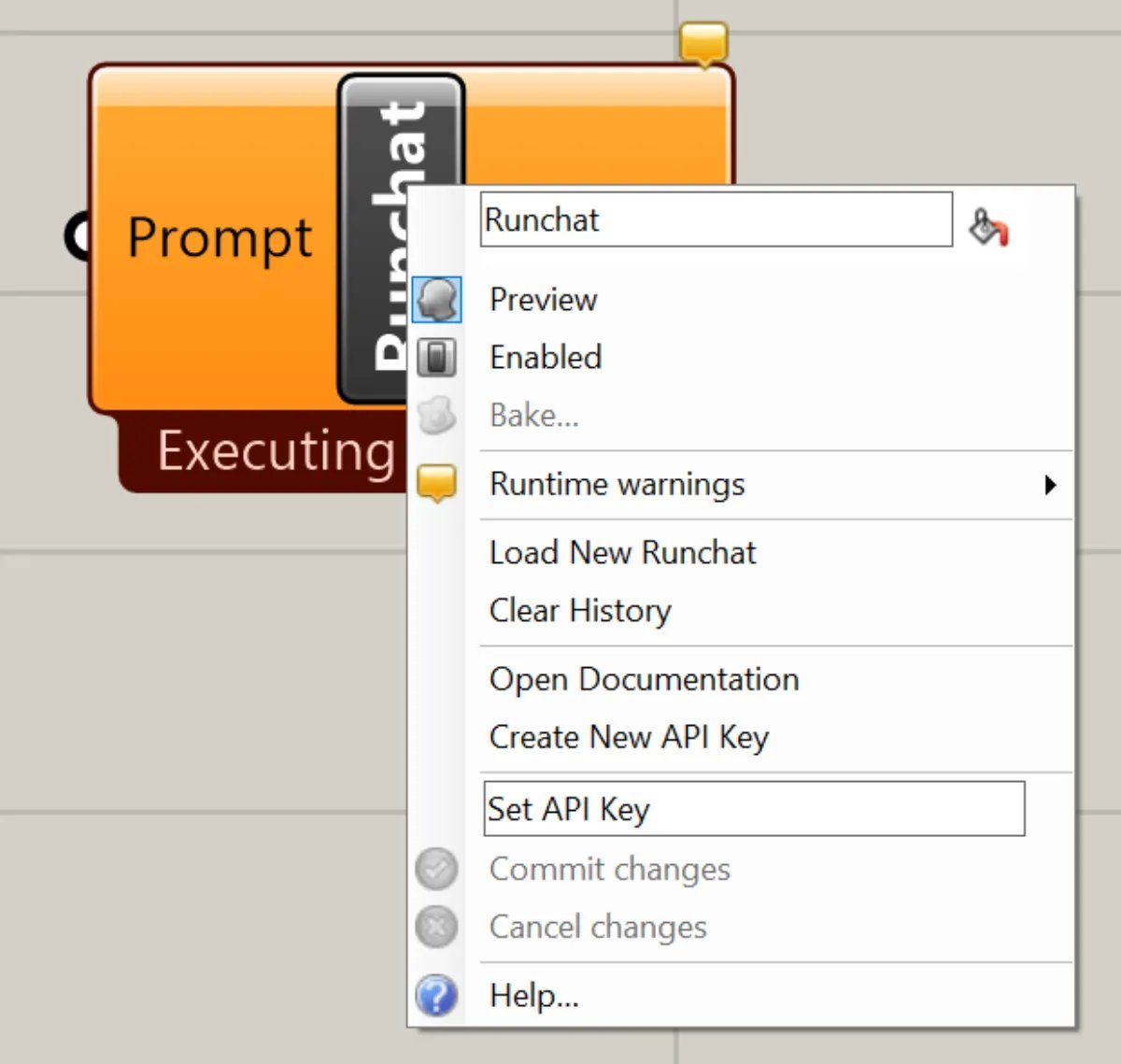
Load New Runchat Resets the component back to its initial state with a singleID parameter so you can load a different workflow.
Open Artifacts
Opens the artifacts view to browse all images generated by this workflow.
Reset Runchat
Re-loads the Runchat schema (input and output parameters) for this component. Use this whenever you add or remove published parameters in your workflow on runchat.com.
After resetting you may need to re-connect inputs and outputs.
Reset also clears any state on the workflow instance. By default, the first run creates a new instance (copy) of your Runchat and every subsequent run reuses it, so the workflow can reference previous state (for example, building chat history with a Loop node). Reset to start fresh.
Open Documentation
Launches this site.
Get an API Key
Opens runchat.com/signup/grasshopper to log in or sign up, then redirects to the dashboard to create a new key.
Set API Key
Paste your API key and click Commit Changes. The key is saved as a local environment variable, so you only need to set it once per machine and it is never written to the Grasshopper file.
Next steps
- Runchat for Grasshopper: plugin setup and the chat agent
- Components → Utilities: screenshot, GLB import, projection, viewport preview helpers
- Grasshopper Examples: downloadable definitions