

Training custom models requires a Hobby or Pro subscription
When to reach for a LoRA
Reference images work well for photographic qualities and broad aesthetics. They average out when you try to capture a really specific subject or a distinctive visual language: an artist’s work, your own illustration style, a unique architectural vocabulary. A LoRA is a small adapter trained on your images. Once trained, every generation is biased toward that look without having to prompt for it. It is the difference between describing a style and showing the model enough examples that it learns the style itself. Runchat trains two kinds of LoRA:- Style / subject LoRAs learn a look (or a specific subject) from a flat set of images. What the LoRA learns is decided by your images and captions: consistent style across varied subjects teaches the style; one subject across varied contexts teaches the subject.
- Edit LoRAs learn a transformation from before/after image pairs — for example “flat CGI render in → professional photograph out”. Because the pairs also demonstrate what must not change, edit LoRAs preserve geometry and content far better than prompting alone. Reach for one whenever the task is “improve/convert X while keeping it X”.
Available trainers
The Flux 2 trainers produce LoRAs for FLUX.2 [dev] — the strongest realism, especially on entourage like trees and people. The Klein trainers produce LoRAs for FLUX.2 [klein] 9B — much cheaper to train and to run (the distilled Klein models generate in 4 steps), which makes them ideal for iterating on a dataset before committing to a Flux 2 run. The exact cost is always shown in the training dialog before you confirm.
Training a LoRA
- Open a workflow on the Runchat Dashboard that has the images you want to train on. (Generate or upload them first if you don’t have them yet.)
- Hover over each image you want to include and click the checkbox in the corner to select it. Pick 10 to 30 images that share one consistent look or one consistent subject — consistency is what makes a LoRA work, so don’t mix looks in a single training run.
- With images selected, click Train LoRA in the gallery selection toolbar at the top of the page.
- Configure the training options in the dialog and click Start Training.
0001_start / 0001_end: the start image is the input (e.g. a raw render) and the end image is the target output (e.g. the finished photograph). The dialog names files for you in this pattern and validates the pairs before submitting.
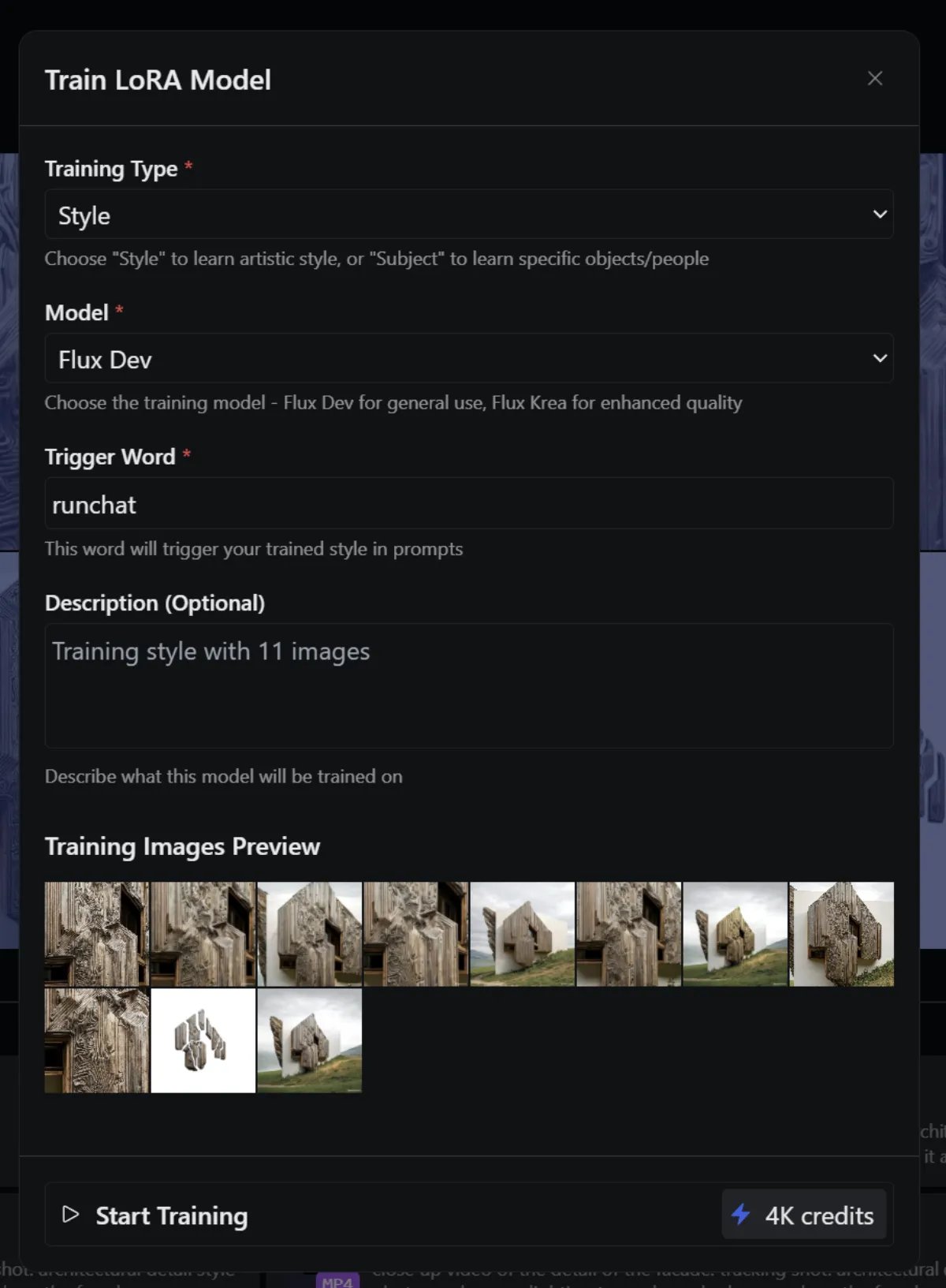
Training configuration
- Training endpoint: which trainer to use (see the table above). Edit trainers expect paired images; style trainers take a flat set.
- Trigger word: a phrase that activates the LoRA in your prompts. The convention is an invented token plus “style” — e.g.
GLDNHR style— so the LoRA doesn’t collide with words the model already knows. For edit trainers the trigger word also serves as the default instruction for pairs without their own caption. - Description: a label so you can find this LoRA later in your library
Training with an agent (MCP)
The entire training loop can be run by an agent connected to the Runchat MCP — this is the most powerful way to build edit LoRAs, because the agent can synthesize the before/after pairs for you with a canvas workflow:list_training_runslists your runs and the available trainers with costsstart_trainingstarts a run from a hosted dataset zip- The
edit-lora-trainingskill teaches the agent the full recipe: building and QA-ing a paired dataset in a workflow, captioning it, starting the run, and testing the trained LoRA on the canvas with scale and prompt sweeps
Checking on a training run
Click Start Training to zip the images and submit the job. Track its status on the Training page (or vialist_training_runs from an agent). Runs typically take 20–40 minutes depending on the trainer.
Using a trained LoRA
Once training completes:- Refresh your browser to reload your profile so the new LoRA appears in your library
- In a workflow, add a Create node and switch its model to a LoRA-capable model that matches the trainer: FLUX 2 Lora Edit for Flux 2 trainings, or the Klein 9B LoRA models for Klein trainings
- In the node’s settings bar, click the LoRA dropdown (defaults to No LoRA) and pick your trained model
- Include your trigger word in the prompt — for best results, prompt with the same phrasing you used in the training captions
- Run the node, then tune the LoRA scale: 0.6–0.8 usually applies the style selectively; higher values push the whole image into the trained look
Next steps
- Train a custom LoRA: a worked example with reference images and tuning tips
- Models: how to install and use generative models
- Credits: full cost breakdown across model types