

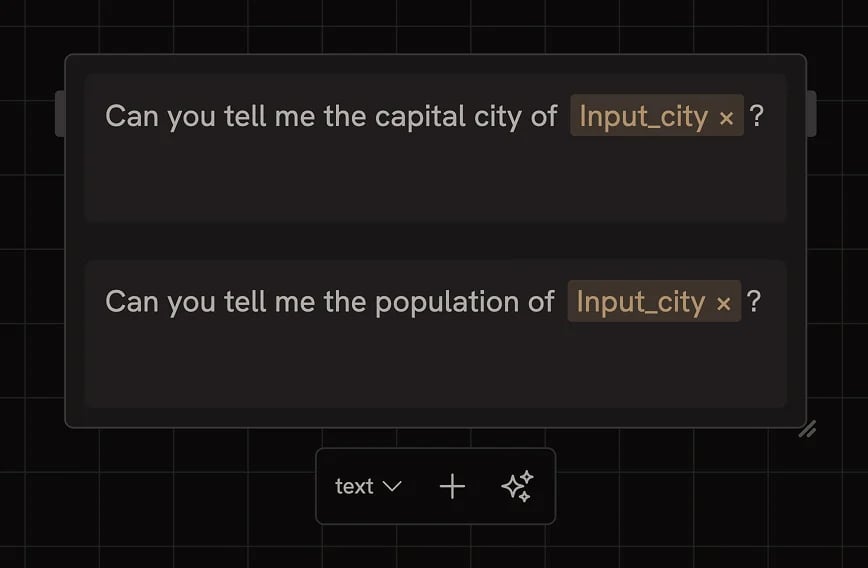
Adding multiple values
Click the + button in the settings bar to add another text item, turning the node into a list. Lists are how you fan out a workflow over multiple values: pair a list of 5 prompts with a Create node and you get 5 results in one run. See Data Matching for how lists are handled across multiple inputs.Generating a list
Ask the chat agent to fill a Text node for you. For example, select the node and ask for5 modernist architects, and the agent writes the five items into the node as a list. This is useful for seeding a workflow with example data, brainstorming options, or generating test inputs without typing each one.
Driving the text from another node
Connecting any output to the Text node casts it to a string and displays it in the field. The Text node will re-cast and re-display every time the upstream node runs.Inline references
Inside any text field you can pressTab (or @) to insert a reference to another node’s output. Useful for building template strings where one part of the prompt comes from a Text Input, an Agent, or a Code node. See Data Referencing.
You can also reference credentials the same way when constructing API calls.
Next steps
- Data Matching: control how lists fan out across runs
- Data Referencing: inline references and template strings
- Agent node: use generated text as prompts